Creare un nuovo effetto di luce
Il programma offre una ricca collezione di effetti di luce pronti all'uso che possono essere applicati nella loro versione iniziale o possono essere modificati a piacimento. Utilizzando uno di questi preset è possibile creare e salvare un nuovo effetto esclusivo.
Ogni effetto di luce è costituito da elementi semplici. Per crearne uno si devono combinare una serie di elementi e regolare la loro posizione ed i parametri.
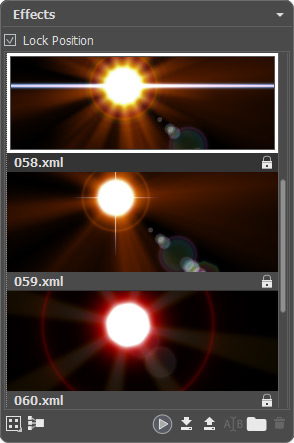
Pannello Effetti
Seguire le istruzioni per creare un effetto di luce:
-
Passaggio 1. Quando l'immagine viene caricata nel programma, l'ultimo effetto usato viene visualizzato nella Finestra immagine.
Per aggiungere un altro effetto all'immagine sceglierlo nel pannello Effetti e fare doppio clic su di esso oppure usare l'icona
 nella parte inferiore del pannello.
È possibile personalizzare la visualizzazione degli effetti nel pannello: fare clic su
 e scegliere tra le opzioni (icone piccole o grandi).
-
Passaggio 2. Nel pannello Elementi modificare l'elenco degli elementi che compongono l'effetto di luce.
Si possono aggiungere nuovi elementi, eliminarli, nasconderli, mostrarli o spostarli in un'altra posizione.
- Passaggio 3. Regolare i parametri per gli elementi selezionati nel pannello Proprietà elemento. Tutte le modifiche vengono visualizzate in tempo reale.
-
Passaggio 4. Regolare l'intero effetto utilizzando lo strumento
 e Parametri effetto.
-
Passaggio 5. È possibile salvare il nuovo effetto di luce nella lista Effetti per poterlo utilizzarlo in futuro. L'effetto salvato può essere applicato nella sua forma originale o usato come base per la generazione di nuovi effetti.
Fare clic su
 per salvare il preset. Nella finestra di dialogo specificare il gruppo, il nome e il percorso dove salvare l'effetto.
Nota: Non è possibile sovrascrivere gli effetti di luce AKVIS - sono bloccati
 .
.
Per importare un effetto nel programma, fare clic su  e selezionare un file xml. L'effetto verrà aggiunto al gruppo corrente.
Per creare un nuovo gruppo, fare clic su  . È possibile trascinare un effetto in un altro gruppo.
Tutti i comandi sono disponibili sul pannello anche con il tasto destro del mouse.
LightShop v. 8.1 - 10-giorni di prova gratuita
