Effets de lumière - Éléments et leurs paramètres
Tout effet de lumière est un ensemble d'éléments qui ont chacun leurs propres paramètres. Vous pouvez modifier la structure de l'effet dans le panneau Eléments qui est visible dans le mode d'espace de travail Avancé.
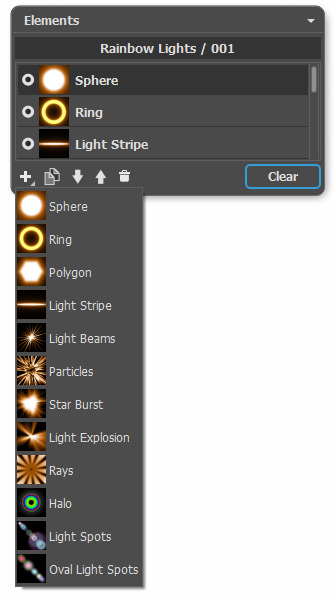
Vous pouvez utiliser ces boutons au bas du panneau Eléments (toutes les commandes sont également disponibles par un clic droit dans le panneau):
-
Pour ajouter un nouvel élément, cliquez sur le bouton
 et choisissez un type d'élément dans la liste déroulante. Le nouvel élément sera ajouté au-dessus de l'élément courant dans le panneau Eléments et affiché dans la Fenêtre d'image.
L'élément sélectionné (modifiable) est surligné en gris dans la liste des éléments ajoutés. Ses paramètres sont disponibles dans le panneau Propriétés de l'élément.
-
Pour dupliquer l'élément, cliquez sur
 . La copie de l'élément sera ajoutée au-dessus de l'élément courant.
-
Utilisez les boutons
 et
et  pour changer la position de l'élément dans la liste (vers le haut ou vers le bas). La position de la liste précise l'état de l'élément dans l'effet: l'élément supérieur est plus proche à l'avant-plan, l'élément inférieur - à l'arrière-plan.
L'ordre des éléments peut également être modifiée en les faisant glisser vers le haut ou vers le bas.
-
Utilisez l'indicateur de visibilité
 /
/ pour cacher/afficher l'élément dans la Fenêtre d'image. Les paramètres pour les éléments cachés sont désactivés. Pour changer le mode de visibilité, cliquez sur l'indicateur.
-
Pour supprimer l'élément sélectionné, il suffit de cliquer sur le bouton
 . Vous pouvez également faire glisser l'élément vers l'icône ou utiliser la touche Supprimer.
- Utilisez le bouton Effacer pour supprimer tous les éléments de la liste.
Réglez les paramètres de l'élément sélectionné dans le panneau Propriétés de l'élément. Ces paramètres sont les mêmes pour la plupart des éléments:
Position et taille. Ce groupe contient les paramètres pour ajuster l'emplacement et la taille de l'élément de lumière.
-
Déplacement (-200..200). Le paramètre modifie la position de l'élément le long de la ligne droite qui s'affiche lorsque l'outil
 est actif.
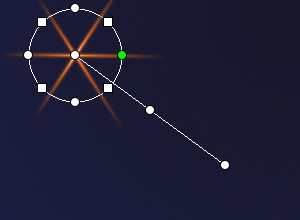
Déplacement = 100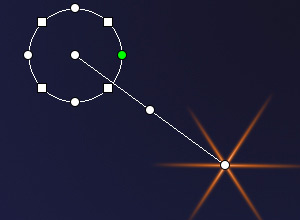
Déplacement = -100 -
Échelle (1-1000). Le paramètre change la taille de l'élément.

Échelle = 50
Échelle = 100 -
Rotation (0-359). Le paramètre tourne l'élément selon un angle choisi.
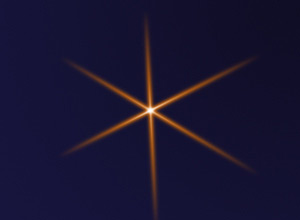
Rotation = 0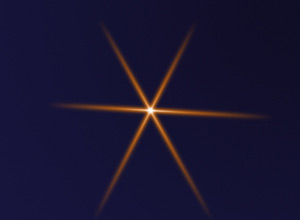
Rotation = 90
Couleur. Avec ce groupe de paramètres, vous pouvez changer la couleur et la transparence de l'élément sélectionné, ainsi que le mode de fusion avec les éléments sous-jacents.
-
Opacité (1-100). Le paramètre modifie l'opacité de l'élément et en conséquence permet de révéler les éléments sous-jacents et l'image d'arrière-plan. Plus la valeur est faible, plus l'élément sera transparent.

Opacité = 25
Opacité = 75 -
Mode de fusion. Utilisez le menu déroulant pour définir comment l'élément se combinera avec les éléments sous-jacents. Le mode par défaut pour les éléments est Normal. En savoir plus sur les modes de fusion.
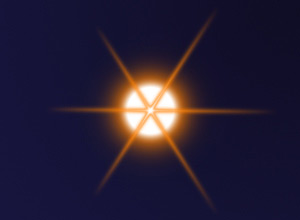
Mode de fusion: Normal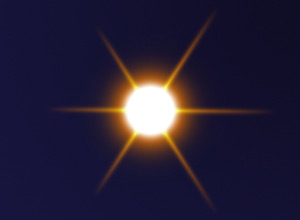
Mode de fusion: Addition -
Luminosité (1-200). Le paramètre définit l'intensité de la lueur. Les valeurs faibles produisent l'effet de lumière douce. L'augmentation de la valeur augmente la luminosité de la lueur.

Luminosité = 50
Luminosité = 150 -
Couleur. Vous pouvez spécifier deux couleurs (Lueur et Halo) pour chaque élément. Par défaut, les plaques de couleur sont vides, et le logiciel utilise les couleurs sélectionnées dans le panneau Paramètres de l'effet.
Pour appeler la boîte de dialogue Sélectionner une couleur, il suffit de double cliquer sur la plaque de couleur. Pour choisir une couleur sur l'image ou sur l'effet de lumière appliqué, faites un clic gauche sur la plaque, et le curseur se transformera en pipette. Pour vider la plaque, faites un clic droit sur celle-ci.

Lueur = blanc
Halo = orange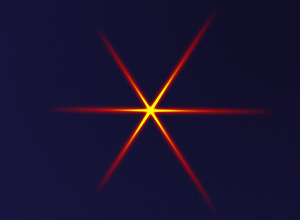
Lueur = jaune
Halo = rouge
Paramètres spéciaux. En plus des paramètres mentionnés ci-dessus, chaque élément a un groupe de paramètres spéciaux. En savoir plus sur ces paramètres dans les pages décrivant les éléments.
LightShop v. 8.1 - 10 jours d'essai
