Espace de travail
AKVIS Enhancer est disponible en deux versions - comme une application autonome (standalone) et comme un module externe (plug-in).
Standalone est un logiciel indépendant ; vous pouvez l'exécuter de la manière habituelle.
Plugin est un module complémentaire pour un logiciel de traitement d'image, par exemple pour Photoshop et AliveColors. Pour démarrer le plugin, il faut le sélectionner à partir de la liste des filtres de votre logiciel de traitement d'image.
L'espace de travail de AKVIS Enhancer a l'aspect suivant :
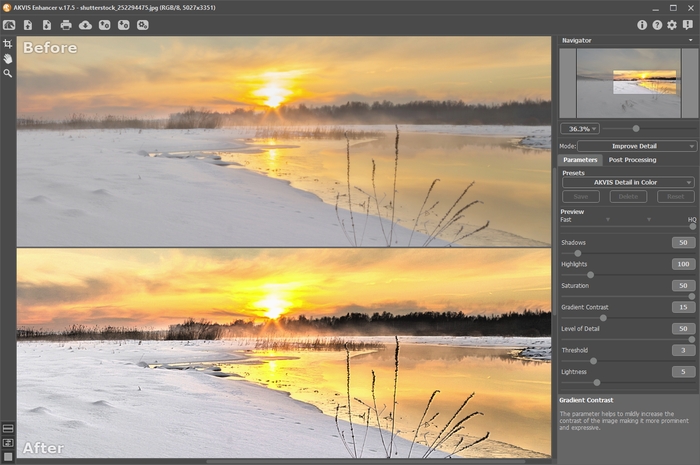
L'espace de travail de AKVIS Enhancer, l'onglet Après
La Fenêtre d'image avec les onglets Avant et Après prend la plupart de la fenêtre de AKVIS Enhancer. L'image originale se trouve dans la fenêtre Avant, pendant que l'image traitée est affichée dans l'onglet Après. Vous pouvez basculer entre les onglets en cliquant sur un signet avec le bouton gauche de la souris.
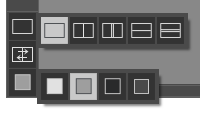
Vous pouvez ajuster les Modes d'affichage de la Fenêtre d'image et des onglets Avant et Après dans la partie inférieure du panneau gauche.
Dans la partie supérieure de la fenêtre, on voit le Panneau de configuration avec les contrôles suivants:
- Le bouton
 permet d'ouvrir la Page d'accueil de AKVIS Enhancer.
- Le bouton
 (seulement dans l'application autonome) permet d'ouvrir une image pour le traitement. Les touches de raccourci pour la commande sont Ctrl+O sous Windows, ⌘+O sous Mac.
Faites un clic droit sur ce bouton pour ouvrir la liste des derniers fichiers utilisés. Vous pouvez modifier le nombre des derniers fichiers utilisés dans les Préférences du logiciel.
Il est également possible de faire glisser et déposer les images dans l'espace de travail du logiciel.
- Le bouton
 (seulement dans l'application autonome) permet de sauvegarder l'image sur un disque. Les touches de raccourci pour la commande sont Ctrl+S sous Windows, ⌘+S sous Mac.
- Le bouton
 (seulement dans l'application autonome) permet d'imprimer l'image. Les touches de raccourci pour la commande sont Ctrl+P sous Windows, ⌘+P sous Mac.
- Le bouton
 importe les presets (les fichiers avec la terminaison .enhancer).
- Le bouton
 exporte les presets. Vous pouvez sauvegarder vos presets dans un fichier avec la terminaison .enhancer.
- Le bouton
 permet d'ouvrir la boîte de dialogue Traitement par lots pour traiter automatiquement une série d'images.
- Le bouton
 (seulement dans les modes Prépresse et Correction de tonalité) permet de démarrer le traitement de l'image.
- Le bouton
 (seulement dans la version plug-in) applique le résultat et ferme la fenêtre de AKVIS Enhancer.
- Le bouton
 permet d'afficher les informations sur le logiciel.
- Le bouton
 permet d'afficher l'Aide du logiciel. La touche de raccourci est F1.
- Le bouton
 appele la boite de dialogue Préférences.
- Le bouton
 ouvre une fenêtre affichant les dernières nouvelles concernant Enhancer.
À gauche de la Fenêtre d'Image il y a la Barre d'outils avec les outils supplémentaires :
- L'outil Aperçu rapide
 (seulement dans les modes Prépresse et Correction de tonalité) permet d'afficher/cacher la fenêtre de prévisualisation.
- Le bouton
 permet d'activer l'outil Recadrage (dans la version autonome). Utilisez cet outil pour recadrer et de redimensionner des images.
- Le bouton
 permet d'activer l'outil Main pour défiler l'image dans la Fenêtre d'image si l'image n'entre pas dans la fenêtre à l'échelle choisie. Pour utilizer l'outil, il faut appuyer sur ce bouton, positionner le curseur sur l'image, appuyer sur le bouton gauche de la souris et, en le maintenant enfoncée, déplacer l'image.
Si vous voulez voir toute l'image dans la Fenêtre d'image, double-cliquez sur l'icône de l'outil
sur la Barre d'outils pour adapter la taille de l'image.
- Le bouton
 permet d'activer l'outil Zoom qui change l'échelle de l'image. Pour augmenter l'échelle, faites un clic gauche sur l'image dans la fenêtre. Pour réduire l'échelle de l'image, faites un clic gauche sur l'image avec la touche Alt enfoncée. Appuyez sur la touche Z pour accéder rapidement à cet outil.
Pour définir l'échelle de l'image à 100% (taille réelle), double-cliquez sur l'icône de l'outil
sur la Barre d'outils.
Dans la fenêtre Navigation on peut changer l'échelle de l'image. La fenêtre Navigation montre une copie diminuée de l'image. Le cadre rouge montre la partie de l'image qui est maintenant visible dans la Fenêtre d'image; les zones en dehors du cadre sont ombrées. Il est possible de déplacer le cadre pour faire visible une autre partie de l'image. Pour déplacer le cadre, positionnez le curseur en dedans du cadre, appuyez sur le bouton gauche de la souris et, en le maintenant enfoncé, déplacez le cadre dans la fenêtre Navigation.
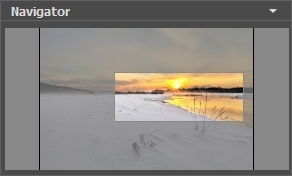
Pour défiler l'image dans la Fenêtre d'image appuyez sur la barre d'espacement sur le clavier et faites glisser l'image avec le bouton gauche de la souris. Utilisez le molette de défilement de la souris pour déplacer l'image en haut/en bas. En maintenant la touche Ctrl enfoncée on peut déplacer l'image à gauche/à droite, en maintenant la touche Alt enfoncée - changer l'échelle de l'image.
Utilisez le curseur pour changer l'échelle de l'image dans la Fenêtre de l'Image. Quand vous déplacez le curseur à droite, l'échelle de l'image augmente. Quand vous déplacez le curseur à gauche, l'échelle de l'image se réduit.
Il est possible de changer l'échelle de l'image en entrant un coefficient nouveau dans le champ d'échelle ou en appuyant sur le bouton Enter (Return sous Mac). Les coefficients les plus utilisés se trouvent dans le menu déroulant.
Il est possible d'utiliser les touches de raccourci pour changer l'échelle de l'image: + et Ctrl++ (⌘++ sous Mac) pour augmenter l'échelle de l'image, - et Ctrl+- (⌘+- sous Mac) pour réduire l'échelle.
Ci-dessous la fenêtre Navigation il y a le panneau Paramètres où vous pouvez choisir le Mode et régler ses paramètres.
Dans le champ Presets on peut sauvegarder les valeurs courantes des paramètres comme un preset pour les utiliser plus tard.
Sous le panneau Paramètres on voit les Astuces pour le paramètre ou le bouton sur lequel on passe avec le curseur. Vous pouvez choisir l'endroit où les astuces apparaissent ou les cacher dans les Préférences du logiciel.
Enhancer v. 17.8 - 10 jours d'essai
