Graphic software for Windows Mac graphic software  
Ingrese su email para suscribirse a la lista de AKVIS.
 
  
  Productos     Descargar     Tienda Online     Tutorial     Apoyo técnico     Compañia
en  fr  de  es  pt  it  jp  ru    
 

Tutorial: AKVIS Enhancer

Batch processing


Esta información está disponible solamente en inglés. La version española aparecerá pronto.

Starting with version 5.0, AKVIS Enhancer offers batch processing - the possibility to apply the plug-in to a series of photos.

Batch processing is very useful and time saving when you have to correct a number of photos taken with the same camera settings in similar circumstances. This method allows applying the same settings of AKVIS Enhancer to a folder full of images. So you won't need to fix every photo separately.

Even if you have never used batch processing you will find no difficulties in understanding it. First you create an action and then apply it in Photoshop to a photo folder.

Suppose you have a series of photos taken in one of the most magnificent palaces of France - Versailles. All photos came out too dark.

  • Step 1. First of all we should create two new folders, say Versailles-original and Versailles-after-Enhancer. Put photos for editing into the "Versailles-original" folder. Edited photos will be saved in the "Versailles-after-Enhancer" folder.
  • Step 2. Open one of the original photos in Adobe Photoshop. We will use this photo to adjust AKVIS Enhancer's settings and create an action.
    One of series of Versilles photos
  • Step 3. Open Actions palette and click Create New Set button. In the dialogue window give a name for a new set of actions, for example, AKVIS Actions.
  • Step 4. Now we should record the new action. Press Create New Action button and in the dialogue window give a name to the new action, for example, Enhancer.

    On pressing the Record button, the recording of the action will immediately start.

    Actions palette
  • Step 5. Let's call AKVIS Enhancer plug-in and set optimal parameters.
    AKVIS Enhancer window with chosen parameters
  • Step 6. Press the button Apply. The plug-in window will close and in the Photoshop workspace we'll see the edited photo. In the Actions pallete in Enhancer action you will see a new line -AKVIS Enhancer.
    Actions palette
  • Step 7. Remember that the action is still being recorded. In the meanwhile we should save the edited photo. To do it choose Save As in the File menu and save the image into the "Versailles-after-Enhancer" folder.
  • Step 8. Stop the action recording by pressing Stop playing/recording at the bottom of the Actions palette.
    Action recording is stopped
  • Step 9. Delete the file that we have just saved in the "Versailles-after-Enhancer" folder.
  • Step 10. The action is created and we can proceed to batch processing of the photos. In the File menu of the editor choose Automate->Batch.
  • Step 11. In the Batch dialog window enter all data and set the parameters.
    • In the Set drop down combo box choose "AKVIS Actions" entry and in Action combo box - "Enhancer".
    • The Source combo box serves to indicate the source folder. Choose the Folder entry that allows to point a particular folder. Press Choose button and choose the "Versailles-original" folder.
    • As we did not record the "Open file" command into the action, the Override Action "Open" Commands checkbox should be deactivated.
    • In Destination combo box select Folder entry and after pressing Choose button select the "Versailles-after-Enhancer" folder.
    • Activate Override Action "Save as" Commands checkbox.
    • In the File Naming section the filenames structure for the edited files is created. We do not want to change the filenames, so in the first combo box we choose Document Name, and in the second - extension.
    • Batch dialogue box with settings
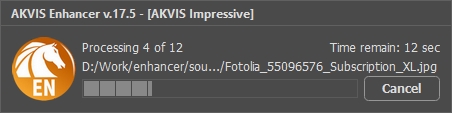
    • Step 12. Everything is ready, you only have to press Ok. Adobe Photoshop editor will process all photos in the "Versailles-original" folder one by one and save them to the "Versailles-after-Enhancer" folder. While Photoshop is busy with the batch processing you can do something useful.
 
AKVIS Enhancer Plug-In AKVIS Enhancer Plug-In
   — Área de trabajo — Área de trabajo
   — Enhancer modo — Enhancer modo
   — Focus modo — Focus modo
   — Batch Processing — Batch Processing
AKVIS Enhancer - HDR program AKVIS Enhancer - HDR program
   — Área de trabajo — Área de trabajo
   — Modo Enhancer — Modo Enhancer
   — Modo Focus — Modo Focus
   — HDR mode — HDR mode
   — High dynamic range image — High dynamic range image
Ejemplos Ejemplos
   — Foto oscura de una iglesia — Foto oscura de una iglesia
   — Pista de tenis — Pista de tenis
   — En la calle — En la calle
   — Foto de un niño — Foto de un niño
   — Tiro con el arco — Tiro con el arco
   — Camión — Camión
   — Capilla ortodoxa — Capilla ortodoxa
   — Ciudad antigua — Ciudad antigua
   — Mejorar la nitidez — Mejorar la nitidez
   — Naranjo — Naranjo
   — Foto a contraluz — Foto a contraluz
   — Ilustración técnica — Ilustración técnica
   — Ciudad en crepúsculo — Ciudad en crepúsculo
   — Foto subexpuesta — Foto subexpuesta
   — Un niño con el sonajero — Un niño con el sonajero
   — Niños africanos — Niños africanos
   — Un gato de Siam — Un gato de Siam
   — Quitar el smog — Quitar el smog
   — El poeta y las palomas — El poeta y las palomas
   — Un gato negro en una habitación oscura — Un gato negro en una habitación oscura
   — Mercado navideño — Mercado navideño


   Política de privacidad | Mapa Web | Buscar | English  | Français  | Deutsch  | Español  | Português  | Italiano  | 日本語  | Pусский  | © 2004-2008, AKVIS Software Inc. Todos los derechos reservados.