Little Princess
The example was made in the old version of SmartMask. Now, you can achieve this effect more easily with the new AI-based tools.
The author of the tutorial is Gordon Sisson.
It very often needs to extract a figure from a busy or messy background and it is usually a tedious, exacting and time-consuming process. The author was therefore anxious to test AKVIS SmartMask and share his impressions.
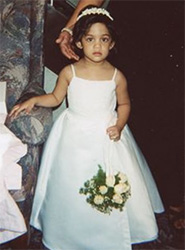
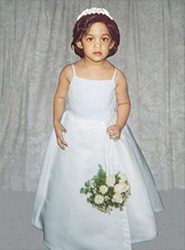
This is a snapshot of the daughter of Mr. Sisson's friend. The little girl looks very pretty and is well posed but the background is terribly distracting.
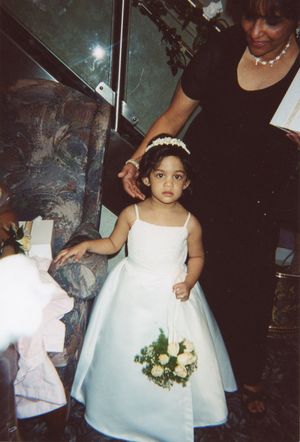
Original photo
First the picture was scanned at high resolution to facilitate enlargement. Then Gordon Sisson rotated the picture so that the figure was more naturally vertical and cropped it. Then he called up AKVIS Enhancer to improve shadow detail so that he could see the hair edge that was lost against the background of the woman’s dress.
-
Step 1. Open the image in AKVIS SmartMask.
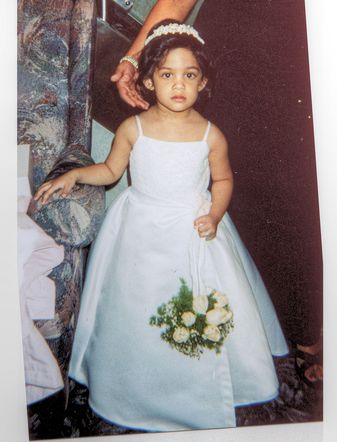
Image in AKVIS SmartMask -
Step 2. In Auto mode, use the Keep Aree Pencil
 to draw an outline within the image. The author took extra care with this line (possibly unnecesarily) because the background was, in places, so similar to the image he was extracting. If you are not completely satisfied with any part of the line, simply select the Eraser
  and proceed to correct your move.
Then use the Drop Area Pencil
 to outline the background.
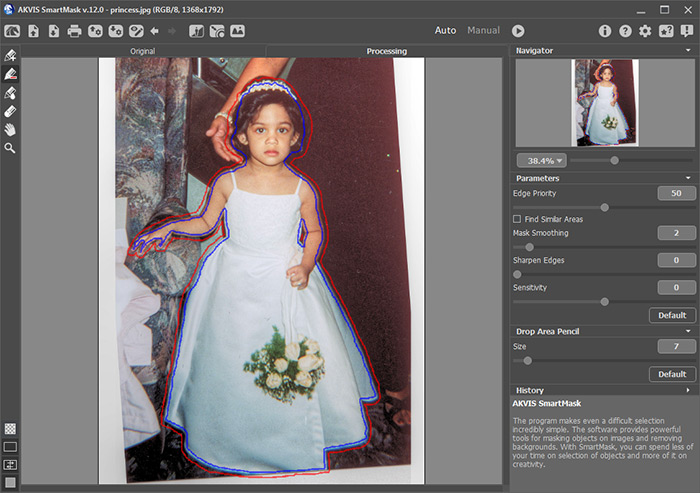
Pencil strokes in Auto mode -
Step 3. Press the button
 to start processing the image.
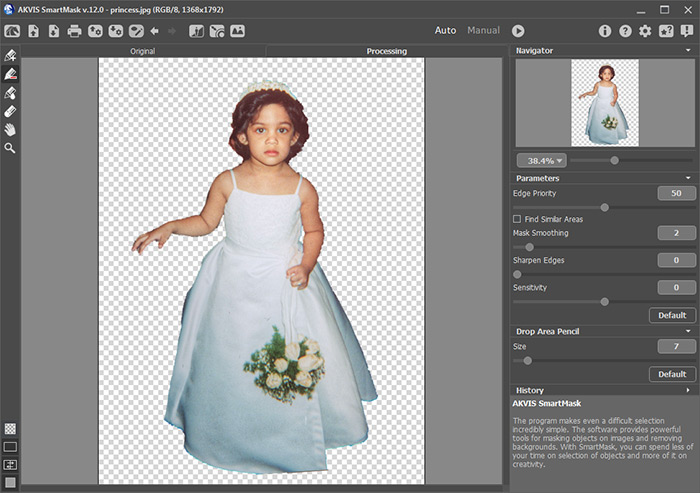
Image on transparent background -
Step 4. Select the Transition Area Pencil
 and increase its size. Use the scaling slider to make the little girl’s head as large as possible. Paint over the edge of the hair.
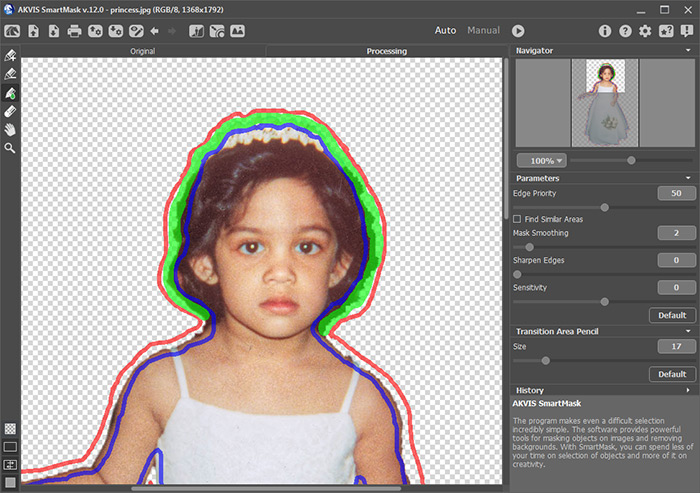
Working in Auto mode -
Step 5. Press the button to start processing the image. Save the result.
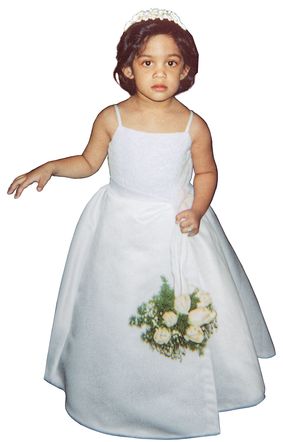
Processing result -
Step 6. Work is nearly finished, but now Mr. Sisson is unhappy with the pose. Originally, the girl's hand was resting on the sofa arm, now it is just floating. So he repositioned the arm for a better pose.
Then, a quick cleanup with AKVIS Noise Buster (this also improves skin tones).
Place the image on a new background, fine tune edges as needed, sharpen a bit and here is what we get for our enjoyable first trip with AKVIS SmartMask!
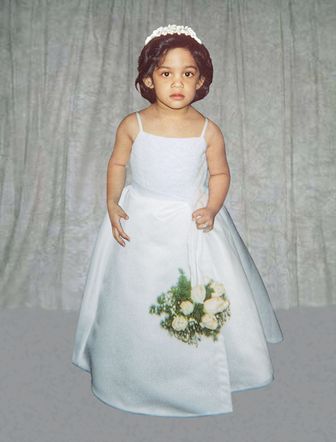
Image on a new background
SmartMask AI v. 15.1 - Free 10-day Trial
