La pequeña princesa
El ejemplo fue creado en la versión anterior de SmartMask. En la versión actual puede lograr este efecto más fácilmente con las nuevas herramientas basadas en inteligencia artificial.
El autor de este tutorial es Gordon Sisson.
Muy a menudo es necesario extraer una figura de un fondo con muchos detalles o desordenado y usualmente es un proceso tedioso, exigente y por eso consume mucho tiempo. Por lo tanto, el autor ansia probar AKVIS SmartMask y compartir sus impresiones.
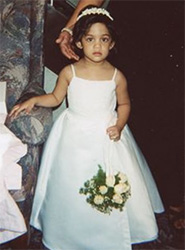
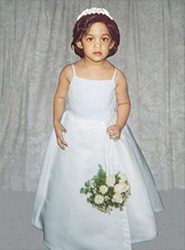
Esta es una foto de la hija de un amigo del señor Sisson. La pequeña niña se ve muy bonita y aunque su postura corporal es adecuada, el fondo constituye una gran distracción.
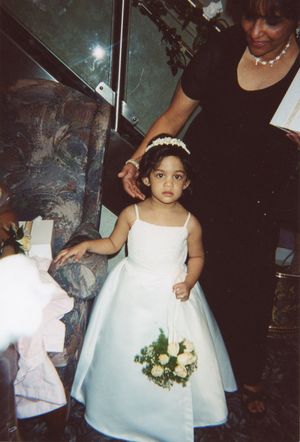
Foto original
En primer lugar, la fotografía fue escaneada en alta resolución para facilitar la ampliación. Luego Gordon Sisson rotó la fotografía para que la figura se viera vertical y la recortó. Luego abrió AKVIS Enhancer para mejorar los detalles de sombreado de modo que se pudiera visualizar la porción del cabello camuflada en el vestido de la mujer.
-
Paso 1. Abra la imagen en AKVIS SmartMask.
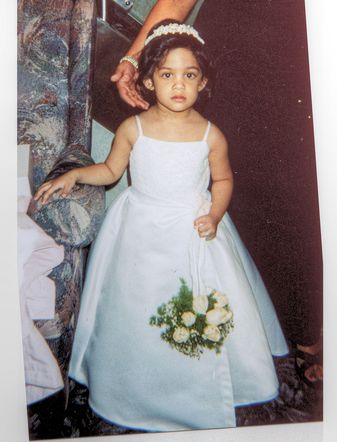
Imagen en AKVIS SmartMask -
Paso 2. En modo Auto, use el Lápiz conservar área
 para dibujar un contorno alrededor de la figura. El autor tomó especial cuidado con esta línea (posiblemente innecesariamente) porque el fondo era, en ciertos sectores, muy similar a la figura extraída. Si usted no se encuentra satisfecho con alguna parte de la línea, simplemente seleccione el Borrador
  y proceda a corregir su trazado.
Luego use el Lápiz eliminar área
 para delinear el fondo.
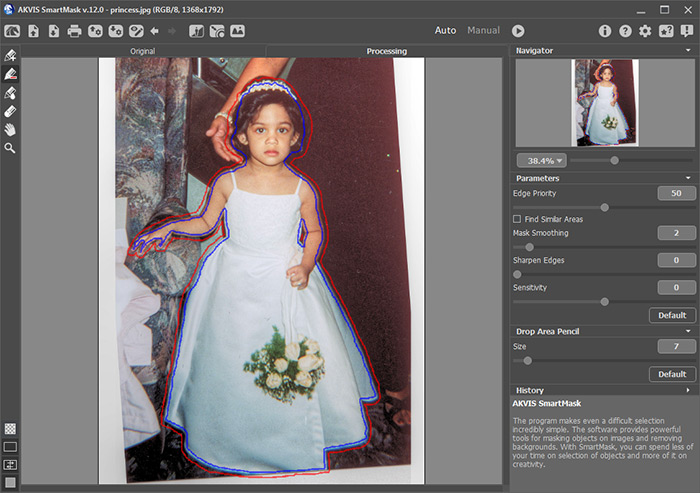
Trazados de lápiz en modo Auto -
Paso 3. Presione el botón
 para comenzar el procesamiento de la imagen.
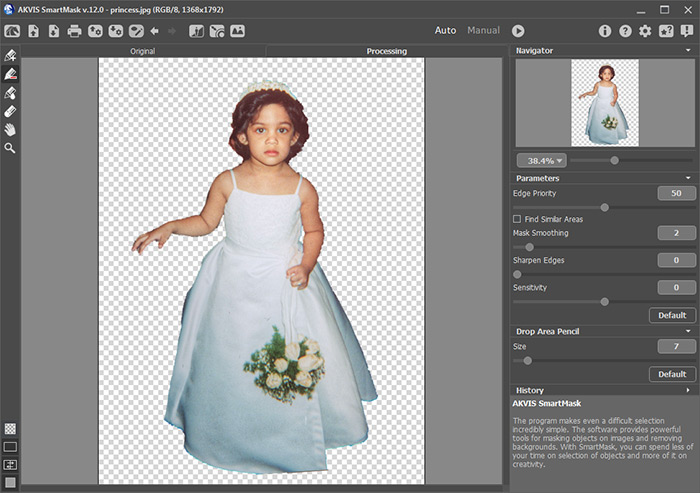
Imagen sobre fondo transparente -
Paso 4. Seleccione el Lápiz de transición
 e incremente su tamaño. Utilice el deslizador de la escala para aumentar el tamaño de la cabeza de la niña tanto como sea posible. Pinte sobre el borde del pelo.
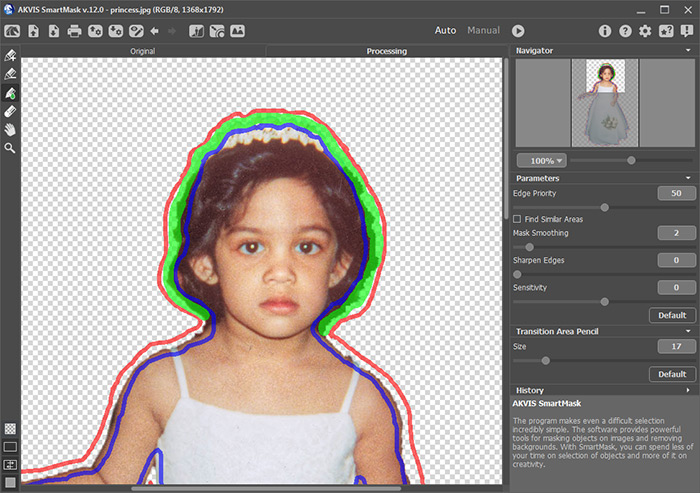
Trabajo en modo Auto -
Paso 5. Presione el botón para comenzar el procesamiento de la imagen. Guarde el resultado.
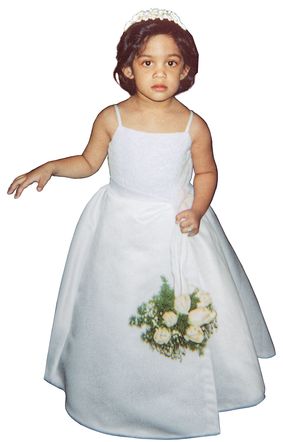
Resultado de procesamiento -
Paso 6. El trabajo se encuentra casi finalizado, pero ahora el señor Sisson no está conforme con la pose. Originalmente, la mano de la niña descansaba sobre el brazo del sofá, ahora sólo está flotando. Así que reposicionó el brazo para una mejor postura.
A continuación, realice una rápida limpieza con AKVIS Noise Buster (esto también mejora los tonos de piel).
Coloque la imagen sobre un nuevo fondo, afine bien los bordes según sea necesario.
¡Aquí ha obtenido el resultado de su primer trabajo con AKVIS SmartMask!
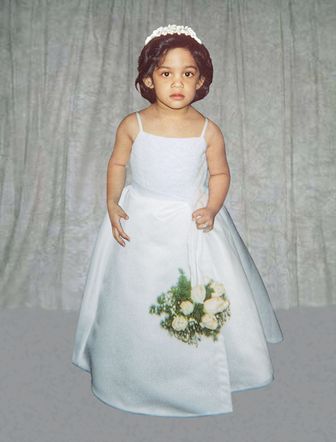
Imagen sobre nuevo fondo
SmartMask AI v. 15.1 - Prueba gratuita de 10 días
