Graphic plugins for Windows Mac graphic plugins  
Please enter your email to be kept posted on updates and discounts:
 
  
  Products     Download     Online Store     Tutorial     Support     About Company
en  fr  de  es  pt  it  jp  ru    
 

Tutorial: AKVIS SmartMask

Around the world in 1 day


The author of this example is David Kally.

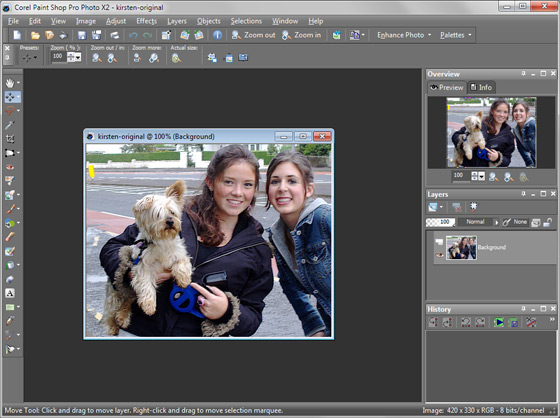
  • Step 1. Open an image in Paint Shop Pro 9; File -> Open.
    Paint Shop Pro 9 workspace
  • Step 2. Duplicate the original layer by right-clicking on the Background layer, which is located on the Layers palette, then select Duplicate. A copy of the background layer is created.
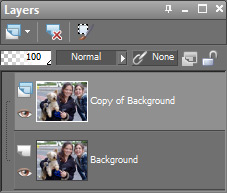
    Layer's copy
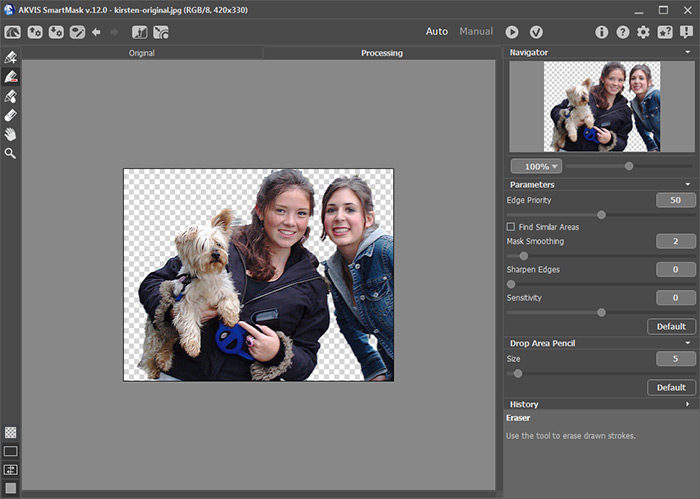
  • Step 3. Call AKVIS Smartmask plugin; Effects -> Plugins -> AKVIS -> SmartMask.
    AKVIS SmartMask plugin's window

    By default the plugin initially uses SmartMask’s Sharp mode, which is adequate for most general masking purposes, and is the mode used exclusively in this tutorial.
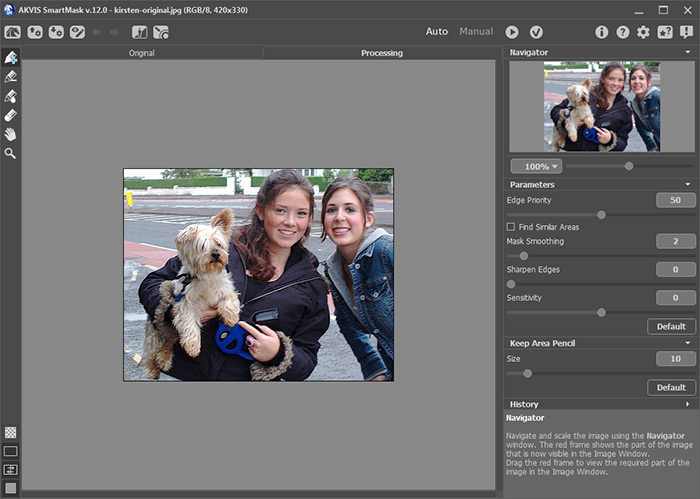
    Tip: For more precise pencil line drawing use SmartMask’s Scaling slider in conjunction with its Navigator window.

  • Step 4. Select the blue Keep Area Pencil located top of the left side vertical tool bar, and using the Brush Size slider located in the Sharp parameters box adjust the brush to a suitable size. Next carefully draw an outline inside the figures, including around any gaps through which the background is visible. Care should be taken not to allow the blue lines to stray into any background area.
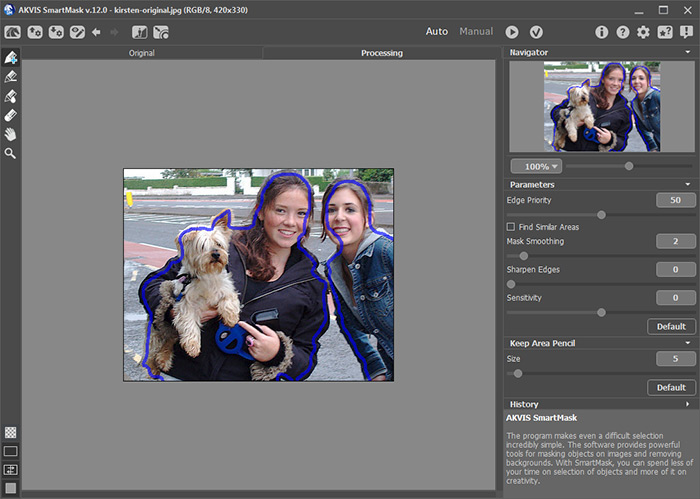
    Keep area pencil

    Next select the red Drop Area Pencil located second from top on the left side vertical tool bar, and with a suitably sized brush carefully outline the background, near to, but not touching the blue lines.
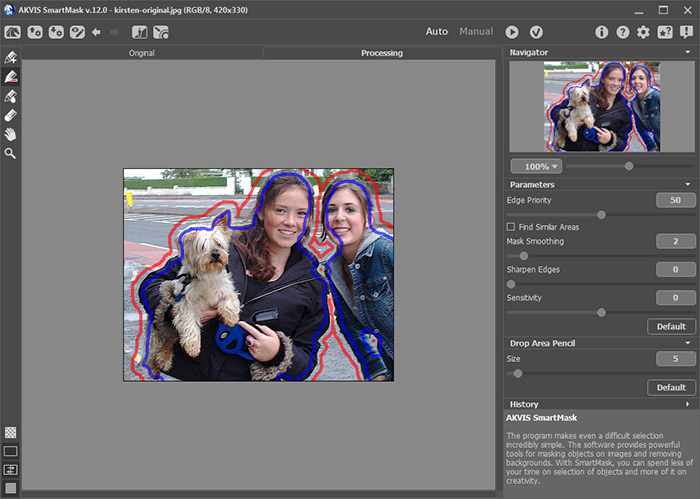
    Drop area pencil
  • Step 5. Click the Пуск button to start image processing.

    The image is processed using SmartMask’s default settings.

  • Step 6. To view the result on a transparent background click the buttons shown below in this order; Show Strokes Show strokes, Show Overlay Magic tube, Show Transparent Background Transparent button.
    Transparent background

    If you are happy with the results click the Save mask Save mask in a separate file button located top-left, then name and save the mask, which can then be reloaded at anytime. The .smask files are saved to AKVIS’ default SmartMask folder.

  • Step 7. Click the Ok button button to apply the result and return to PSP9’s workspace.
  • Step 8. With SmartMask’s processed two layered image loaded into PSP9’s workspace, go to the Layers palette and click the bottom Background layer to highlight it.
  • Step 9. With the Background layer still highlighted click the Copy of Background layer’s Visibility Toggle on/off button Visibility toogle. The SmartMask cutout remains visible.
  • Step 10. Select the Flood Fill Tool; Match mode - None, Blend mode - Normal, Opacity - 100%.
  • Step 11. Select a colour from the Materials’ Foreground and Stroke Properties box, e.g. HTML #0000c0 (blue shade).
  • Step 12. With the Background layer still highlighted place your mouse cursor inside the image and left click to fill the layer with the previously selected colour. This will hide the SmartMask cutout.
  • Step 13. Select the Magic Wand tool; Mode - Replace, Match mode - RGB Value, Tolerance - 0, Sample merged - unchecked, Contiguous - checked, Feather - 0, Anti-alias - checked, Outside selected.
  • Step 14. With the Background layer still highlighted click within the image to select the single coloured layer. A selection marquee will appear around the edges of the entire Background layer.
  • Step 15. Load an image into PSP9 to be used as the replacement background, and make it the active image.
  • Step 16. Copy the image; Edit -> Copy. Keyboard shortcut CTRL + C.
  • Step 17. Make the SmartMask processed image, with its highlighted Background layer the active image.
  • Step 18. Paste the replacement background image into the selected, single coloured layer; Edit -> Paste -> Paste Into Selection. Keyboard shortcut CTRL + SHIFT + L. Next deselect the selection; Selections -> Select None. Keyboard shortcut CTRL + D.

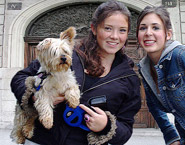
    Note; if the new background picture is smaller than the original image when it is pasted into the selection it will be stretched on all sides to fit into the selected area. If larger, it will be compressed to fit. Whatever size of image is used its perspective will be altered, that is unless both images are of equal size. This effect can be seen in Fig 10 where the doorway appears wide, when in actual fact the original doorway was much narrower.

  • Step 19. To see how the replacement background looks when combined with the SmartMask cutout, click the red cross covering the Copy of Background layer’s Visibility Toggle on/off button to reveal the cutout image.

    When finished name and save the layered image as a .psp file. This will retain the separate layers, which if required can be renamed before saving. Before saving as another file type flatten the image by right-clicking the Background layer, selecting Merge then Merge All (Flatten).

  • Original image plus examples.

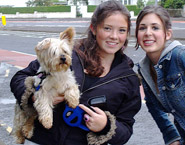
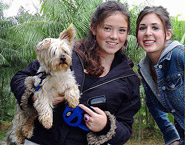
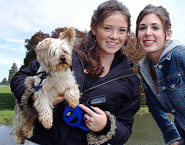
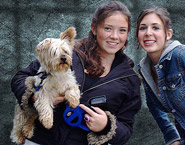
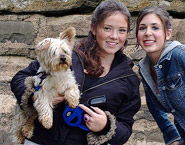
    Original photo Trees background Lake background Door background Wall background Stone background
 
How It Works How It Works
   — Workspace — Workspace
   — Working with the plugin — Working with the plugin
   — Sharp Mode — Sharp Mode
   — Soft Mode — Soft Mode
   — Complex Mode — Complex Mode
Examples Examples
   — Cutting out a human figure — Cutting out a human figure
   — Around the world in 1 day — Around the world in 1 day


   Privacy Policy | Site Map | Search | English  | Français  | Deutsch  | Español  | Português  | Italiano  | 日本語  | Pусский  | © 2004-2008, AKVIS LLC. All rights reserved.