Graphic plugins for Windows Mac graphic plugins  
Please enter your email to be kept posted on updates and discounts:
 
  
  Products     Download     Online Store     Tutorial     Support     About Company
en  fr  de  es  pt  it  jp  ru    
 

Adobe Photoshop & Photoshop Elements Tips

Selection shading


from MyPhotosoft.com


Whether you've made a selection by Photoshop tools or used a plugin you'd want your selection to look nice and smooth on a new background. This happens when the edges of the object blend with the background colors. If the edges of the selected image were not softened or feathered during the process of selection you may shade them in Photoshop.

All you have to do is:

  • Step 1. In Adobe Photoshop have your selection loaded. Open Select menu and choose Feather.
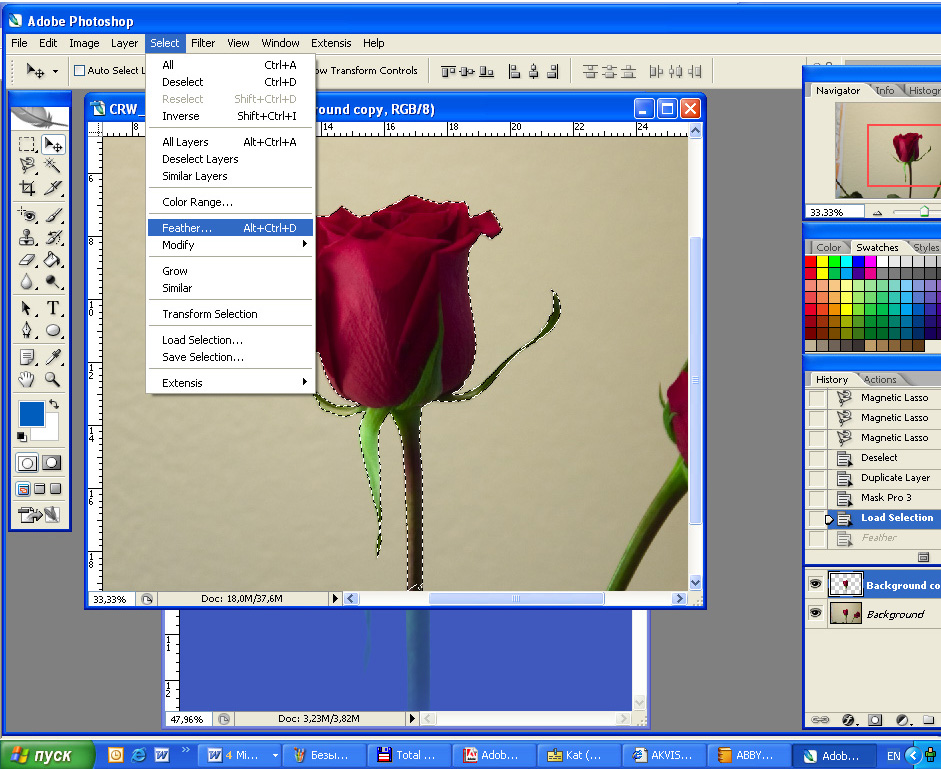
    Select menu
  • Step 2. In the opening dialogue window type in a number of pixels to be feathered (2-5 are usually enough).
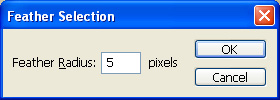
    Feather dialogue
  • Step 3. Now you can copy your selection, paste it into a new environment and evaluate the result.

    Unshaded rose
    No shading
    Rose shading 5 px
    5 px shading
    Rose shading 15 px
    15 px shading
    Rose shading 50 px
    50 px shading


Introduction Introduction
PHOTOSHOP: Selection Tools PHOTOSHOP: Selection Tools
Shading the Selection Shading the Selection
Transformation of Objects Transformation of Objects
Rotate and Flip an Image Rotate and Flip an Image
Change Image Size to View on Screen Change Image Size to View on Screen
Image Size for Printing  Image Size for Printing
Change Image Resolution Change Image Resolution
New Document Size Preset New Document Size Preset
Image Optimization for Web Image Optimization for Web
Perspective distortion correction Perspective distortion correction
Brush Tool Tips Brush Tool Tips
Load New Brushes Load New Brushes
Using Custom Shapes Using Custom Shapes
Install PlugIn Filters in Photoshop Install PlugIn Filters in Photoshop
Repeat Filter Repeat Filter
History Palette History Palette
Eyedropper Tool Tips Eyedropper Tool Tips
Fast Scanning Fast Scanning
Save Workspace in Adobe Photoshop Save Workspace in Adobe Photoshop
ADOBE BRIDGE: Useful Tips  ADOBE BRIDGE: Useful Tips
Adobe Bridge Metadata Adobe Bridge Metadata
Save Workspace in Adobe Bridge Save Workspace in Adobe Bridge
PHOTOSHOP ELEMENTS: Selection Tools PHOTOSHOP ELEMENTS: Selection Tools
Transformation of Objects in Elements Transformation of Objects in Elements
Rotate and Flip in  Elements Rotate and Flip in Elements
Change Image Size in Elements Change Image Size in Elements
Image Size for Printing in Elements Image Size for Printing in Elements
Change Image Resolution in Elements Change Image Resolution in Elements


   Privacy Policy | Site Map | Search | English  | Français  | Deutsch  | Español  | Português  | Italiano  | 日本語  | Pусский  | © 2004-2008, AKVIS LLC. All rights reserved.