Graphic plugins for Windows Mac graphic plugins  
Please enter your email to be kept posted on updates and discounts:
 
  
  Products     Download     Online Store     Tutorial     Support     About Company
en  fr  de  es  pt  it  jp  ru    
 

Adobe Photoshop & Photoshop Elements Tips

Create a New Document Size Preset


I often have to work with documents of the size which is not available in the standard presets of Adobe Photoshop.

If you have the same problem this tip is for you.
It shows how to save the settings you usually use for a new document as a preset. Thus, you'll be able to quickly create a document with the size, resolution, etc that you need.

Proceed as follows:

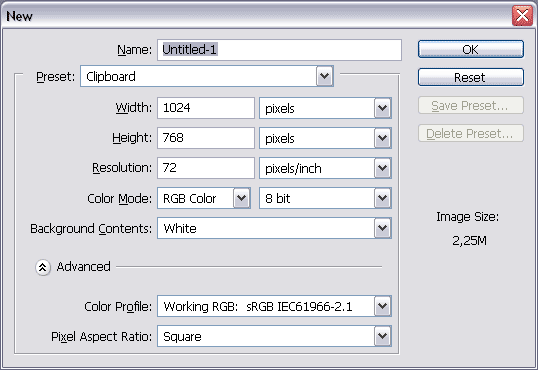
Step 1. Call the command File => New. You can also use the hot key Ctrl+N. You wil see the New Document dialog box.

New Document dialog box

Step 2. Set the document parameters that you need. For example, I set the following values: a document 12 x 9 cm, 300 ppi, RGB, Transparent Background, Color Profile sRGB by default.
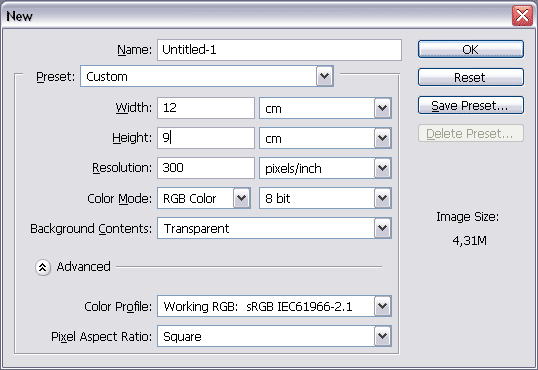
New Document dialog box

Step 3. Press Save Preset... and you will see the New Document Preset dialog box.

The program offers us to save the preset as "12 cm x 9 cm". It's quite a good name, so we just press Ok to save the preset.
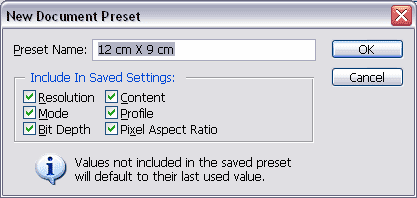
New Document Preset

Step 4. Next time you need the document of this size, just call the command File => New and in the Preset fall-out menu in the New Document dialog box select the "12 cm x 9 cm" preset.
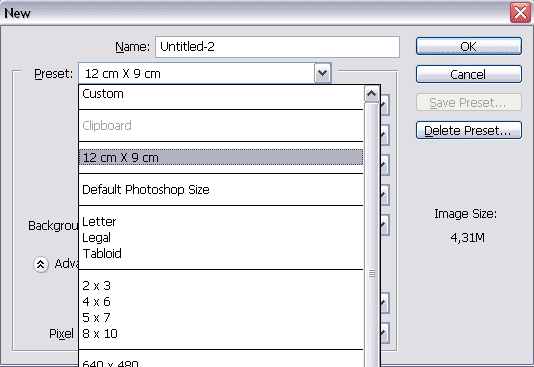
New Document dialog box
 
Introduction Introduction
PHOTOSHOP: Selection Tools PHOTOSHOP: Selection Tools
Shading the Selection Shading the Selection
Transformation of Objects Transformation of Objects
Rotate and Flip an Image Rotate and Flip an Image
Change Image Size to View on Screen Change Image Size to View on Screen
Image Size for Printing  Image Size for Printing
Change Image Resolution Change Image Resolution
New Document Size Preset New Document Size Preset
Image Optimization for Web Image Optimization for Web
Perspective distortion correction Perspective distortion correction
Brush Tool Tips Brush Tool Tips
Load New Brushes Load New Brushes
Using Custom Shapes Using Custom Shapes
Install PlugIn Filters in Photoshop Install PlugIn Filters in Photoshop
Repeat Filter Repeat Filter
History Palette History Palette
Eyedropper Tool Tips Eyedropper Tool Tips
Fast Scanning Fast Scanning
Save Workspace in Adobe Photoshop Save Workspace in Adobe Photoshop
ADOBE BRIDGE: Useful Tips  ADOBE BRIDGE: Useful Tips
Adobe Bridge Metadata Adobe Bridge Metadata
Save Workspace in Adobe Bridge Save Workspace in Adobe Bridge
PHOTOSHOP ELEMENTS: Selection Tools PHOTOSHOP ELEMENTS: Selection Tools
Transformation of Objects in Elements Transformation of Objects in Elements
Rotate and Flip in  Elements Rotate and Flip in Elements
Change Image Size in Elements Change Image Size in Elements
Image Size for Printing in Elements Image Size for Printing in Elements
Change Image Resolution in Elements Change Image Resolution in Elements


   Privacy Policy | Site Map | Search | English  | Français  | Deutsch  | Español  | Português  | Italiano  | 日本語  | Pусский  | © 2004-2008, AKVIS LLC. All rights reserved.