AKVIS PlugIns in Photoshop CC, Windows 64 bit
Sometimes after a plugin is installed, it does not appear in Adobe Photoshop. Read the instructions for Windows 64 bit below. (You can find the solution for Win 32 bit - here, for Mac - here.)
Follow these steps to install the plug-ins in Photoshop on Win 64 bit:
- If you use Photoshop 64 bit on Win 64 bit
Copy the files with the ending _64.8bf from the AKVIS folder in Program Files into the Plug-ins folder of Photoshop.
For example, to add the AKVIS Sketch plugin, copy Sketch_64.8bf from C:\Program Files\AKVIS\Sketch into the folder:
- Photoshop CC 2024, CC 2023, CC 2022, CC 2021, CC 2020, CC 2019, CC 2018, CC 2017, CC 2015.5:
C:\Program Files\Common Files\Adobe\Plug-Ins\CC - Photoshop CC 2015:
C:\Program Files\Adobe\Adobe Photoshop CC 2015\Plug-ins - Photoshop CC 2014:
C:\Program Files\Adobe\Adobe Photoshop CC 2014\Plug-ins - Photoshop CS6:
C:\Program Files\Adobe\Adobe Photoshop CS6 (64 Bit)\Plug-ins
Then re-open Photoshop and check how the plugin works.
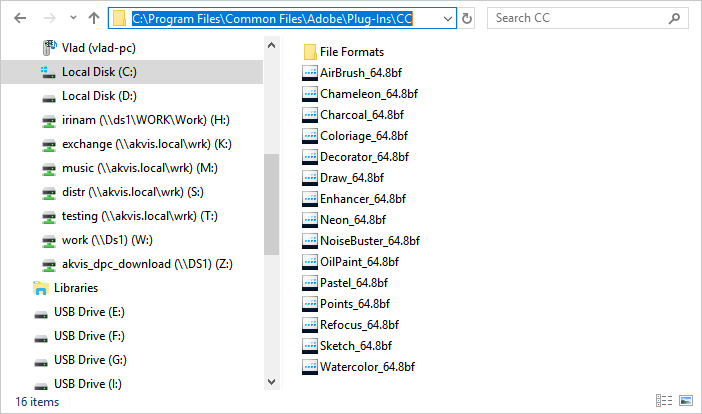
- Photoshop CC 2024, CC 2023, CC 2022, CC 2021, CC 2020, CC 2019, CC 2018, CC 2017, CC 2015.5:
- If you use Photoshop 32 bit on Win 64 bit
Copy the files with the ending .8bf into the Plugins folder of Photoshop.
For example, to add the Sketch plugin, copy Sketch.8bf into the folder:
- Photoshop CC 2018, CC 2017, CC 2015.5:
C:\Program Files (x86)\Common Files\Adobe\Plug-Ins\CC - Photoshop CC 2015:
C:\Program Files (x86)\Adobe\Adobe Photoshop CC 2015 (32 Bit)\Plug-ins - Photoshop CC 2014:
C:\Program Files (x86)\Adobe\Adobe Photoshop CC 2014 (32 Bit)\Plug-ins - Photoshop CS6:
C:\Program Files (x86)\Adobe\Adobe Photoshop CS6\Plug-ins
Then re-open Photoshop and check how the plugin works.
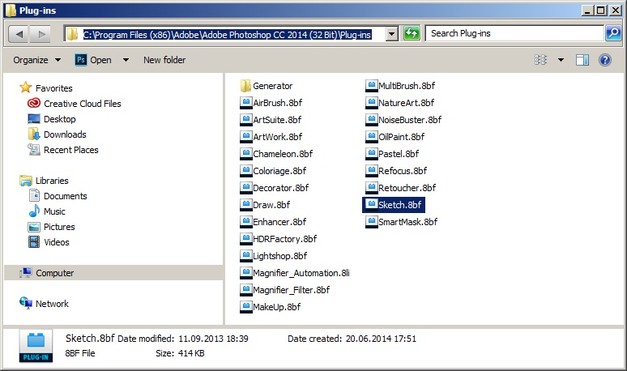
- Photoshop CC 2018, CC 2017, CC 2015.5:
If you set the Additional Plug-ins Folder for Photoshop 32 bit on Windows 64 bit (via the Preferences), you can get an error message from Photoshop that it does not know that kind of file.
It happens if the selected folder has a 64 bit plugin. Photoshop 32 bit tries to upload it but can't recognize it.
Not a big problem, but it's very irritating to get the error message each time when you run Photoshop. To remove this error message just delete the 64 bit file from the folder used as the Additional Plug-ins Folder in Photoshop preferences. If you use Photoshop 32 bit you do not need 64 bit files there.