Graphic plugins for Windows Mac graphic plugins  
Please enter your email to be kept posted on updates and discounts:
 
  
  Products     Download     Online Store     Tutorial     Support     About Company
en  fr  de  es  pt  it  jp  ru    
 

Adobe Photoshop & Photoshop Elements Tips

Rotation and flipping in Adobe Photoshop Elements


To rotate an image in Adobe Photoshop Elements you can use commands from the submenu Image - Rotate.

You can apply the following commands:

  • 180° - it allows rotating the image on 180 degrees.
  • 90° Right - it allows rotating the image on 90 degrees clockwise.
  • 90° Left - it allows rotating the image on 90 degrees anticlockwise.
  • Custom - the command allows rotating the image on an arbitrary angle. For this purpose:
    • Step 1. select the command from the menu;
    • Step 2. enter the value of the rotation angle in degrees;
    • Step 3. specify the direction of the rotation - to the right or to the left;
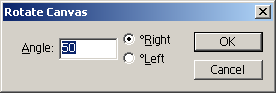
    • Rotate Canvas: arbitrary rotation
      Step 4. press the button OK.

To flip an image in Adobe Photoshop Elements you can use the following commands from the menu Image - Rotate:

  • Flip Horizontal - it mirrors the image as to the standing axis, i.e. allows to interchange the left and the right parts of the image;
  • Flip Vertical - it mirrors the image as to the horizontal axis, i.e. allows to turn the image upside down.
 
Introduction Introduction
PHOTOSHOP: Selection Tools PHOTOSHOP: Selection Tools
Shading the Selection Shading the Selection
Transformation of Objects Transformation of Objects
Rotate and Flip an Image Rotate and Flip an Image
Change Image Size to View on Screen Change Image Size to View on Screen
Image Size for Printing  Image Size for Printing
Change Image Resolution Change Image Resolution
New Document Size Preset New Document Size Preset
Image Optimization for Web Image Optimization for Web
Perspective distortion correction Perspective distortion correction
Brush Tool Tips Brush Tool Tips
Load New Brushes Load New Brushes
Using Custom Shapes Using Custom Shapes
Install PlugIn Filters in Photoshop Install PlugIn Filters in Photoshop
Repeat Filter Repeat Filter
History Palette History Palette
Eyedropper Tool Tips Eyedropper Tool Tips
Fast Scanning Fast Scanning
Save Workspace in Adobe Photoshop Save Workspace in Adobe Photoshop
ADOBE BRIDGE: Useful Tips  ADOBE BRIDGE: Useful Tips
Adobe Bridge Metadata Adobe Bridge Metadata
Save Workspace in Adobe Bridge Save Workspace in Adobe Bridge
PHOTOSHOP ELEMENTS: Selection Tools PHOTOSHOP ELEMENTS: Selection Tools
Transformation of Objects in Elements Transformation of Objects in Elements
Rotate and Flip in  Elements Rotate and Flip in Elements
Change Image Size in Elements Change Image Size in Elements
Image Size for Printing in Elements Image Size for Printing in Elements
Change Image Resolution in Elements Change Image Resolution in Elements


   Privacy Policy | Site Map | Search | English  | Français  | Deutsch  | Español  | Português  | Italiano  | 日本語  | Pусский  | © 2004-2008, AKVIS LLC. All rights reserved.