Painting Tools In Adobe Photoshop
The main painting tools in Adobe Photoshop are the Pencil and the Brush. The Pencil draws free form lines with a hard edge, and the Brush - draws lines with a softer edge. It is possibe to draw distinct or fuzzy lines with the Brush, but they will always be a little soft, because its edges are indistinguishable from the background. Lines drawn with the Pencil always have a sharp edge, because there is no interaction with the background.
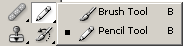
Both of these tools occupy one cell in the Toolbar, and are always portrayed with a pictogram of the last tool used. To choose another tool, press the right mouse button on the arrow next to the tool and choose the required tool from the menu that appears. The menu will also appear if you press and hold the tool's button.
To draw free lines with the Pencil or Brush, follow these steps:
- Step 1. Choose a tool from the Toolbar.
- Step 2. Set the color with which colors will be drawn.
- Step 3. Choose the parameters for the chosen tool in the Options Panel.
- Step 4. Bring the cursor over the image in the photo editor.
- Step 5. Press the left mouse button and, while keeping the button pressed, move the cursor across the image.
Most of the parameters used to define the Pencil and Brush tools in the Options panel are the same, but there are some small differences.
- left-click on the triangle to open the drop-down palette;
- in this palette set the size and hardness of the brush or choose the shape of the brush from the list of presets.
Brush. The Brush parameter shows the current shape and size of the brush. To change the shape and size of the brush:
This menu can also be brought up by right-clicking anywhere in the image window.
Mode. The Mode parameter sets the mode used by the brush. These modes affect how the colors applied by the brush interact with the colors of the background.
Opacity. The Opacity parameter affects the level of opacity in which a line is drawn. To change this parameter enter a value from 1 to 100 in the parameter's field, or press the triangle button and move the slider. At lower values of Opacity, the color of the lines drawn by the tool blend more intensely with the backgrounds' colors.
Auto Eraser. The Auto Eraser parameter is only available for the Pencil tool. When Auto Eraser is checked, the Pencil tool draws over areas of the backgrounds' colors with the primary color and in areas occupied by the primary color in the backgrounds' colors, but if strokes begin where the primary color is not present, then the tool will use the primary color, which is shown at the bottom of the toolbar.
Flow. The Flow parameter affects every point of color applied by the tool. Each new application of color is more opaque than the one before. This parameter is only available for the Brush tool.
Airbrush. The Airbrush option can also only be set for the Brush tool. When the Airbrush
In addition the shape and size of the brushes can be changed through the Brushes palette, which can be opened by pressing  is pressed the Brush tool paints a line with a border like that of a airbrush.
The Pencil and Brush tools not only can be used to draw free form lines, but also for drawing straight lines. To draw a straight line with either tool (vertically or horizontally) press Shift and, while holding it down, start to move the cursor in either a vertical or horizontal direction.