History Palette
The History palette is available in Home Deluxe and Business versions only.
The History palette shows the list of every change made to a file. By clicking on an item in the list, you can revert the file to a previous state.
At the top of the palette, near a thumbnail of the image, there is information about the file: its name, size (in pixels), color mode, profile, and date and time of creation.
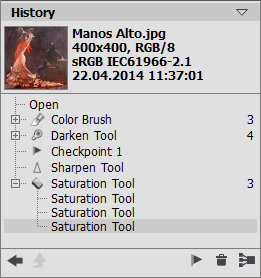
History of Changes
The history of changes is arranged in a linear fashion. This means that if you return to any intermediate state and apply an action, all actions on the list after it will be permanently removed, except for the control points (which will be placed at the top of the list). Selecting Open from the list returns the file to its initial state (before changes were applied).
All changes made are shown with their corresponding icon. Any successive changes made by the same tool (two or more) are arranged in a group; the number of elements in a group is shown by a grey number to the right of the icon. The list of elements in a group can be collapsed and reopened by pressing the "+" to the left of the tool’s icon.
The following buttons are at the bottom of the History palette:
-
The button Undo/Redo Position State
 and
and  switches between two states in the list. In contrast to the buttons
  and
and  that allow moving one step back/forward on the list, this button allows restoring the history after the last change. Use this button if you want to restore the history after the commands Delete States
  or Collapse Group
  .
.
-
The button Exit mode
 is active in the Artistic Cloning only. It allows quitting the mode without applying the changes.
- Individual states on a list can be preserved using checkpoints, with the Create Checkpoint
 button. Each control point that is added is given a name in succession (Checkpoint 1, Checkpoint 2, etc). The checkpoint no longer has the history of that element but retains the change made to it.
To rename a checkpoint, double left-click on the checkpoint’s name, enter a new name and press Enter (Mac: Return).
-
By pressing the button Delete States all states below the selected one will be removed and all checkpoints will be brought to the top of the list. If this button is pressed while a checkpoint is selected, the checkpoint will be deleted.
-
The Collapse Group button collapses the list in a group and combines it into one state, removing the individual history of each element. After this button is pressed individual elements in a group cannot be edited.