履歴パレット
履歴パネルはHome Deluxe版とBusiness版でのみ利用できます。
履歴パレットは、ファイルへの変更すべてがリストとして表示されます。リスト内のアイテムをクリックすると、その状態にまで戻すことができます。
イメージのサムネイルの右隣には、ファイル名、ファイルサイズ(ピクセル)、カラーモード、プロファイル、作成日時が表示されます。
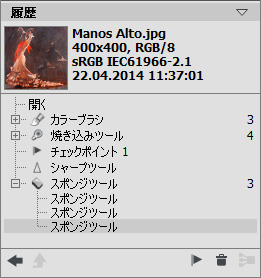
変更の履歴
変更の履歴は直線的に配置されています。つまり、途中の状態に戻って動作を適用した場合、それ以降の動作はコントロールポイント(リストの最上部に位置)以外すべて完全に削除されます。[開く]を選択すると、変更を加える前の最初の状態に戻ります。
すべての変更は対応するアイコンと共に表示されます。同じツールを用いた2つ以上の変更はグループにまとめられ、ツール名の右の数字はグループ内の変更の数を表しています。ツール アイコンの左隣に表示されている[+]をクリックしてグループを展開したり、折りたたんだりできます。
履歴パレットの下部には次のボタンが配置されています。
-
指定位置の状況へ元に戻す/やり直しボタン
 と
と  を使ってリスト内の2つの状況間を切り替えます。
 と
と  ボタンは1段階前へ/後ろへ移動するのに対し、このボタンは最後の変更後に履歴をレストアできます。状態の削除
  または グループ折りたたみ
  のコマンドを使用後に履歴をレストアする場合に、このボタンを使用できます。.
-
モード終了ボタン
 は、アーティスティック クローニング使用中に限り有効です。変更を適用することなくモードを終了できます。
- 各状態の保存は、チェックポイント作成
 ボタンを使って、チェックポイントを使ってできます。各コントロールポイントには、連番の名前がつけられます(Checkpoint1、Checkpoint2など)。チェックポイントには履歴がなくなりますが、加えられた変更を記憶しています。
チェックポイントの名前を変更する場合、チェックポイント名をダブル左クリックし、新しい名前を入力後にEnter (Macintoshの場合 Return)を押します。
-
状態の削除ボタン を押すと、選択されたもの以降すべてのStatesが削除され、チェックポイントがリストの最上部に移動します。チェックポイント選択時にこのボタンを押した場合、チェックポイントが削除されます。
-
グループ折りたたみボタン は、リストをグループに折りたたみ、1つの状態にまとめ、それぞれの履歴を削除します。このボタンを押した後にグループ」内の各変更を編集することはできません。
