Batch Processing
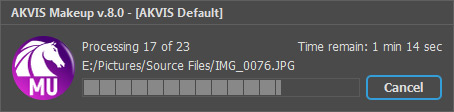
AKVIS MakeUp supports batch processing that lets you automatically process a series of images.
Batch processing is useful when dealing with a lot of photos taken under the same conditions with identical camera settings or when creating a video (to process all frames automatically). It saves you time and effort.
Using batch processing is simple:
-
Step 1. Start the standalone version of AKVIS MakeUp and open one of the photos.
-
Step 2. Adjust the parameters for this image. Since these settings should be applied to all photos in the series, they should be saved as a preset.
-
Step 3. Click on the button
in the Control Panel to open the Batch Processing dialog window.
Here you can adjust the options to process the images with one of the presets.
In the Source Folder field choose the folder which contains the photos to be processed.
In the Target Folder choose the folder where the processed photos will be saved.
You can check Include All Subfolders to process all images in all subfolders of the selected folder (keeping the structure).
Next, select your Preset, and choose the format and image quality of the saved files in the Save As list.
Press Start to begin batch processing of the photos.
It's also possible to use batch processing with the MakeUp plug-in.
If you've never used this feature before it is simple to learn. Just create an Action in Adobe Photoshop and apply the plug-in with the same settings to a folder full of images.
The batch processing with the plugin is useful when, in addition to photo correction, you also want, for example, to convert all the photos to the same size.
|