Retouching and Coloring the Photo
Die deutsche Version wird bald veröffentlicht werden.
We got this example from Liliya Maganuk, Bishkek, Kyrgyzstan.
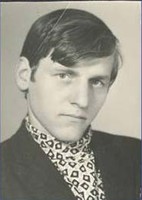
We are going to colorize a photo that has a crease. First we restore the photo, then add color to it with the help of AKVIS plugins.
Note: This tutorial was created in the old version of Retoucher. Learn here how to use the new version with all its features! Though it processes images in a similar way, new Retoucher offers selection and retouch tools and advanced features.
 |
 |
 |
- Step 1. Open the image in Adobe Photoshop.
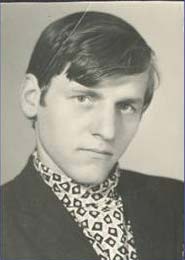
- Step 2. Next we have to select the area on the photo to
be restored. The easiest way is to use the Quick Mask mode. Klick the Quick
Mask mode button in the Toolbox (the button Q).

Use a Pencil to paint over the defects.
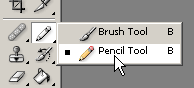
The area that you select in the Quick Mask mode will be highlighted in red. You may change this color in the Quick Mask Options window. (Double-click on the Quick Mask button in the Toolbox.)
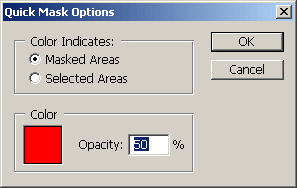
Switch to the Standard mode in the Toolbox and inverse the selection
SELECT->INVERSE (Shift + Strg + I)

- Step 3. Call AKVIS Retoucher from the menu of the photo editor
(AKVIS RETOUCHER) to remove the crease.
- Step 4. Adjust the settings in the plugin window:
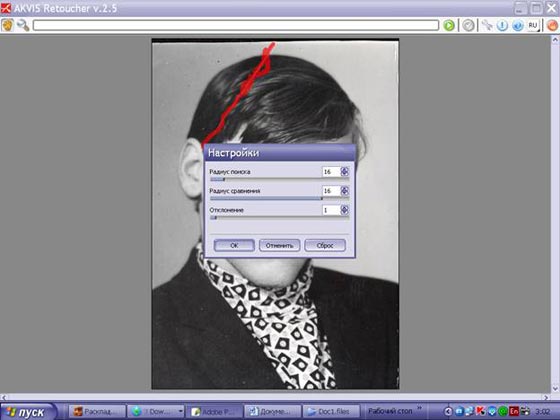
Press OK.
- Step 5. To start retouching we should press the green button
 .
Then press the button
.
Then press the button .
.
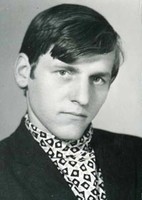
Here we have our restored photo and now we will add colors to it.
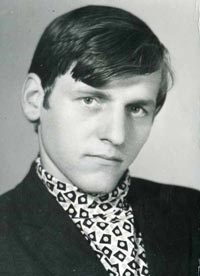
We’ll use AKVIS Coloriage for this purpose
- Step 6. Call the plugin from the menu of the photo editor FILTER->AKVIS->Coloriage
- Step 7. Select a white color from the Colors palette and outline the eye
iris with the Pencil tool. Then in the Color Library choose a necessary color
for the eyes and accurately draw lines within the eyes.
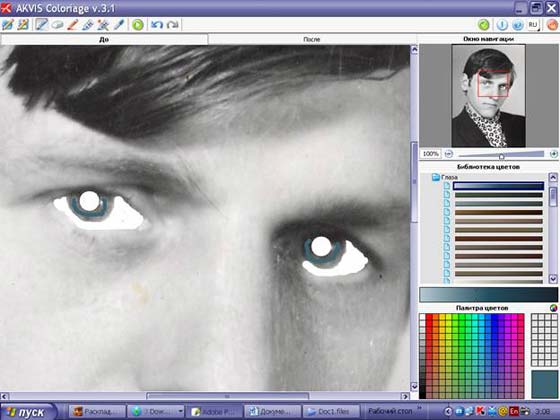
- Step 8. We don’t want to mix the color of the eyes with the color of the
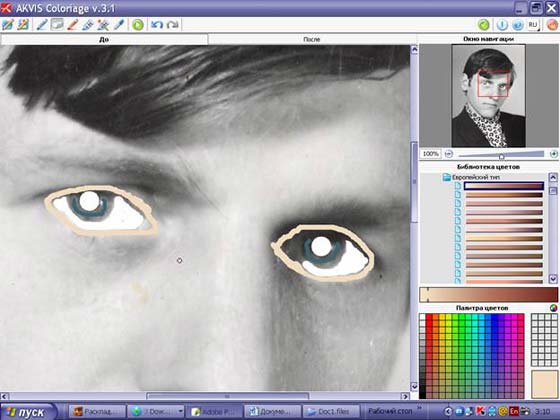
face, so we need to outline the eyes with the color that we have chosen for the face. The nearer the lines to the eyes border are, the better the result will be. If you draw across the borders, you can delete mistakes using the ERASER tool.
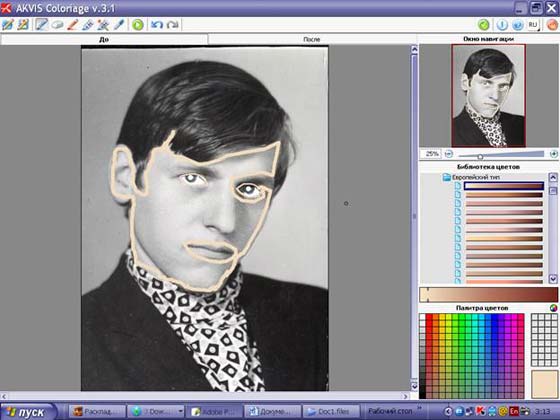
- Step 9. Now let’s colorize the face. Draw an outline within the face with the selected color.
Don’t forget to outline the lips. We will color them later.
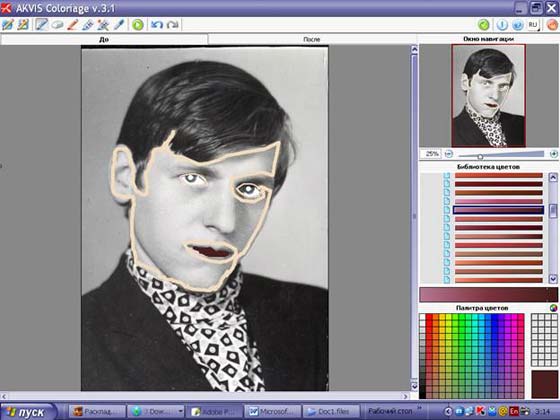
- Step 10. In the Color Library choose a red color. It is better to choose
a deeper tint.
- Step 11. Now we’ll color hair. Draw an outline within the hair with a color selected from the Color Palette.
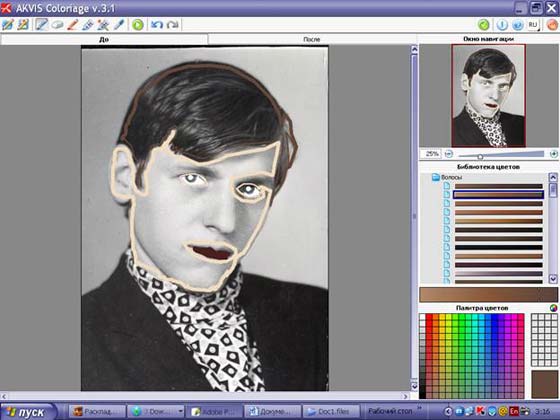
- Step 12. Coloring the clothes. In the Color Library choose the Fabric
folder (left mouse-button), then the Jeans subfolder and select a color. Draw a
line on the jacket. And a lighter tint to paint the shirt.
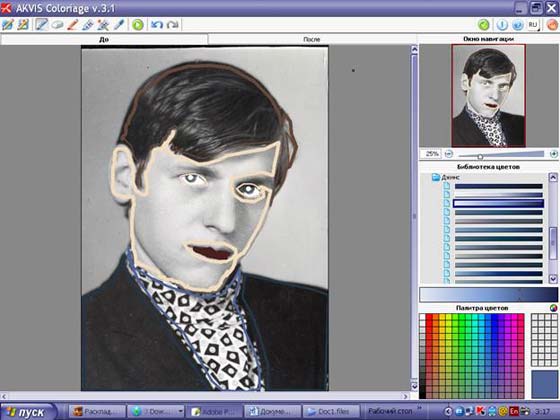
Press the button
to
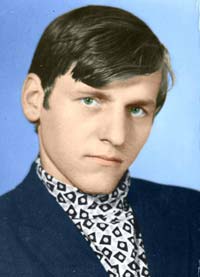
start the process of colorization. The result will be in the AFTER tab.
- Step 13. If you are satisfied with the result, press the and
close the plugin.
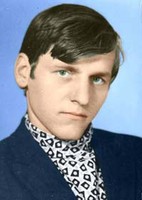
Our color photo is ready.
Retoucher v. 12.2 - 10-Tage-Testversion
