Schneekönigin
Der Autor dieses Beispiels ist Chantal Meus (Frankreich).
Erinnern Sie sich noch an die Märchen, die Sie als Kind so gerne gehört haben? Man versinkt in die Welt der eigenen Magie, Abenteuer und Geheimnisse, man fühlt mit den Lieblings-Helden mit und bestraft das Böse. Es gibt aber ein paar Helden, die faszinierend und unheimlich zugleich sind und uns versuchen zu täuschen. Eine davon ist die Schneekönigin - schön und heimtückisch, raffiniert und grausam.
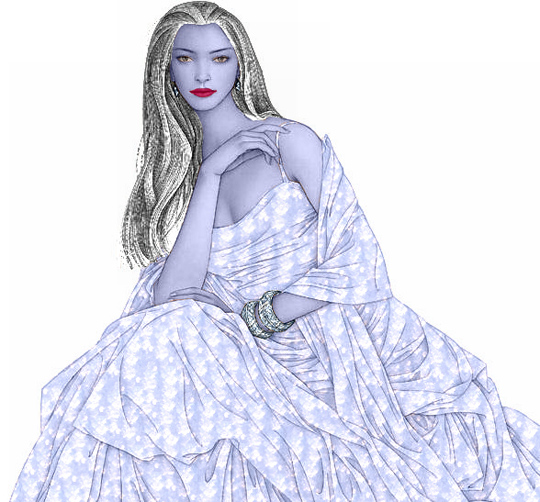
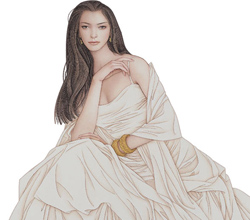
Mit AKVIS Decorator werden wir ein Mädchen in die geheimnisvolle Schneekönigin umwandeln.
- Schritt 1. Öffnen Sie das Foto in AKVIS Decorator.
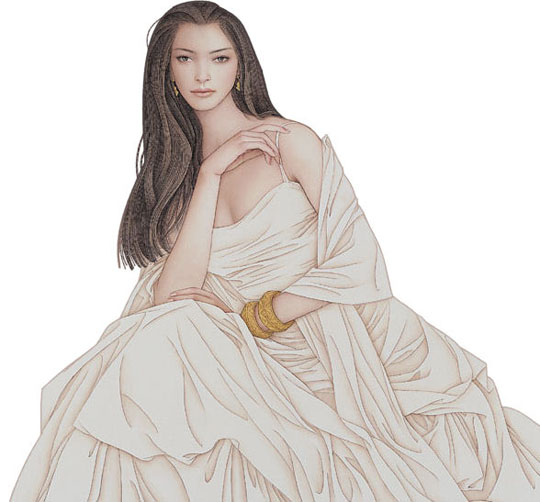
- Schritt 2. Wählen Sie die Lippen des Mädchens mit einem Auswahlwerkzeug. Sehen Sie das folgende Bild:
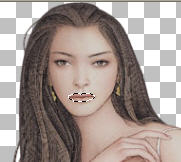
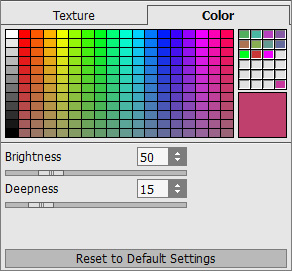
- Schritt 3. Ändern Sie die Farbe der Lippen. Dafür aktivieren Sie das Register Farbe und wählen den passenden Farbton. Der Autor hat Rosa augewählt.
Ändern Sie die Parameter:
- Schritt 4. Klicken Sie auf
 , um die Bearbeitung zu starten. Das bearbeitete Bild wird im Register Bildverarbeitung angezeigt.
- Schritt 5. Wählen Sie jetzt alle Teile des Körpers: das Gesicht, den Hals, die Hände und die Büste.
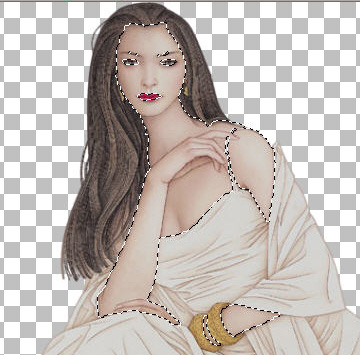
- Schritt 6. Aktivieren Sie das Register Farbe und wählen die lila Farbe aus der Farbenpalette.
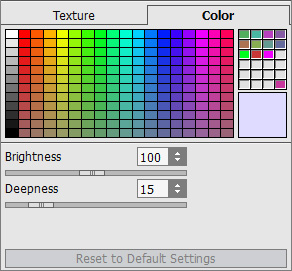
- Schritt 7. Klicken Sie auf .
- Schritt 8. Jetzt verzieren wir das Kleid. Wählen Sie es aus.
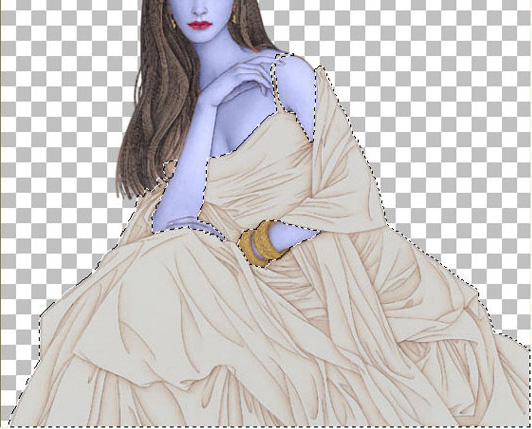
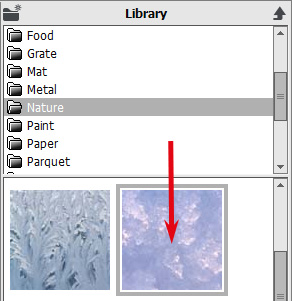
- Schritt 9. Аktivieren Sie das Textur-Register. Wählen Sie die gewünschte Textur in der Texturbibliothek. Öffnen Sie die Texturbibliothek mit einem Doppelklick auf das Quadrat mit dem Muster und wählen Sie eine Textur aus dem Ordner Natur.
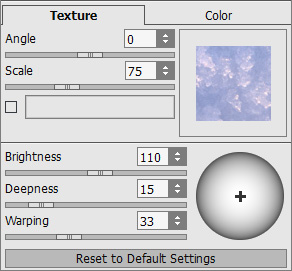
Stellen Sie die Werte ein:
- Schritt 10. Klicken Sie auf .
- Schritt 11. Jetzt wählen wir die Haare aus.
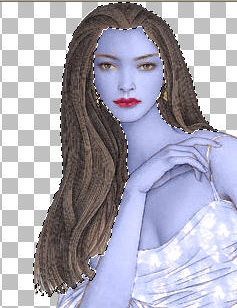
Aktivieren Sie das Register Farbe und wählen Sie die weiße Farbe aus der Farbpalette aus. Stellen Sie die Werte ein:
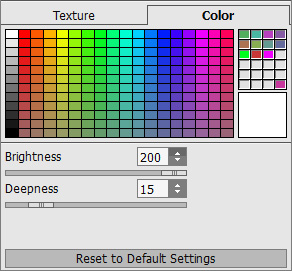
Wiederholen Sie den Schritt 10.
- Schritt 12. Wählen Sie die Armbänder.

Aktivieren Sie das Register Textur und wählen Sie eine Textur aus dem Ordner Metall aus.
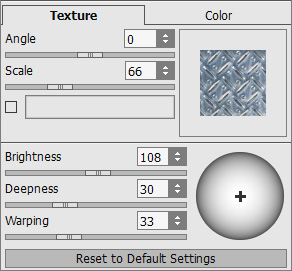
Wiederholen Sie den Schritt 10. Hier ist unsere Schneekönigin!
 |
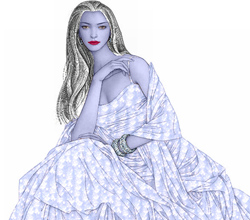 |
| Originalbild | Ergebnis |
Decorator v. 9.1 - 10-Tage-Testversion
