La Reina de las nieves
La autora de este ejemplo es Chantal Meus.
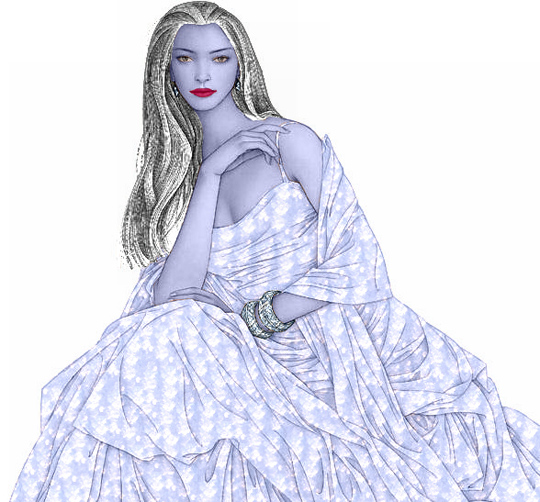
¿Recuerda los cuentos de hadas que sus padres le contaban cuando usted era un niño? Usted era absorbido por el mundo de la magia, de las aventuras y el misterio; y empatizaba con sus héroes favoritos y culpaba a los villanos. Sin embargo, hay héroes que son fascinantes y temidos al mismo tiempo. La Reina de las nieves, hermosa e insidiosa, exquisita y cruel, es una de ellos. Utilizando AKVIS Decorator, transformaremos a una joven común en la misteriosa y extraordinariamente atractiva Reina de las nieves.
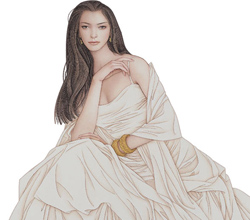 |
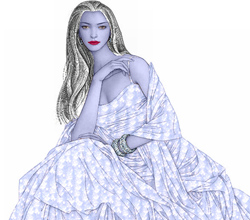 |
| Imagen original | Resultado |
- Paso 1. Abra la fotografía en AKVIS Decorator.
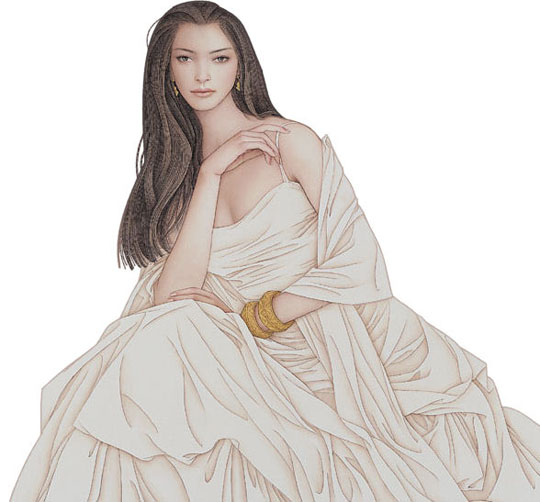
- Paso 2. Seleccione los labios de la joven utilizando cualquier herramienta de selección. Observe la imagen que se encuentra a continuación:
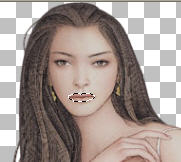
- Paso 3. Cambie el color de los labios. Para cambiar el color debe activar la pestaña Color y elegir el tinte requerido. La autora utilizó el color carne. Luego cambie los parámetros.
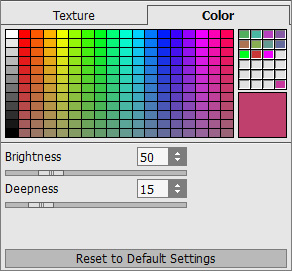
Haga clic en el botón
 para comenzar el procesamiento.
- Paso 4. Ahora seleccione todas las partes de su cuerpo: la cara, el cuello, las manos y el busto.
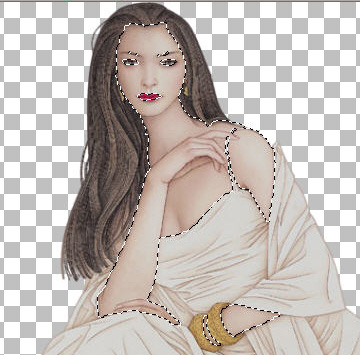
- Paso 5. Vaya a la pestaña Color y elija el color lila claro en la Paleta de color.
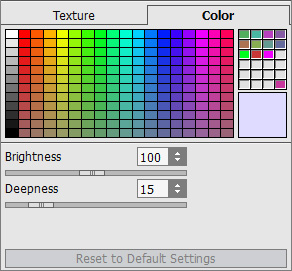
Haga clic en el botón
.
- Paso 6. Ahora debe decorar el vestido de la joven. Seleccione el vestido y el tirador.
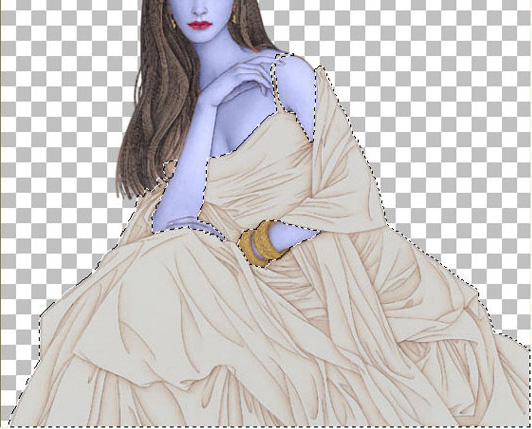
- Paso 7. Elija la pestaña Textura.
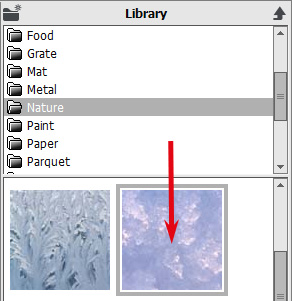
Seleccione la textura apropiada en la Biblioteca de texturas. Para abrir la Biblioteca, debe hacer clic doble con el botón izquierdo del ratón en el cuadro textura. Elija una textura de la carpeta Naturaleza.
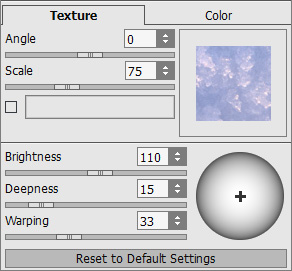
Establezca los valores de los parámetros y presione el botón
para procesar la imagen.
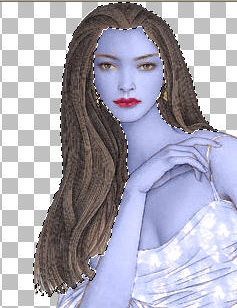
- Paso 8. Ahora es el momento de seleccionar el cabello.
- Paso 9. Elija la pestaña Color y escoja el color blanco en la Paleta de color.
Establezca los valores de los parámetros y inicie el procesamiento de imágen.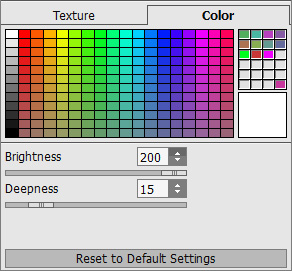
- Paso 10. Ahora seleccione las pulseras.
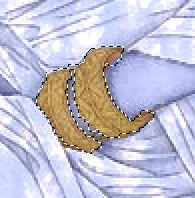
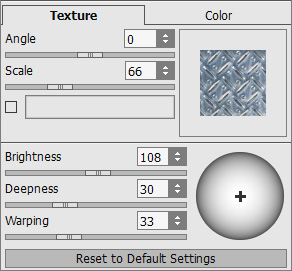
- Paso 11. Utilice la pestaña Textura y elija una textura de la carpeta Metal.
¡He aquí nuestra Reina de las nieves!
Decorator v. 9.0 - Prueba gratuita de 10 días

