Colorize a family portrait
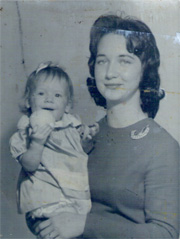
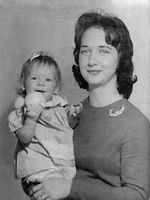
This photo has been submitted by Chuck Croom. Actually, it came in poor condition (it was all covered with scratches and color stains, besides it had a bluish tint). That's why, first of all, we retouched it with AKVIS Retoucher.
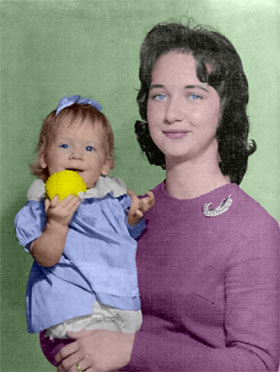
Now let's colorize this image.
 |
 |
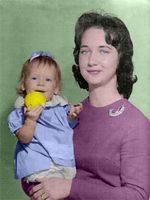 |
| Original Image | Retouched Image | Colorized Image |
You can colorize this photo yourself using the half-finished materials that we give you. Download the archive with the original image and the file with the color strokes (*.strokes). Read the instruction here to see how to work with this file in AKVIS Coloriage AI.
Follow the instructions to colorize the photo:
-
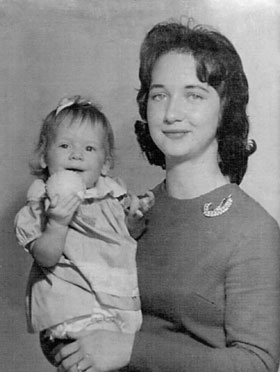
Step 1. Open the photo.
-
Step 2. Set a color for every object on the photo using
 .
.
Select a color from the Color or Swatches palettes or from the Color library, draw an outline within the object and draw some lines inside the object.
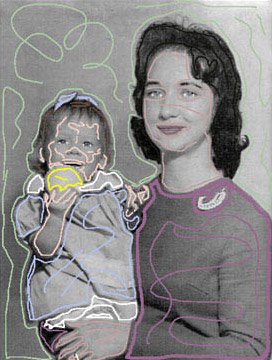
-
Step 3. Start the colorization process by pressing the button
 . The result will be shown in the After tab.
Coloriage AI v. 15.7 - 10日間の評価期間
