Kansas City: Desktop-Tapete
Das Beispiel wurde in der alten Version von AKVIS LightShop erstellt.
Lesen Sie, wie man die aktuelle Programmversion benutzt.
Der Autor des Tutorials ist Craig Deutscher.
In amerikanischer Stadt Kansas gibt es den Platz Plaza. In der Weihnachtszeit werden hier Tausenden von bunten Lichtern angezündet, sodass der Platz märchenhaft aussieht. Craig Deutscher zeigt, wie man das schöne Foto in die Desktop-Tapete mit AKVIS-Plugins verwandeln kann.
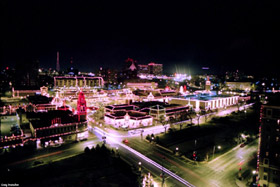

Dieses Beispiel wurde in Adobe Photoshop Elements bearbeitet.
- Schritt 1. Öffnen Sie das Ausgangsbild in einem Bildbearbeitungsprogramm.
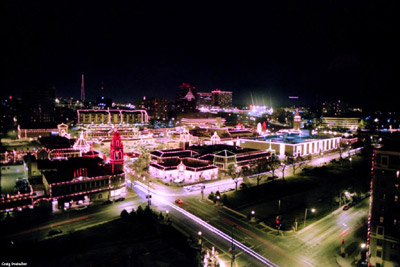
- Schritt 2. Fügen Sie eine Aufschrift hinzu. Dazu erstellen Sie eine neue Ebene (Ebene -> Neu -> Ebene).
Wählen Sie Horizontales Text-Werkzeug, passen die Schrifteinstellungen an und schreiben den Text. Der Autor benutzte die Schriftfamilie Pristina und die blaue Farbe.

- Schritt 3. Machen Sie die Anschrift körperhaft.
Zuerst fügen Sie den Schatten hinzu. Kopieren Sie die Text-Ebene: Ebene -> Ebene duplizieren. Wählen Sie die rote Schriftfarbe. Mit dem Verschieben-Werkzeug bringen Sie die rote Anschrift ein bisschen nach links und nach oben.

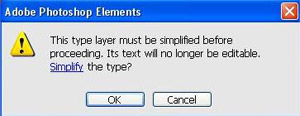
Jetzt fügen Sie die Textur den beiden Anschriften mit dem Plugin AKVIS ArtSuite hinzu. Wählen Sie Filter -> AKVIS -> ArtSuite aus dem Hauptmenü. Dabei öffnet sich das Dialog-Fenster, das die Notwendigkeit der Ebene-Rasterung bestätigt. Nach der Rasterung verwandelt sich der Text in die reguläre Ebene. Klicken Sie auf "OK".
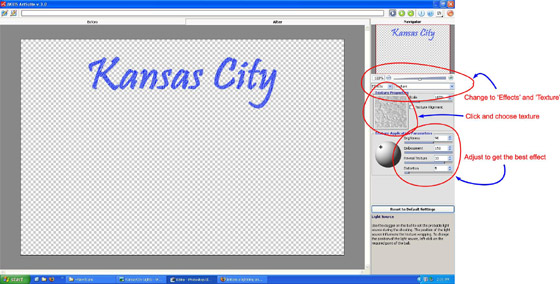
In der Einstellungenleiste unter dem Navigator wählen Sie den Register Effekte aus dem linken Dropdown-Menü und Textur aus dem rechten Dropdown-Menü. Wählen Sie die passende Textur aus der Textur-Palette. Dazu doppelklicken Sie links auf die Quadratbox mit der Textur.
Passen Sie die Parameter der Texturanwendung an (Helligkeit = 90, Relief = 150, Textur zeigen = 33, Verzerrung = 5) und klicken Sie auf
 , um die Bearbeitung zu starten.
Wenn Sie mit dem Ergebnis zufrieden sind, klicken Sie auf
 , um das Plugin-Fenster zu schließen und ins Bildbearbeitungprogramm wiederzukehren.
Bearbeiten Sie die zweite Anschrift in der gleichen Weise. Hier ist das Ergebnis der Bearbeitung von beiden Ebenen:

- Schritt 4. Fügen Sie die Ebenen zusammen: dazu wählen Sie Ebene -> Auf eine Ebene reduzieren.
- Schritt 5. Benutzen Sie den Plugin AKVIS LightShop, um den Lichteffekt ins Bild hinzuzufügen. Rufen Sie AKVIS Lightshop aus dem Hauptmenü Filter -> AKVIS -> LightShop.
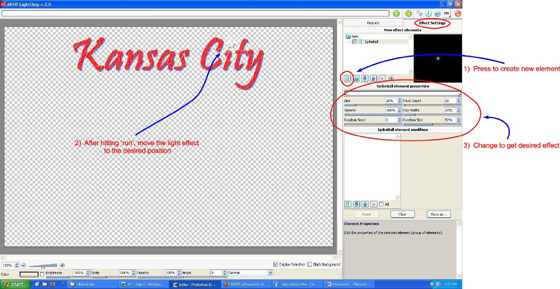
Wählen Sie die Registerkarte Effekteinstellungen und klicken auf Neues Element
 . Wählen Sie Stachelstern-Element und klicken auf OK.
Geben Sie die Parameter-Werte vor. Die Wahl des Autors ist so: Größe = 20%, Deckkraft = 100%, Zufallszahl = 0, Anzahl der Strahlen = 20, Breite = 20%, Zufallsgröße = 50%. Helligkeit = 100%, Größe = 100%, Deckkraft = 100%, Winkel = 0, Vermischungsmodus - Normal.
Klicken Sie wieder auf
, um den Lichteffekt mit vorgegebenen Einstellungen zu erstellen. Verschieben Sie den Lichteffekt, damit sich das Zentrum des Effekts über dem Buchstaben "i" befindet, als ob das Leuchten aus dem Text stammt.
Klicken Sie auf
.
- Schritt 6. Fügen Sie noch einen Lichteffekt zu dem Text hinzu. Rufen Sie wieder den Plugin AKVIS LightShop auf.
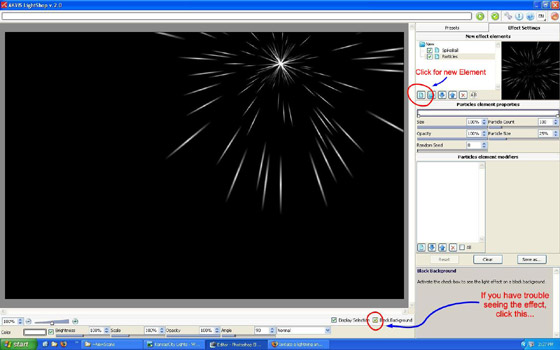
In den Effekteinstellungen wählen Sie Neues Element
. In dem geöffneten Fenster wählen Sie das Element Partikeln.
Passen Sie die Parameterwerte an: Größe = 100%, Deckkraft = 100%, Zufallszahl = 0, Anzahl der Partikeln = 100, Größe der Partikeln = 25%. Helligkeit = 100%, Größe = 100%, Deckkraft = 100%, Winkel = 90, Vermischungsmodus - Normal.
Klicken Sie auf
, um die Bearbeitung zu starten.
Positionieren Sie den Lichteffekt so, dass dessen Zentrum mit dem Zentrum des ersten Lichteffekt übereinstimmt. Aktivieren Sie das Kästchen Schwarzer Hintergrund, damit der Effekt besser bemerkbar wird.
Wenn Sie mit dem Ergebnis zufrieden sind, dann klicken Sie auf
, um den Pugin-Fenster zu schließen.
So sieht das Ergebnis aus:

- Schritt 7. Färben Sie das Leuchten, um es realistischer zu gestalten. Dazu muss man jeden Funke auswählen. Klicken Sie auf die Ebene-Ikone in dem Ebenenbedienfeld, halten dabei die Taste Strg gedrückt (
 unter Mac).

Da der Text auch ausgewählt wurde, muss man ihn aus dem Auswahl-Bereich entfernen. Dazu klicken Sie auf Im Maskierungsmodus bearbeiten in dem Toolbar.
Wählen Sie das Pinsel-Werkzeug und übermalen Sie die Anschrift, ohne die Lichtbereiche zu färben.
Schalten Sie wieder im Standardmodus um. Solcherweise werden nur die Strahlen ausgewählt.

- Schritt 8. Benutzen Sie das Pinsel-Werkzeug, um die Strahlen zu färben. Wählen Sie die nötigen Farben aus dem Farbwähler. Dazu klicken Sie auf Fordegrundfarbe einstellen in dem Toolbar.

Wählen Sie die Strahlen ab. Und jetzt genießen Sie die schöne Desktop-Tapete!

LightShop v. 8.0 - 10-Tage-Testversion

