Tips for Perfect Hair Selection
Selecting hair in photos can be quite challenging. Using AKVIS SmartMask AI you can easily cut out hair from backgrounds.
A basic selection is done automatically using the Object Selection tool  or the Select Subject option
  . These cutting-edge AI tools create a nice selection with one click, but for some tasks you may need to fine-tune the edges of a selection. To do this, use the following tips.
How to Keep Hair Fluffiness
-
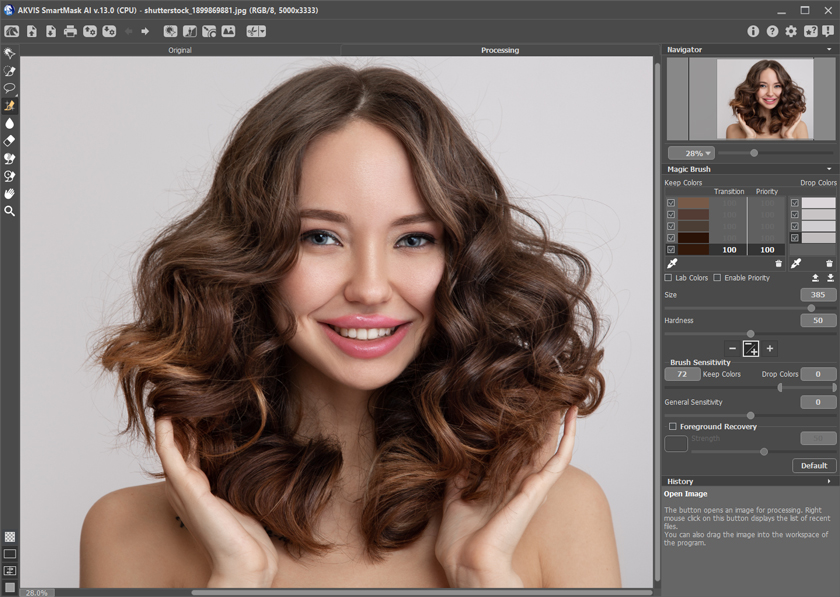
Step 1. Load a photo in AKVIS SmartMask AI.
-
Step 2. Activate the Object Selection tool in the Toolbar and draw a rectangular selection around the girl. Alternatively, you can use the Select Subject option .
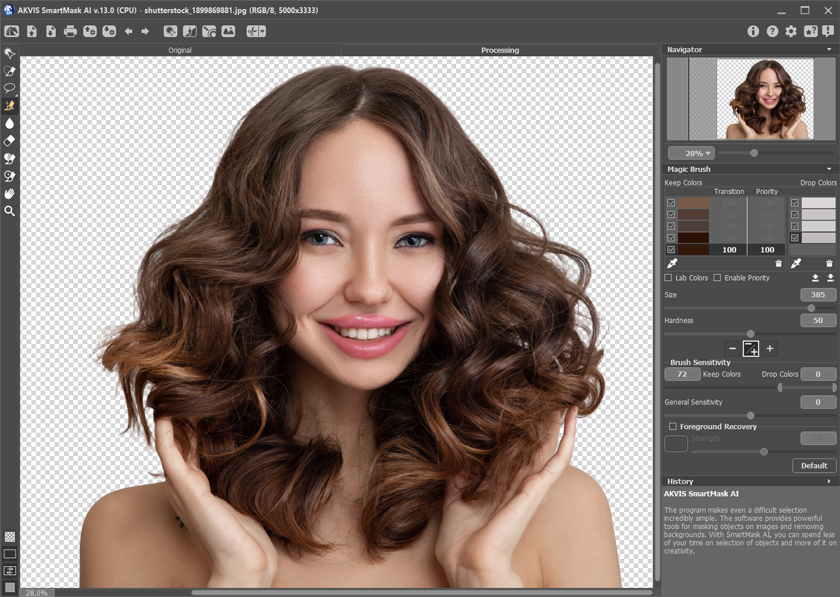
Remove the background by using the Remove Unselected Areas command (Ctrl+Del) and reset the selection with the Deselect command (Ctrl+D).
The result is very good. But comparing it with the original, you can see that the smallest hairs were cut out and the natural fluffiness disappeared.
-
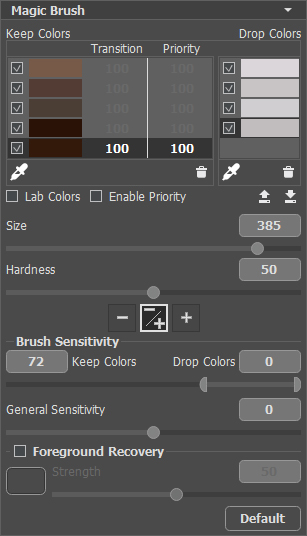
Step 3. You can improve the selection using the Magic Brush
 . Activate the tool in the Toolbar, go to the Original tab and select colors for Keep Colors/Drop Colors fields. The colors selected for Keep Colors will be saved when creating a selection. The colors selected for Drop Colors will be deleted. For each image, it is necessary to select its own individual set of colors.
-
Step 4. Go to the Processing tab and use the Magic Brush on the fluffy areas. Adjust the parameters in the Brush Sensitivity section to regulate the amount of details revealed in problem areas.
Accidentally deleted areas can be restored using the History Brush
 tool.
tool.
Now it's much better!
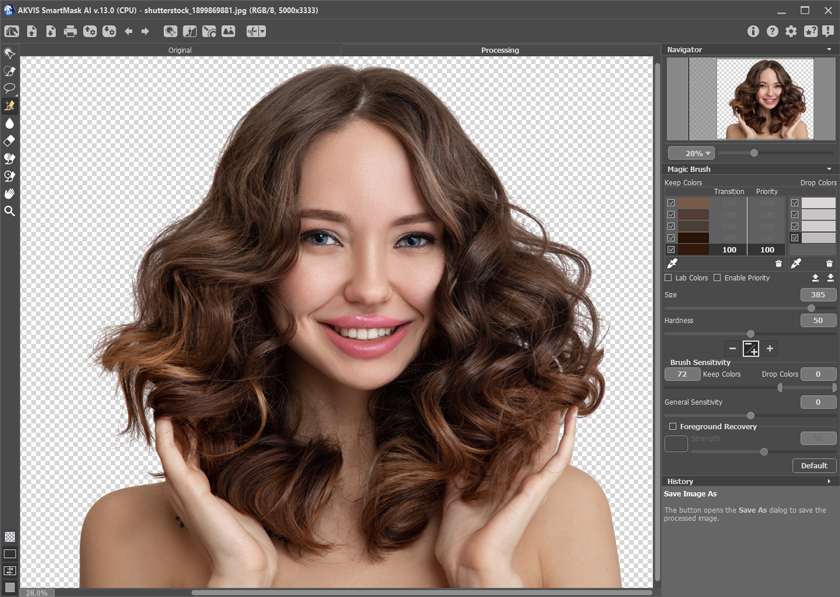
Compare hair before and after additional editing.
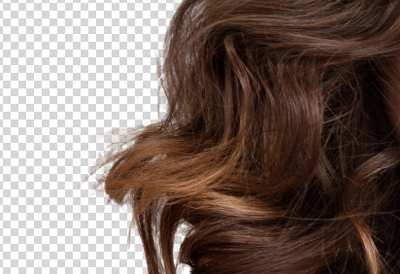
AI Selection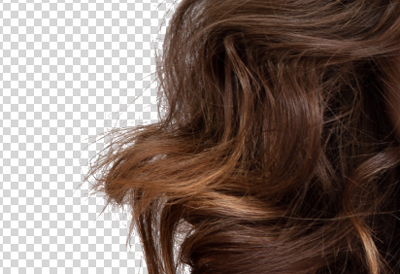
AI Selection + Magic Brush
How to Get Rid of Color Reflections
-
Step 1. Another problem that can be encountered when selecting hair is color reflections left from the background. Let's look at another photo as an example.
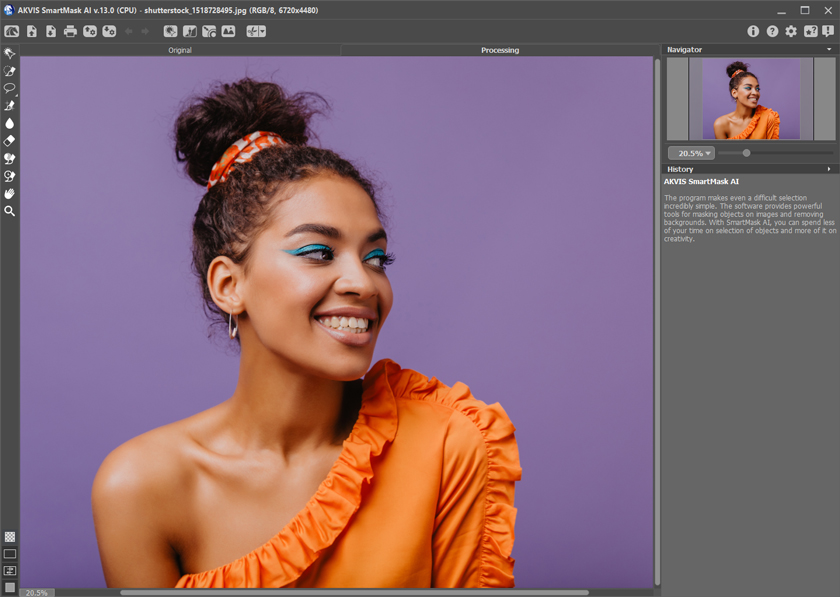
-
Step 2. This time we use the Select Subject option to remove the background. To do this, just click in the Control Panel to start the processing.
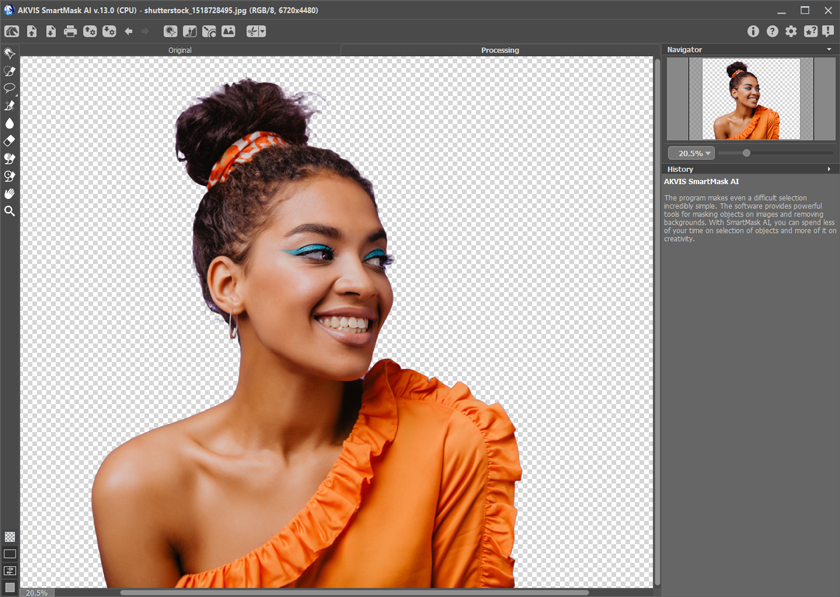
-
Step 3. Just like in the first case, we will use the Magic Brush to restore the fine hairs.
Since the background is rich in color, there are colored reflections on the hair. And AKVIS SmartMask AI allows you to fix it.
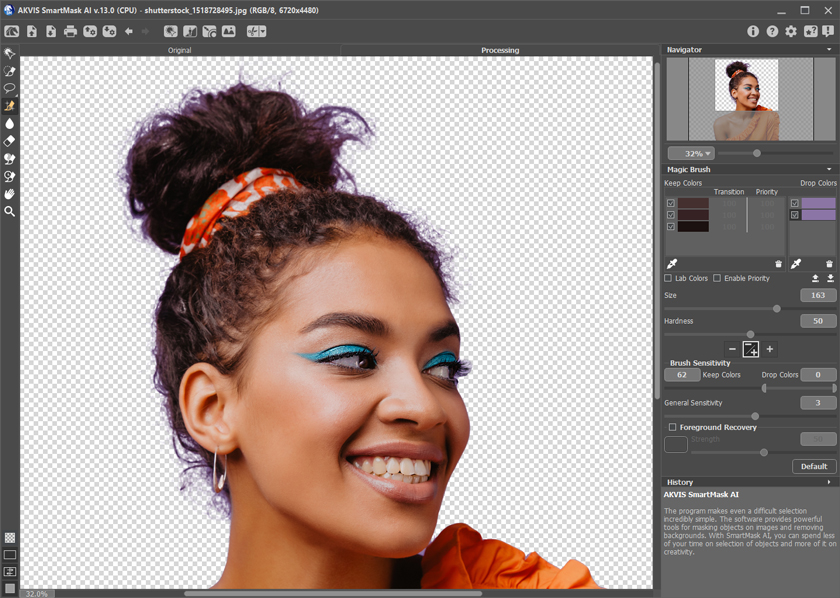
-
Step 4. Activate the Desaturation Brush
 in the Toolbar. Adjust the parameters in the Settings Panel and use the brush to treat areas with color reflections.
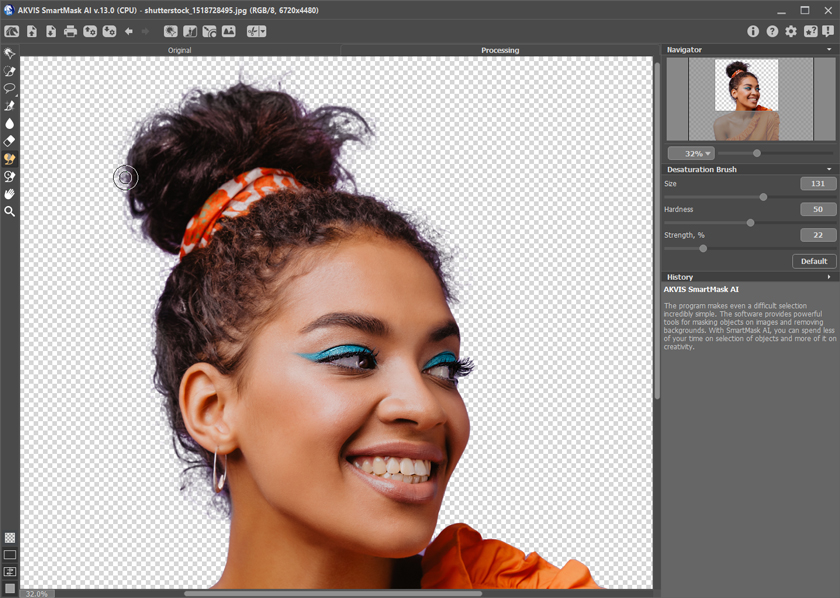
Compare hair before and after desaturation.
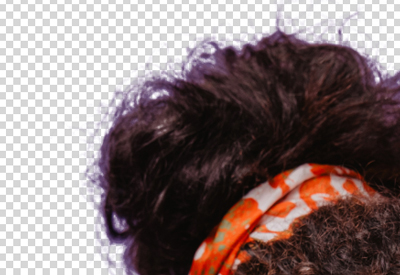
Color Reflections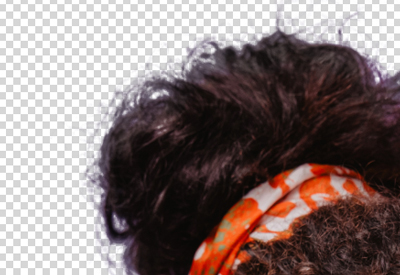
Using Desaturation Brush
Using these simple techniques, you can make accurate selections quickly and with no struggle.
SmartMask AI v. 15.1 - 10日間の評価期間
