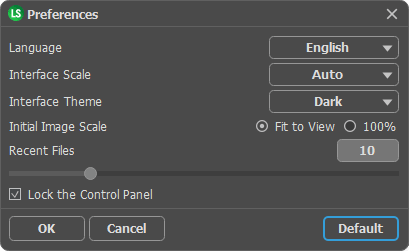
Options Neste momento algumas páginas são disponíveis somente em Inglês ou em Espanhol.
In the dialog box Options you can set
rendering parameters of light effects and their elements, specify the folder
for user presets, set visualisation mode for effect rendering , etc.
Set Folder for User Presets
By default, user presets are saved into the folder C:\Documents
and Settings\User\Application Data\AKVIS LLC\LightShop\Presets\, but
you can specify a different folder. In the presets list you will only see the
presets saved in the specified folder. To select a different folder, press the
button Browse and select a folder you like or create a new
one in the dialog box Browse for Folders.
Antialiasing
The check-box Antialiasing turns on/out the smoothing of
light effect edges. If you disable the check-box, you can get jagged edges,
especially on rays and on elements having rough edges. Take into account, that
Antialiasing always increases the processing time of a light effect rendering.
Continuous rendering
The program offers two modes of effect visualization when you move it in the
Image Window:
- mode 1 - first you drag only the frame; once you position
it on the image, the light effect moves to this place. In this mode the program
does not lose time on rendering of intermediate positions of a light effect.
To activate this mode, disable the check-box Continuous rendering.
- mode 2 – the light effect moves with the frame. On large photos
this mode will consume much computer ressources. To activate this mode activate
the check-box Continuous rendering.
Load only selection (for the plugin)
If there is a selection on the image before you call the plug-in AKVIS
LightShop, and if the check-box Load only selection
is enabled, the plug-in will load only this selection (as a rectangle), not
the whole image. It saves you time, as the program will not need to render the
whole image.
Autorun after Scale/Angle change
If the check-box Autorun after Scale/Angle change is enabled,
the changes to Scale and Angle parameters
are applied to a light effect automatically. If the check-box is disabled,
you will have to press the button
to apply these changes. It can be useful if you work with a large image and
with a large light effect. In this situation automatic application will affect
the computer productivity.
Outer rectangle size
The option Out rectangle size sets the size of the effect calculation
area. 100% correspond to the Preview area (on the right of the
elements tree). If the created light effect exceeds the borders of the Preview
area, it will be cut accordingly when applied to the image as well.
To avoid it, the default value of the option Outer rectangle size
is set to 120%, that is the calculation area is increased by 20%. In most cases
it is enough.
If you see that your light effect is cut at the ends, you can
increase the value of this parameter and press the button again. Please note, that the excessive increase of this value will effect the
processing speed.
|