A Rainha das Neves
O autor deste exemplo é Chantal Meus.
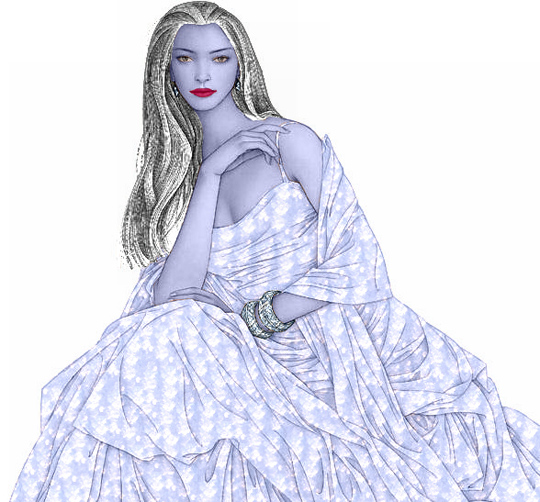
Você se lembra dos contos de fadas que seus pais lhe contavam quando você era criança? Você era atraído ao mundo da magia, aventuras e mistério, você sentia empatia com seus heróis favoritos e sujeitos culpados e maus. Mas há alguns heróis que são fascinante e assustador em alguns momentos. A Rainha da Neve, bonita, insidiosa, primorosa e cruel, é uma delas. Usando AKVIS Decorator nós transformaremos uma menina ordinária na misteriosa, extraordinariamente atraente a Rainha das Neves.
- Passo 1. Abra a fotografia em AKVIS Decorator.
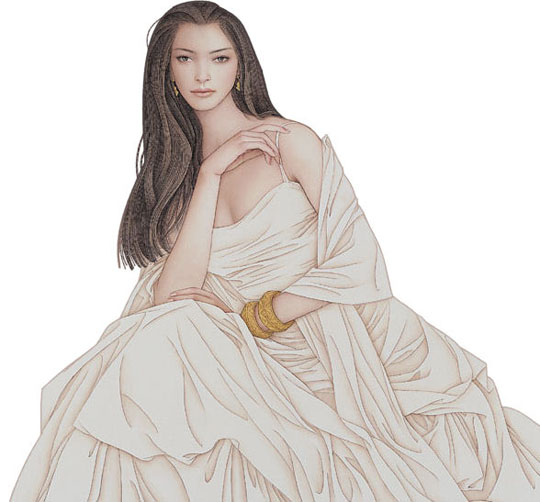
- Passo 2. Selecione os lábios da menina usando qualquer ferramenta de seleção. Olhe para a imagem abaixo.
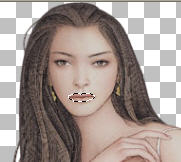
- Passo 3. Mude a cor dos lábios. Para mudar a cor, você tem que ativar a aba de Cor e escolher o matiz exigido. O autor usou a cor de cravo.
Então mude os parâmetros de cores:
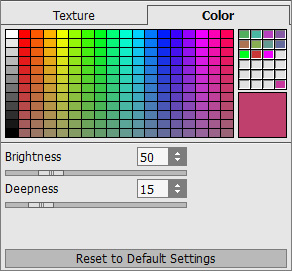
- Passo 4. Clique no botão
 para iniciar o processo.
- Passo 5. Agora selecione todas as partes de seu corpo: a face, os pescoço, as mãos e o busto.
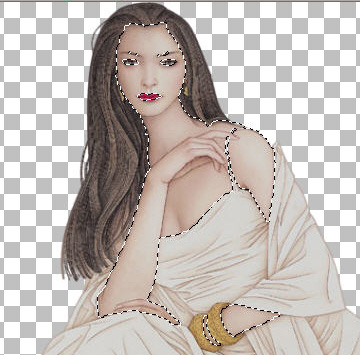
- Passo 6. Vá para a aba Cor e escolha a cor lilás pálida na Paleta de cor.
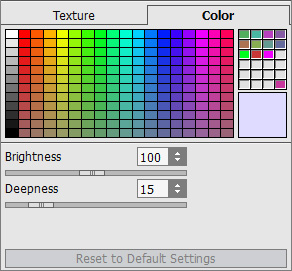
- Passo 7. Clique no botão .
- Passo 8. Agora nós temos que decorar seu vestido. Selecione o vestido e a correia.
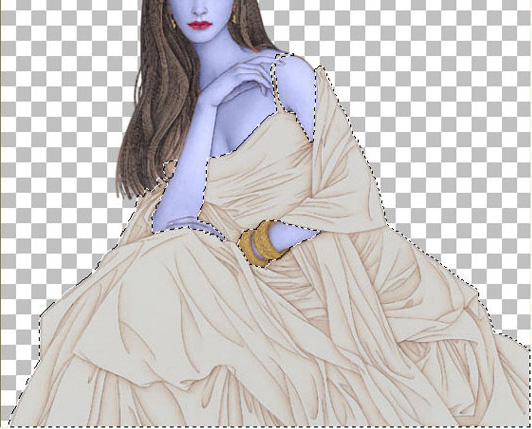
- Passo 9. Escolha a aba Textura. Selecione a textura apropriada da Biblioteca de textura. Para abrir a Biblioteca, você deverá clicar duas vezes com o botão esquerdo do mouse no quadrado com uma textura. Escolha uma textura da pasta Natureza.
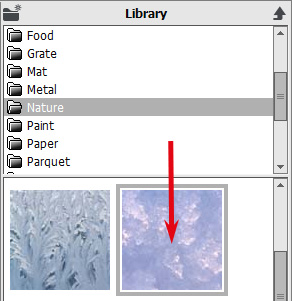
Fixe os valores dos parâmetros:
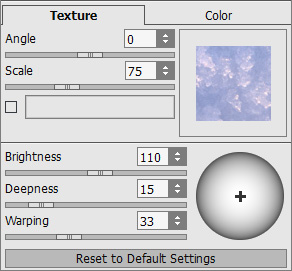
- Passo 10. Pressione o botão .
- Passo 11. Agora é hora para selecionar seu cabelo.
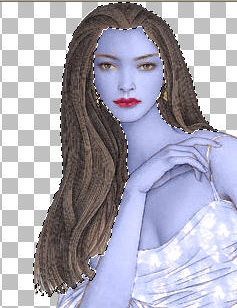
Escolha a aba Cor e escolha a cor branca na Paleta de cor. Fixe os valores dos parâmetros:
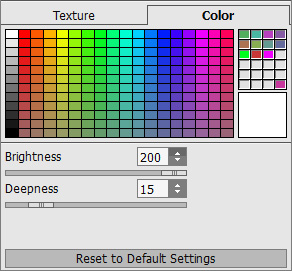
Repita o Passo 10.
- Passo 12. Agora selecione as pulseiras.
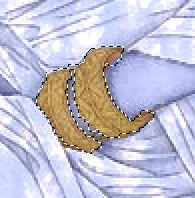
Clicar a aba Textura e escolha uma textura da pasta Metal.
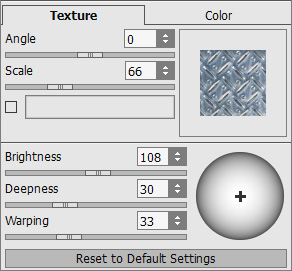
Repita o Passo 10. Aqui nós temos nossa Rainha das Neves!
 |
 |
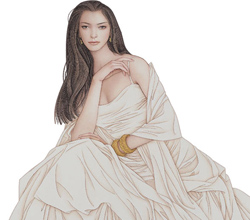
| Imagem original | Resultado |
Decorator v. 9.1 - Teste gratuito 10 dias
