Convert a Boy to an Alien with AKVIS Decorator and AKVIS LightShop


Entrar seu e-mail para subscrição em novidades.
 
 
  Produtos     Download     Online Store     Tutorial     Suporte     Quem Somos      Conta de usuário
en  fr  de  es  pt  it  jp  ru    
 

Tutorial: AKVIS Decorator

Aliens Are Coming


Neste momento algumas páginas estão disponíveis somente em Inglês e em Espanhol.
Você pode obter uma licença para qualquer programa AKVIS, se traduzir os arquivos do nosso acervo
para o Português (do espanhol ou do inglês) para saber mais escreva para o team@akvis.com

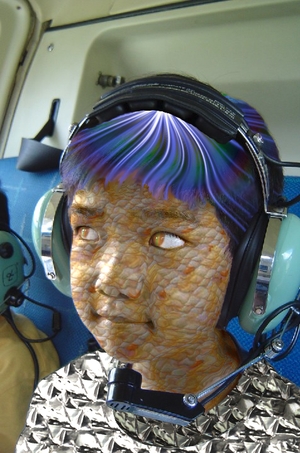
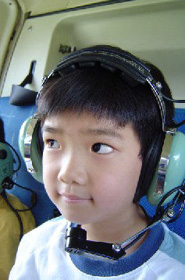
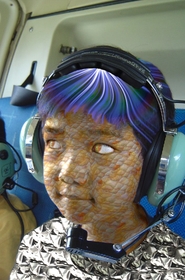
The author of the tutorial, Laval Yan, used Adobe Photoshop and two AKVIS plug-ins to convert a photo of his nephew into a photo of an alien.

Laval used AKVIS Decorator to apply new texture to the boy's skin and AKVIS LightShop to add extra-terrestrial light to the eyes and an original haircut to the creature.

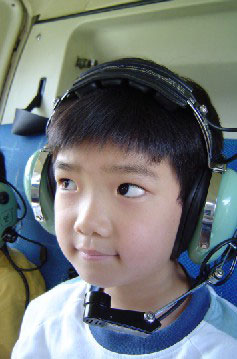
    Original image Result
    Original image Result

  • Step 1. Open the photo you want to edit in any photo editor compatible with AKVIS plug-ins.
    portrait of a boy
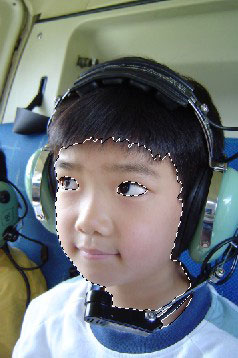
  • Step 2. Select the face of the boy with any selection tool.

    In Adobe Photoshop you can use the Quick Mask mode, in Photoshop Elements - the Selection Brush tool.
    In Paint Shop Pro - the Freehand Selection tool, in Corel Photo-Paint - Brush Mask.

    Select the face
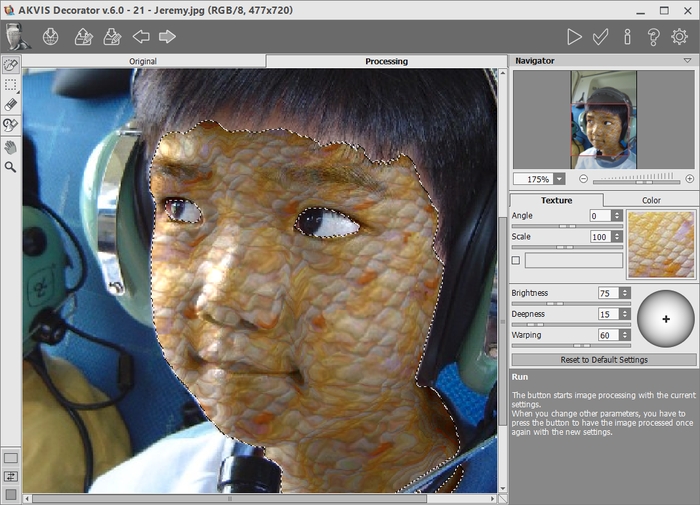
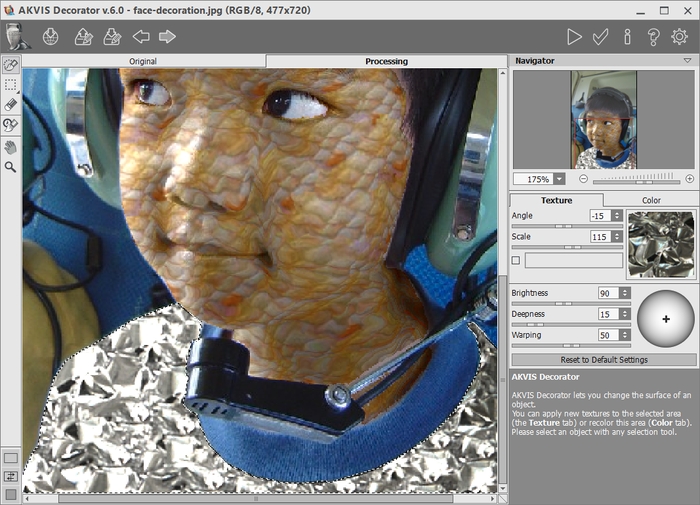
  • Step 3. Call the plug-in AKVIS Decorator by selecting AKVIS -> Decorator in the menu.

    Open Texture Library with a left double-click on the texture pattern; in the Animals group select the texture with fish scale.

    Adjust the parameters Brightness and Warping (others can stay the same) and press the button Run.

    Fish scale texture
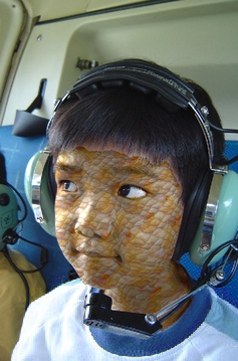
  • Step 4. Apply the result by pressing the button Apply.
    Alien skin
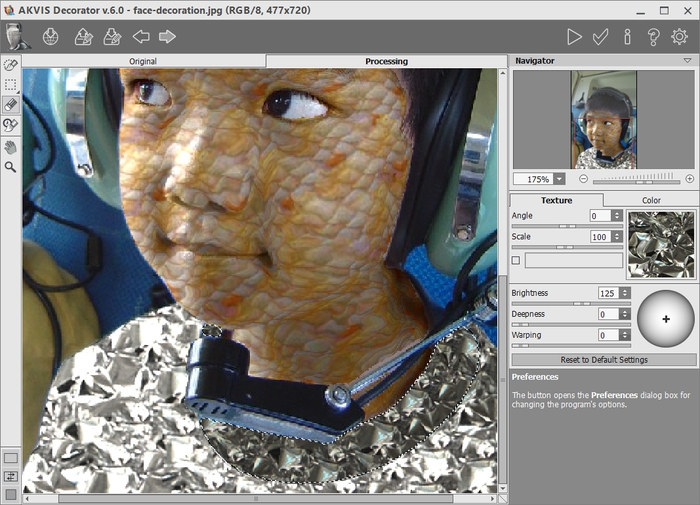
  • Step 5. Repeat the steps 2-4 to apply new textures to the T-shirt and the collar to dress the alien in a space-suit.
    Apply texture to the T-shirt
    Apply texture to the collar
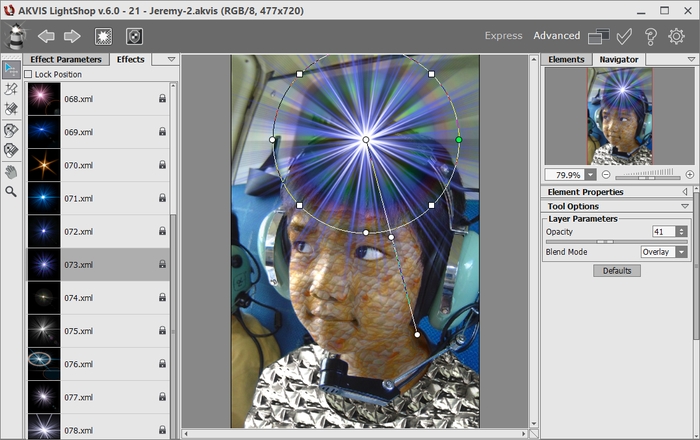
  • Step 6. Create an original haircut for the creature using AKVIS LightShop.

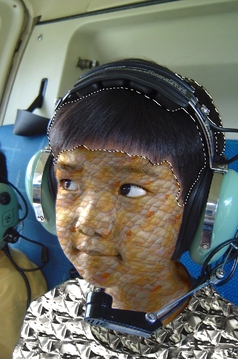
    Select the hair of the boy with any selection tool and call AKVIS LightShop.

    Select hair

    In the AKVIS presets list there is Sample 03 that suits well for our task. Select this preset from the list and press the button Edit to open the Settings of this preset.

    The preset has only one element - Particles. First we will change the color of the element: on the gradient line we will set black color for both yellow and violet sliders.

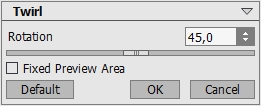
    Increase the size of particles (Particle Size) from 25 to 45%. Change the value of the parameter Scale X of the Scale modifier to 140%. Press the button Apply light effect.

    AKVIS LightShop: new hair for the alien
  • Step 7. Apply the result by pressing Apply.
    Alien hair
  • Step 8. For the hair to look more natural, we will smooth its edges with any appropriate tool. In Adobe Photoshop you can use the Blur tool.
  • Step 9. Make a Snapshot of the current state in the History palette. We will need it later.

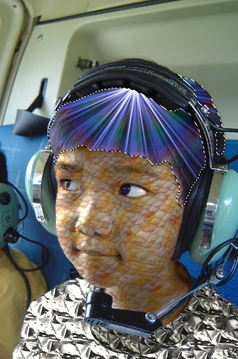
    Now add to the alien's haircut some locks for a natural look. For this purpose create a transparent layer, call AKVIS Lightshop again and repeat the previous steps.

    Create hair on new layer
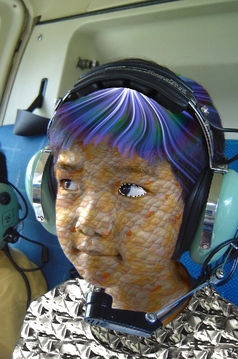
  • Step 10. Make a new Snapshot and select History Brush from the toolbar. Activate the first Snapshot to edit it with History Brush. Remove some locks if needed.
    Haircut
  • Step 11. Now, the final touch - add extraterrestrial look to the eyes.
    Select the eyes

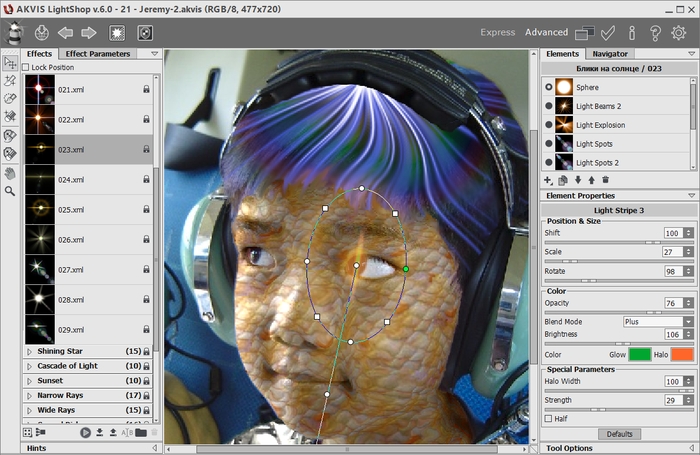
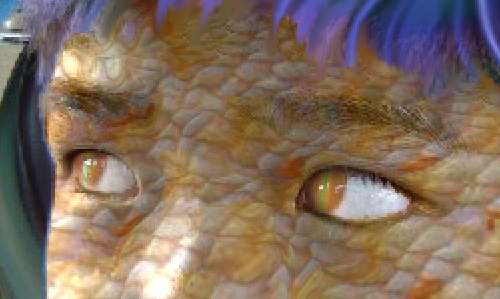
    Apply one of AKVIS Lightshop's presets to create the effect of "snake eyes". Adjust the parameters so that the stripe was in the center of the pupil, as it is shown on the picture.

    Create snake eyes with AKVIS LightShop

    Apply the result by pressing the button Apply. Use Blur tool and History Brush to correct the edges.

    Repeat the same for the left eye.

    Create snake eyes with AKVIS LightShop

    Here is our alien!

    Aliens are coming

    Have a look at flash-movies: Boy transfers to an Alien (821 KB) and Talk to alien (1.76 MB).

 
Como funciona Como funciona
   — Àrea de trabalho — Àrea de trabalho
   — Utilizando o programa — Utilizando o programa
Exemplos Exemplos
   — Desenho de interiores — Desenho de interiores
   — Potes de chá para cada gosto — Potes de chá para cada gosto
   — Alienígenas chegando — Alienígenas chegando
   — Show de moda — Show de moda
   — A Rainha das Neves — A Rainha das Neves
   — Patchwork — Patchwork


No começo da página


   Política de privacidade | Mapa do Site | Pesquisar na site    
   Contacte-nos | Twitter | Facebook | YouTube Channel    
| English  |Français  |Deutsch  |Español  | Português  |Italiano  |日本語  |Pусский  | © 2004-2012 AKVIS. Todos os direitos reservados.