Àrea de trabalho
AKVIS Coloriage AI está disponível em duas versões: como aplicação autonoma (standalone) e como um plugin para um editor de foto.
Standalone é um programa autônomo, você pode abri-lo diretamente clicando no ícone do programa.
Plugin é um módulo adicional para um editor de foto. Para chamar o plugin, selecioná-lo a partir de filtros do seu programa de edição de imagem.
A área de trabalho de AKVIS Coloriage AI é organizada de acordo com o modo de colorização da imagem escolhido no Painel de controle: AI ou Clássico.
Clique em AI para mudar para o modo de colorização automática, que usa redes neurais e algoritmos de aprendizado de máquina.
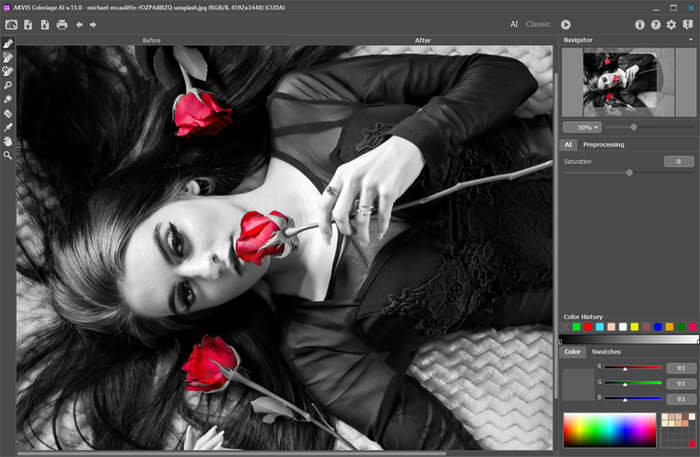
Àrea de trabalho de AKVIS Coloriage AI (modo AI)
O modo Clássico destina-se à colorização com uso de traços coloridos e seleção de zonas.
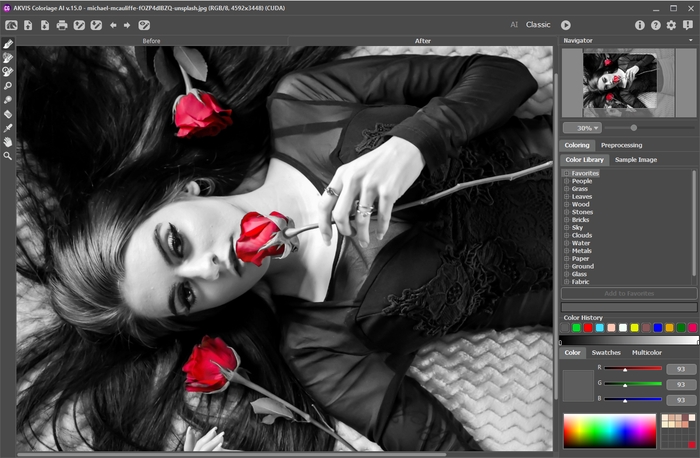
Àrea de trabalho de AKVIS Coloriage AI (modo Clássico)
A maior parte da janela do AKVIS Coloriage AI é tomada pela Janela de imagem com duas abas: Antes e Depois. Na aba Antes pode se ver a foto original. A aba Depois mostra a imagem resultante.
Na parte mais alta da janela pode se vê o Painel de controle com os seguintes botões:
- O botão
 abre a página Web do AKVIS Coloriage AI.
- O botão
 (só na versão independente) permite abrir uma imagem para processar. A tecla de atalho para o comando é Ctrl+O no Windows, ⌘+O no Mac.
- O botão
 (só na versão independente) permite salvar imagem para o disco. A tecla de atalho para o comando é Ctrl+S no Windows, ⌘+S no Mac.
- O botão
 (só na versão independente) permite a impressão da imagem. A tecla de atalho para o comando é Ctrl+P no Windows, ⌘+P no Mac.
- O botão
 (somente no modo AI) abre a caixa de diálogo Processamento em lote para colorir automaticamente uma série de imagens.
- O botão
 abre arquivos com a extensão .strokes. Estes são os arquivos onde você salva os traçados (as linhas desenhadas) usados em uma imagem.
Estes botões foram projetados para trabalhar com traços coloridos e estão disponíveis no modo Clássico:
- O botão
 permite salvar as linhas desenhadas de cor em um arquivo .strokes. Isto é útil quando você quer editar a foto mais tarde, por exemplo, se você tem de interromper o seu trabalho antes de ter usado os traçados para todos os objetos.
- O botão
 cancela a última operação. È possível cancelar várias operações em uma fila. A tecla rápida para o comando é Ctrl+Z no Windows, ⌘+Z no Mac.
- O botão
 retorna a última operação cancelada. È possível retornar várias operações em uma fila. A tecla rápida para o comando é Ctrl+Y no Windows, ⌘+Y no Mac.
- O botão
 /
/  /
/  permite alternar entre os modos de visualização de linhas desenhadas.
indica que o modo normal é ativo, onde todos os traçados são exibidos como na paleta de cor.
indica que o modo Mostrar luminosidade é ativo. Neste modo você pode ver como os traçados com as cores selecionadas e a extensão de nitidez irá aparecer no resultado da imagem. Note que como o programa ajusta as cores a extensão de nitidez da fotografia, os traçados de cor clara usados em áreas claras e traçados de cores escuras em áreas escuras serão dificilmente visiveis.
indica que as linhas são ocultadas.
permite alternar entre os modos de visualização de linhas desenhadas.
indica que o modo normal é ativo, onde todos os traçados são exibidos como na paleta de cor.
indica que o modo Mostrar luminosidade é ativo. Neste modo você pode ver como os traçados com as cores selecionadas e a extensão de nitidez irá aparecer no resultado da imagem. Note que como o programa ajusta as cores a extensão de nitidez da fotografia, os traçados de cor clara usados em áreas claras e traçados de cores escuras em áreas escuras serão dificilmente visiveis.
indica que as linhas são ocultadas.
Estes botões estão disponíveis em todos os modos:
- Pressione o botão
 executar para começar o processo de coloração. O atalho do teclado para começar a colorir é Ctrl+R no Windows, ⌘+R no Mac. A imagem resultante é mostrada na aba Depois.
- O botão
 (só na versão plugin) permite aplicar o resultado da colorização. Quando o botão é pressionado, as mudanças são aplicadas para a imagem e a janela do AKVIS Coloriage AI é fechada.
- O botão
 mostra informação sobre o programa.
- O botão
 abre os arquivos de ajuda do programa.
- O botão
 chama a janela Opções.
- O botão
 abre a janela que mostra as últimas notícias sobre Coloriage AI.
Para a esquerda da Janela de imagem há uma Barra de ferramentas, que contém ferramentas para adicionar e editar traços coloridos (no modo Clássico), bem como ferramentas para ajustar a imagem colorida (tanto no modo AI quanto no modo Clássico). Diferentes ferramentas aparecem dependendo da aba ativa - Antes ou Depois.
O ajuste da ferramenta ativa é mostrada na janela flutuante, que aparece quando você clica com o botão direito em qualquer parte da Janela de imagem. Se você clicar fora da janela flutuante, ela desaparecerá.
Navegue e escale a imagem usando a janela Navegador. Na a janela Navegador você pode ver a copia reduzida da imagem. A moldura vermelha mostra parte da imagem que está agora visível na Janela de imagem; as áreas de fora da moldura estarão sombreadas. Arraste a moldura para fazer outras partes da imagem visível. Para mover a moldura, traga o cursor para dentro da moldura, pressione o botão esquerdo do mouse e mantenha-o pressionado, mova a moldura na a janela Navegador.
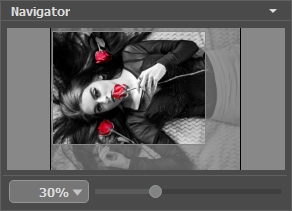
Navegador
Use o controle deslizante para dimensionar a imagem na Janela de imagem. Quando você move o controle deslizante para a direita, a escala da imagem aumenta. Quando você move o controle deslizante para a esquerda, a escala da imagem diminui.
Para rolar a imagem na Janela de imagem você pode pressionar a barra de espaço do teclado e arrastar a imagem com o botão esquerdo do mouse. Use a roda de rolagem do mouse para mover a imagem para cima/para baixo; mantendo a tecla Ctrl pressionada (Mac: ⌘) - para mover a esquerda/a direita; mantendo a tecla Alt pressionada (Mac: Option) - para dimensionar a imagem. Clique com o botão direito na barra de rolagem para ativar o menu de navegação rápida.
Você pode também mudar a escala da imagem entrando com um novo coeficiente dentro do campo de escala e pressione o botão Enter (Return no Mac). O menu cair mostra alguns coeficientes frequantemente usados.
Você pode usar as teclas segintes para modificar a imagem escala + e Ctrl++ (⌘++ no Mac) para aumentar a escala e - e Ctrl+- (⌘+- no Mac) para reduzir a escala.
Sob o Navegador há um Painel de configurações, as configurações dependem do modo selecionado.
Coloriage AI v. 15.7 - Teste gratuito 10 dias
