Graphic software for Windows Mac graphic software
Entrez votre e-mail pour souscrire à notre liste de diffusion.
 
  
  Produits     Télécharger     Magasin en ligne     Tutoriel     Support     Compagnie
en  fr  de  es  pt  it  jp  ru    
 

Tutoriel: AKVIS Retoucher

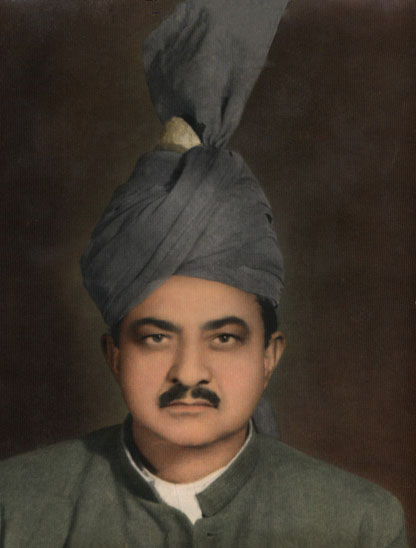
Removes stains from the grandfather's photo


Désolé, à présent cette information n'est disponible qu'en anglais. La version française sera bientôt affichée.

The tutorial was created by Afaq Saeed.


The most powerful tool for removing scratches, creases, stains, and removing dust is the AKVIS Retoucher plug-in. I found it on the internet while searching for an effective tool for removing scratches from photos. I downloaded the trial version of AKVIS Retoucher. It was very useful and it helped me very much in removing defects from my grandfather's picture.

Let me tell you how I used it.

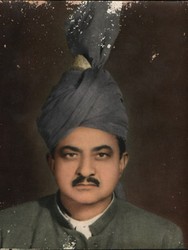
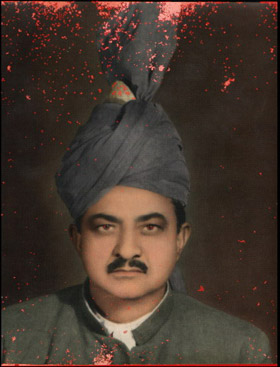
  • Step 1. First of all I opened my grandfather's photo in Adobe Photoshop. The photo was very scratched and it was not easy for me to edit it with Adobe Photoshop's tools because, when I used Healing Brush and Stamp tools I sometimes found some dark spots on my grand father's photo. So I decided to use AKVIS Retoucher. Before you can apply Retoucher you should select all imperfections. I switched to Quick Mask Mode and started painting over the scratches with Adobe Photoshop's Brush tool. I marked every scratch with the brush, so that my grandfather's photo looked like this.
    Original photo of the grandfather Select imperfections in Quick mask mode
  • Step 2. Then I switched to Standard Mode for the selection of my photo's defects and I inversed the selection by going under Select and then clicked on Inverse.
    Inverted selection
  • Step 3. At this stage I went to Filter - AKVIS and then Retoucher.
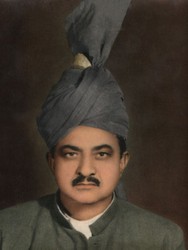
    AKVIS Retoucher: the defects are highlighted
  • Step 4. Then I launched the restoration process by pressing Run.
    AKVIS Retoucher: the retouching is over
  • Step 5. After this I pressed the button Apply to apply the result to the image and come back to the Photoshop's workspace. Then I used Adobe Photoshop's Healing Brush tool a bit for the final touch-up. I am really very happy with this. Amazing, it was a great job by AKVIS software.
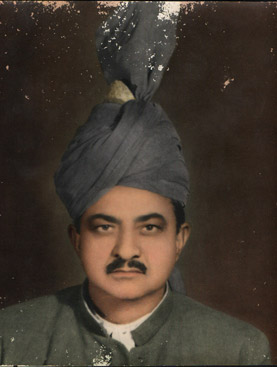
    The restored photo of the grandfather
 
Comment fonctionne t-il? Comment fonctionne t-il?
   — Utiliser le plugin — Utiliser le plugin
Exemples Exemples
   — Restauration d'un portrait — Restauration d'un portrait
   — La photo d'un bébé — La photo d'un bébé
   — Enlever la date de la photo — Enlever la date de la photo
   — La photo abimée d'un voyageur — La photo abimée d'un voyageur
   — Restaurer la photo d'un enfant — Restaurer la photo d'un enfant
   — Restauration d'une vieille photo — Restauration d'une vieille photo
   — Portrait en couleurs  — Portrait en couleurs
   — Photo historique de gitans — Photo historique de gitans
   — Jeune fille souriante — Jeune fille souriante
   — Restaurer une photo déchirée — Restaurer une photo déchirée
   — Restaurer une photo d'un garçon — Restaurer une photo d'un garçon
   — Enfant heureux — Enfant heureux
   — Photo en noir et blanc — Photo en noir et blanc
   — Restaurer une vidéo — Restaurer une vidéo
   — Restauration des archives familiales — Restauration des archives familiales
   — Famille ukrainienne — Famille ukrainienne
   — Traitement avant impression — Traitement avant impression
   — Retoucher une photo en 7 étapes — Retoucher une photo en 7 étapes
   — Un daguerréotype — Un daguerréotype
   — Lionne dans une cage — Lionne dans une cage


   Politique de Confidentialité | Plan du Site | Recherche | English  | Français  |Deutsch  |Español  |Português  |Italiano  |日本語  |Pусский  | © 2004-2009, AKVIS Software Inc. Tous droits réservés.