Snowy firework (greetings card)
Désolé, à présent cette information n'est disponible qu'en anglais.
La version française sera bientôt affichée.
La version française sera bientôt affichée.
The author of this example is Régine Lemasle. She created such a wonderful New Year card using AKVIS LightShop and AKVIS Frame Suite.
This example has been created in Adobe Photoshop.
- Step 1. Open your image.
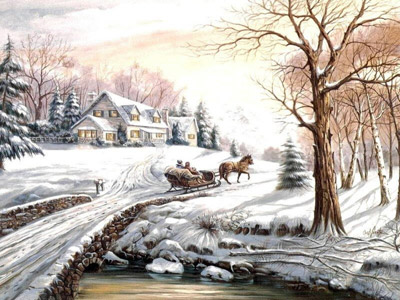
- Step 2. Firstly we have to decorate our image using AKVIS LightShop plugin.
Call the plugin (Filters -> AKVIS -> Lightshop). Choose one of the presets, for example Sample03 and change settings as you like. Press the button
 . The result will be shown in the Image window.
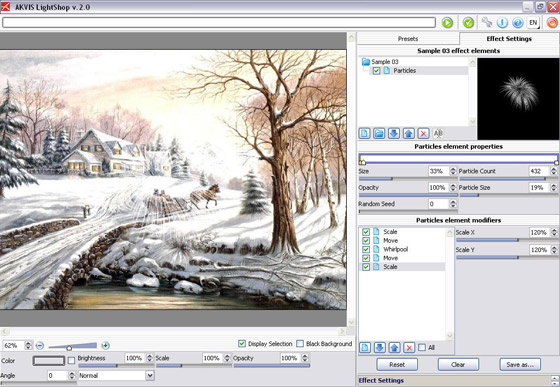
Press the button
 to apply the result and close the plugin window.
 - Step 3. Call AKVIS LightShop again and choose another preset (Sample 02). Set the parameters and press the button .
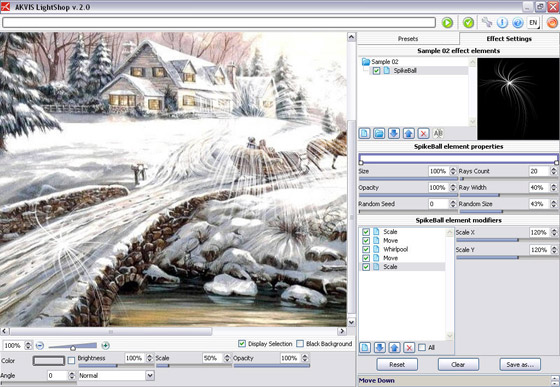 Press the button
 - Step 4. Repeat the Step 3 or 4 several times. So then you'll get a image with the snowy firework:
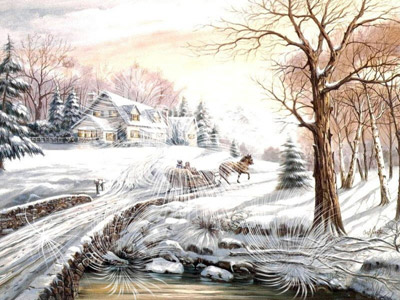
- Step 5. Now let's create an unusual photo frame. Call AKVIS Frame Suite (Filters -> AKVIS -> Frame Suite). Select a Ragged frame by going to the drop down menu.
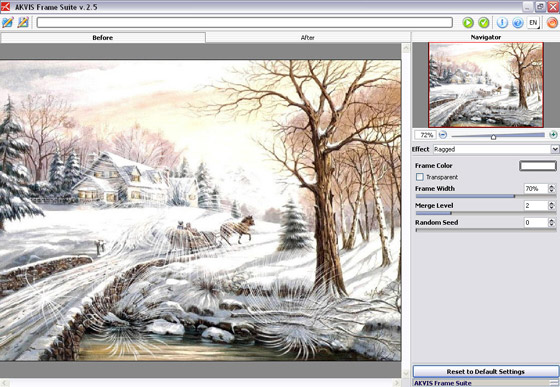
- Step 6. Set the values of the parameters as shown below.
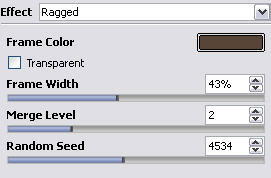
and press the button
. The result will be shown in the After tab.
Press the button
to apply the result and close the plugin window.
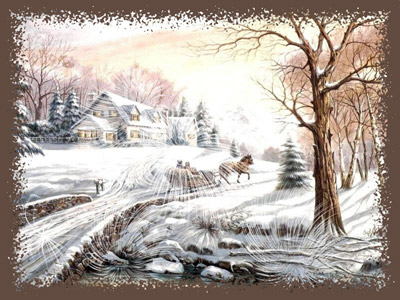
- Step 7. Now we have to make our frame more "interesting". So select this frame using the Magic Wand tool,
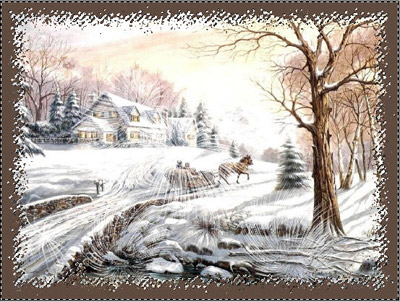
and then use one of the standard Photoshop filter (Filters -> Render -> Clouds).
- Step 8. Add the greetings.

Our card is ready:
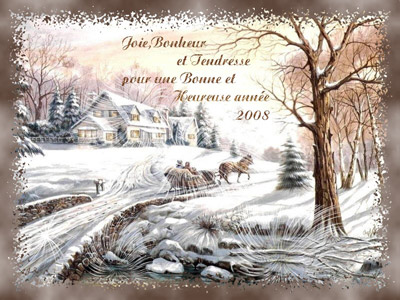
Click the image to open its larger copy in a new window.
to apply the result and close the plugin window.
 "Готовая новогодняя открытка")
LightShop v. 8.1 - 10 jours d'essai
