Schneesalut: die Neujahrskarte erstellen
Das Beispiel wurde in der alten Version von AKVIS LightShop erstellt.
Lesen Sie, wie man die aktuelle Programmversion benutzt.
Der Autor dieses Tutorials ist Régine Lemasle.
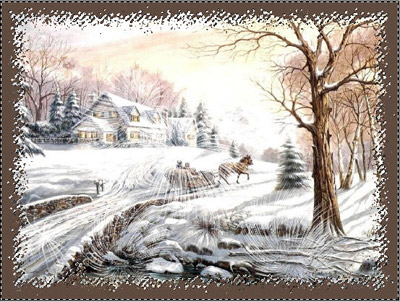
Sie erstellte die wunderschöne Glückwunschkarte zum Neujahr mit AKVIS LightShop und AKVIS ArtSuite.
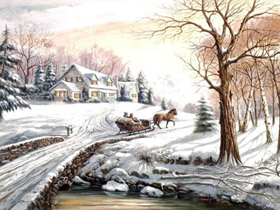
|
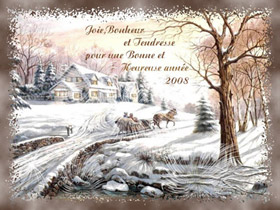
|
| Originalbild | Ergebnis |
Das Beispiel wurde in Adobe Photoshop erstellt.
- Schritt 1. Öffnen Sie das Bild.
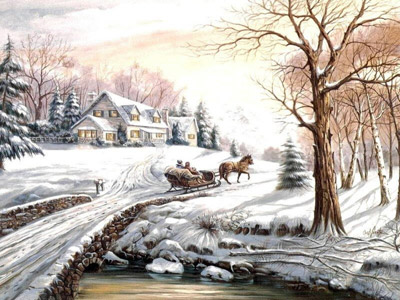
- Schritt 2. In erster Linie, bearbeiten Sie das Bild mit dem Plugin AKVIS LightShop. Rufen Sie den Plugin auf (Filter -> AKVIS -> Lightshop). Wählen Sie ein von Presets, z.B. Sample03 und passen die einstellungen nach Ihrem Wunsch an. Klicken Sie auf
 . Das Ergebnis wird in dem Bildfenster angezeigt werden.
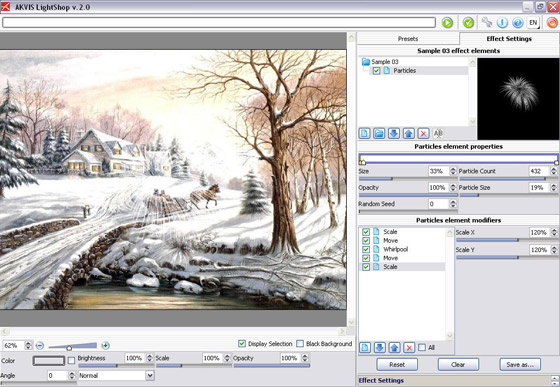
Klicken Sie auf
 , um die Bearbeitung anzunehmen und das Plugin-Fenster zu schließen.
 - Schritt 3. Rufen Sie den Plugin AKVIS LightShop wieder. Wählen Sie das andere Preset zur Abwechslung (z.B. Sample 02). Passen Sie die Einstellungen an und starten Sie die Bearbeitung mit einem Klick auf .
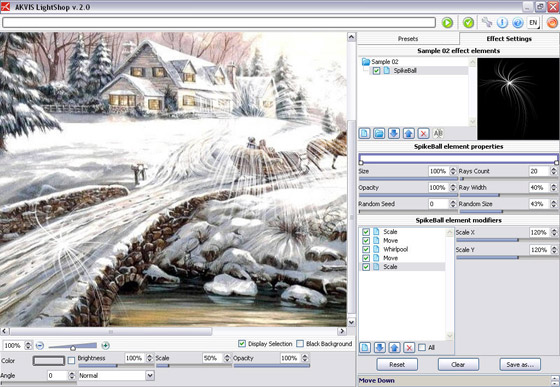 Klicken Sie auf
 - Schritt 4. Wiederholen Sie die Schritte 3 und 4 ein paar mal. Als Ergebnis bekommen Sie das Bild mit dem "Schneesalut"-Effekt.
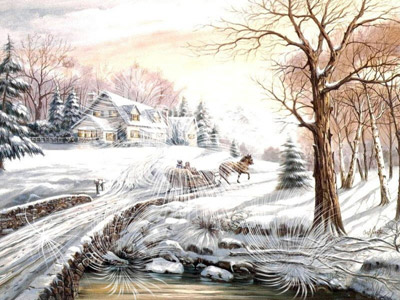
- Schritt 5. Jetzt erstellen Sie einen schönen Rahmen für das Bild. rufen Sie den anderen Plugin AKVIS ArtSuite (Filter -> AKVIS -> ArtSuite). Wählen Sie Rahmen den aus dem linken Dropdownmenü und Zerissen aus dem rechten Dropdownmenü.
- Schritt 6. Passen Sie die Einstellungen so an, wie auf dem unteren Bild zu sehen:
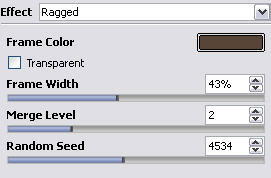
Dann klicken Sie auf
, um das Ergebnis in dem Bildfenster zu sehen.
Klicken Sie auf
, um die Bearbeitung anzunehmen und das Plugin-Fenster zu schließen.
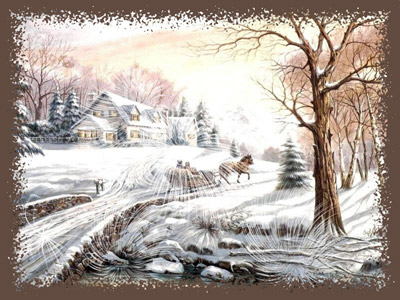
- Schritt 7. Machen Sie den Rahmen interessanter. Dazu wählen Sie ihn zuerst mit dem Zauberstab-Werkzeug.
und dann benutzen Sie ein von Photoshop-Standardfiltern (Filters -> Renderfilter -> Wolken).
- Schritt 8. Fügen Sie die Glückwünsche hinzu.

Nun ist die Glückwunschkarte fertig!

Klicken Sie auf das Bild, um eine vergrößerte Version zu sehen.
, um das Ergebnis zu akzeptieren und ins Bildbearbeitungsprogramm wiederzukehren.
 "Glückwunschkarte zum Neujahr")
LightShop v. 8.0 - 10-Tage-Testversion

