Christmas Card: from black and white to color
La version française sera bientôt affichée.
This colorization tutorial was created by Igor Froloff.
-
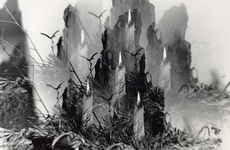
Step 1. Open the source black and white photo in Adobe Photoshop.
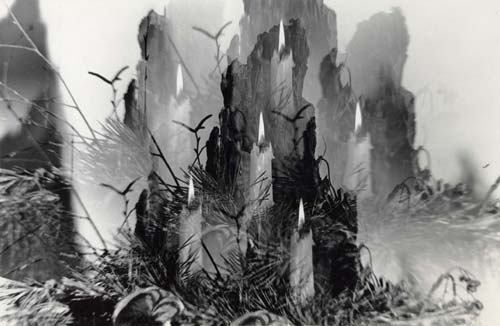
The author of the tutorial took this photo some 20 years ago. It's a composition with candles and fir-tree branches. The author used a prismatic filter for the photo camera Zenit (lens Gelios-44-M4) and "photo-64" film.
-
Step 2. Remove dust and scratches from the photo.
For this purpose copy the image to a new layer (you can use hot-keys Ctrl+J. Apply Dust & Scratches filter to the layer to get rid of the white spots. The image may get blurred but it does not matter much.
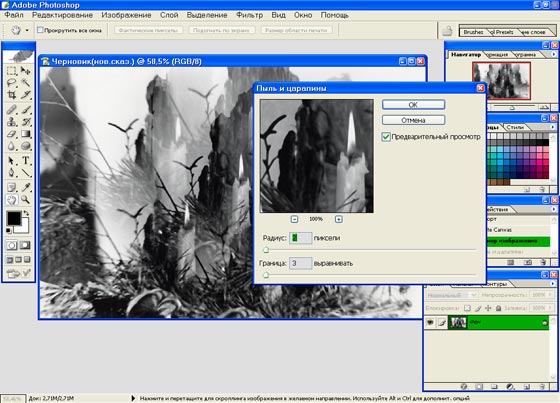
Switch the layer to the Darken mode using the fall-out menu in the upper part of the layer's panel.
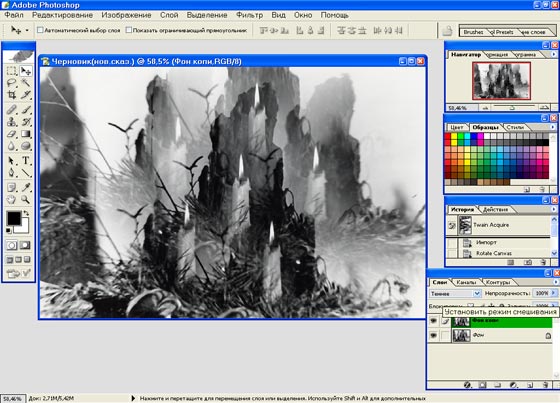
In this mode Photoshop compares the corresponding pairs of pixels and chooses the darkest of them. Thus, all white defects like dust, scratches and so on are replaced with the pixels taken from the upper layer, while the original details stay unchanged, as in the lower layer. As a result we see a dust-free photo.
Larger defects can be removed manually with the Clone Stamp tool.
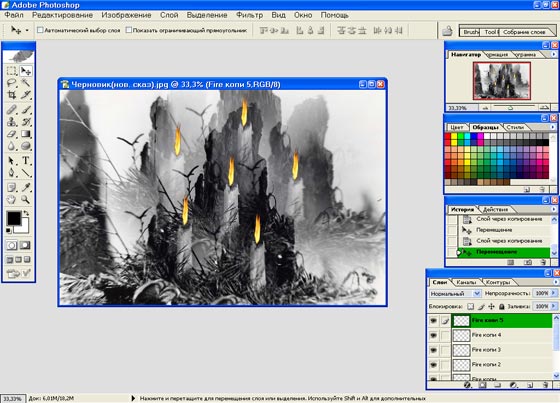
- Step 3. Now have a look at the photo and use your imagination. We see the candle flame. Why not change its form, for example? Select the flame with the Lasso tool.
-
Step 4. Call the filter Eye Candy 5: Nature Fire and change the form and color of the flame.
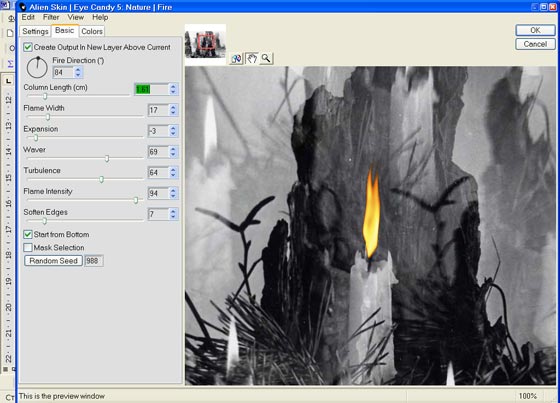
You can select and process every flame one by one or first process only one flame and copy it to the rest of the candles.
-
Step 5. Activate the layer with the copy of the original photo and call the plug-in AKVIS Coloriage (Filter -> AKVIS -> Coloriage). Start colorizing the photo.
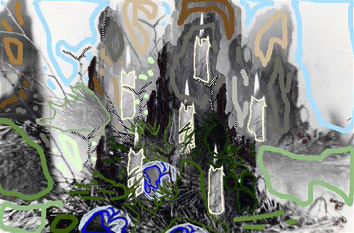
First find out what the picture shows. We see something dark. I remember it was the tree's bark. Great! We find in the Color Library the folder Tree and choose a color for the bark. Draw an outline with this color inside the tree.
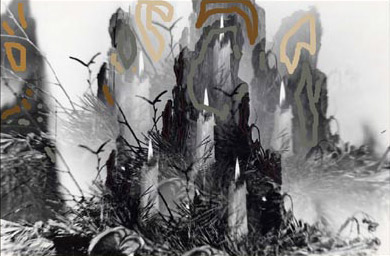
Then come candles. They were paraffin, so we should find an appropriate color. It can be yellow. Let's try. If you do not like the result you can always remove the strokes or recolor them.
Then we see ashberries. Put red points on them with the Pencil tool
 . For the birch branches we use the Keep Color Pencil
  - they should keep their white color.
Then we see fir-tree branches. A lot of them. Their form is vague. We open the color palette and select some shades of green to color the branches. You can change the color of the strokes any time with the Tube tool
 or Magic Tube tool
  .
.
-
Step 6. When ready and when you like the colorization result, press the button
 to apply colorization to the picture.
-
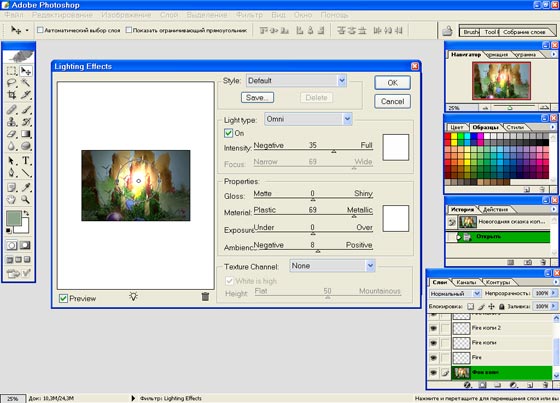
Step 7. Well, now it's time to add some magic. We will use the filter Render -Lighting Effects and add a light source to the picture.
-
Step 8. How about adding a flare with the filter Render - Lens Flare.
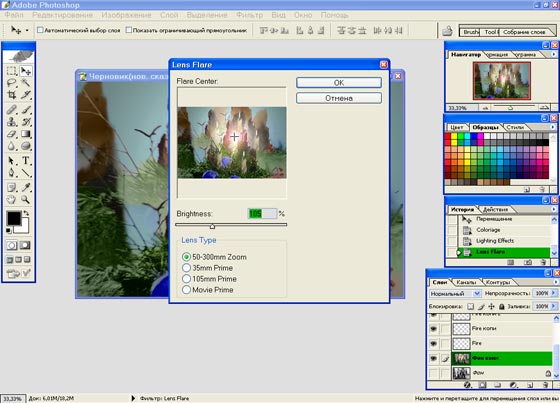
Well, not bad. But smth is missing. I guess if we add a reflection to the ball with the filter Render - Lens Flare the picture will look more natural.
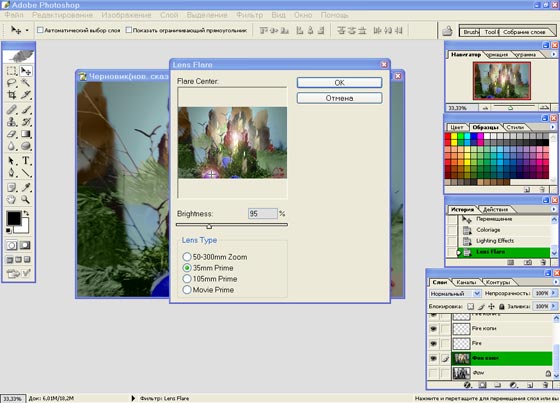
-
Step 9. We can add adjustment layers: Hue\Saturation and Brightness\Contrast.
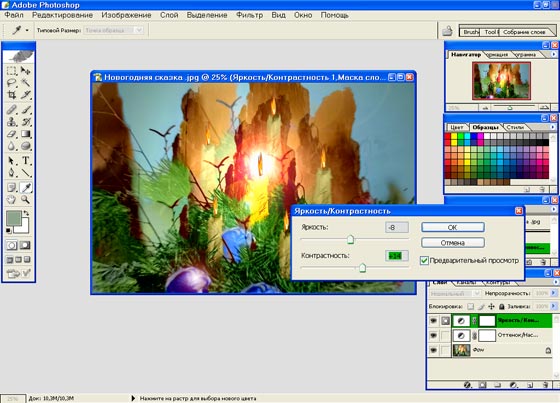
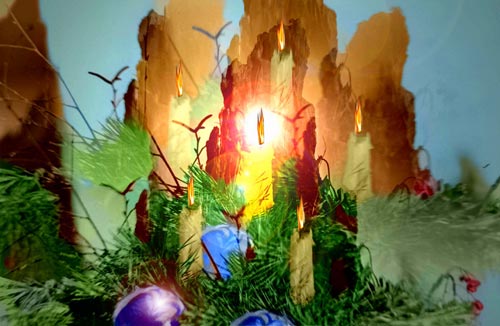
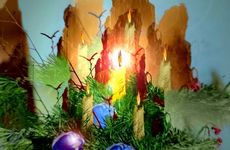
That's it! Now we have a fairy-tale picture. You can use it as a Christmas postcard.
 |
 |
Coloriage AI v. 15.7 - 10 jours d'essai
