Portrait of an Indian Actress
La version française sera bientôt affichée.
This tutorial has been sent to us by Muhammad Farooq Khan, a student of Lahore University, Pakistan.
 |
 |
The author wrote:
I am a student of Electrical Engineering but I am very fond of Adobe Photoshop. When I was searching for some helpful plug-ins for Adobe Photoshop I found that the very best plug-ins were from AKVIS. Filters play an important role in Photoshop. But my goal was to color a photo in Adobe Photoshop. So here I started to use the AKVIS Coloriage filter. I downloaded all AKVIS filters and tried them one by one for different purposes. Here I am going to show you how AKVIS Coloriage filter became very useful to me.
-
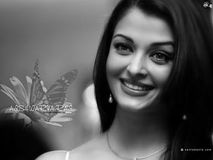
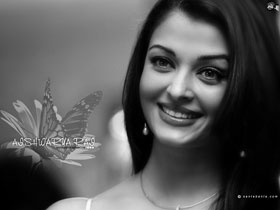
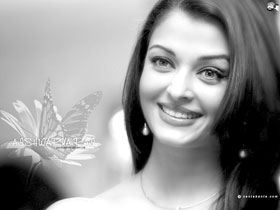
Step 1. First of all I opened this photo in Adobe Photoshop. I used the command Image ->Adjustments -> Levels (or in layer palette the fourth one button from left *create new fill or adjustment layers) to make the image brighter.
-
Step 2. Then I call the command Filters -> AKVIS -> Coloriage. Here I start to color my photo. I use the color pencil to color my photo. I try my best to draw very accurate border lines to give a very accurate color to my photo (as shown below).
I gave her hair a gray color, blue to her eyes, white to her teeth, and light pink to her lips (lips, eyes, teeth, eyebrows, and her necklace are circled with the skin color).
It was very hard to color the butterfly and flower but I did my best to mark the edges of them.
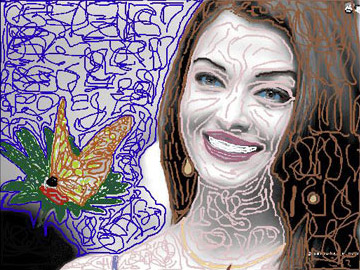
Developer's note. You do not need to draw so many lines as did the author. It is enough to draw an outline along the borders of every details.
-
Step 3. Then I pressed the button
 to see the result of my all work and here is the result.
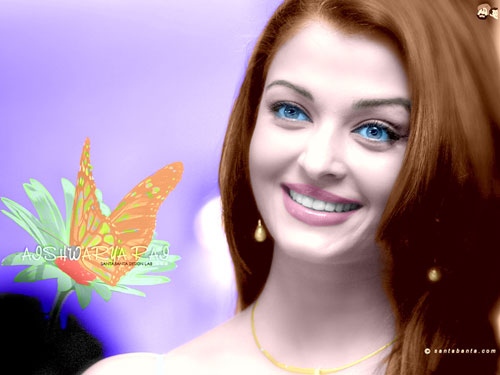
- Step 4. The colorization result is applied and the plug-in's window is closed.
-
Step 5. But I found that the teeth are not white.
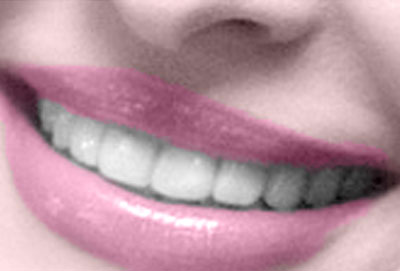
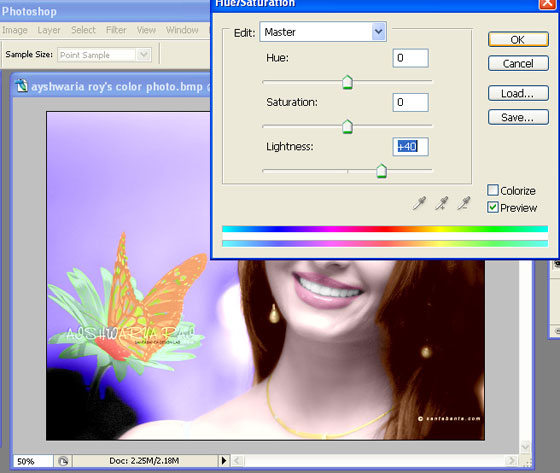
To brighten her smile, start by going to the Layers palette and clicking on the Background Layer to make it the active layer. Then use the Lasso tool (or any selection tool you're comfortable with) to put a selection around her teeth (as shown). Once selected, we'll need to soften the edges of the selection so our retouch isn't obvious, so go under the Select menu and choose Feather. When the Feather dialog box appears, enter 2 for low res images, 5 for high res, and click OK to apply this edge softening. Then go under the image menu and choose Adjustment and then choose Hue/Saturation. And in my case to reduce the darkness I increase the value of Lightness, and press enter.
-
Step 6. This photo was a little noisy (as shown below), so here I reduced the noise by using AKVIS Noise Buster (Filter -> AKVIS -> Noise Buster).
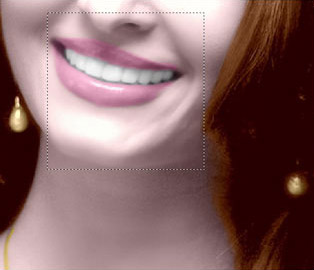
And there is my final color photo as shown below.

-
Step 7. Now the picture is good but her eyes are too blue, sclera must be white. Now my aim is to white the sclera and to change eye color. So I started from here again with AKVIS Coloriage Filter for making these changes.
Again I went to the Filter menu (in Adobe Photoshop) AKVIS Coloriage. Here I started with keep color pencil to draw a very close border around her schlera and I gave it white color. I also gave more natural color (black) to the pupils.
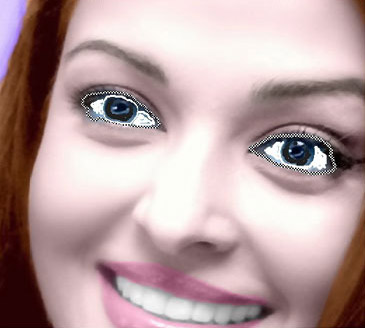
and then I pressed the button
. Here is the result.

Here Is The Procedure For Making Brown And Light Greenish Eyes.
The difficult thing is to choose the right color. The one that looks best. But this is very easy in Akvis Coloriage. Just give color and then press the button .
If you are not satisfied with this just press Before and use the Eraser tool  and give another color to it. As I said before, the Akvis Coloriage plug-in is one of the easiest and best solutions when dealing with complicated problems coloring black-and-white photos.
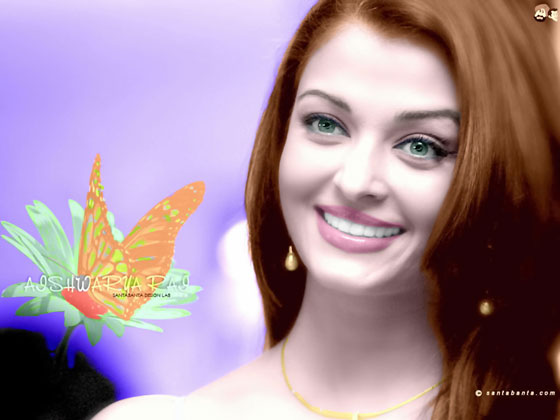
Green eyes. I set the green color for the eyes.
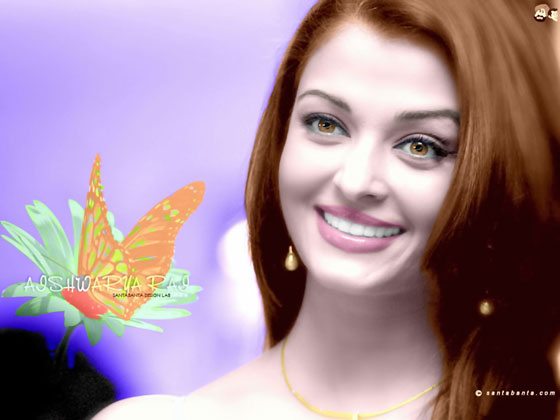
Hazel eyes. I set the brown color for the eyes.
Coloriage AI v. 15.7 - 10 jours d'essai
