Retrato de una actriz india
Este tutorial nos ha sido enviada por Muhammad Farooq Khan, un estudiante de la Universidad de Lahore, Pakistán.


El autor escribió:
Soy estudiante de Ingeniería Eléctrica, y estoy muy encariñado con Adobe Photoshop. Cuando yo buscaba algunos complementos útiles para Adobe Photoshop me encontré con que los mejores complementos eran de AKVIS. Los filtros juegan un papel importante en Photoshop. Pero mi objetivo era dar color a una foto en Adobe Photoshop. Así que empecé a utilizar el filtro AKVIS Coloriage. He descargado todos los filtros de AKVIS y los probé uno por uno para diferentes propósitos. Aquí voy a mostrar cómo el filtro AKVIS Coloriage fue muy útil para mí.
-
Paso 1. En primer lugar yo abrí esta foto en Adobe Photoshop. Usé el comando Image -> Ajustes -> Niveles (o en el botón paleta la cuarta capa de izquierda * crear nuevas capas de relleno o ajuste) para hacer la imagen más brillante.


-
Paso 2. Llamo el comando Filtro -> AKVIS -> Coloriage. Aquí me pongo con el lápiz a colorear mi foto. Hago lo mejor para dibujar las líneas fronterizas muy precisas para darle un color muy certero a mi foto (como se muestra a continuación).
Le di el pelo de un color gris, azul para los ojos, el blanco con sus dientes, y la luz de color rosa en los labios (labios, ojos, dientes, cejas, y su collar se circundan con el color de la piel).
Fue muy difícil colorear la mariposa y la flor, pero hice todo lo posible para marcar los bordes.
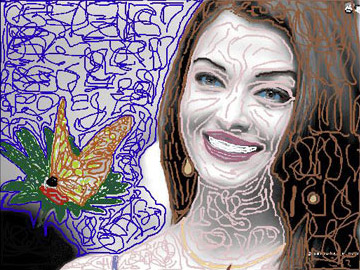
Nota: Usted no tiene que dibujar tantas líneas como lo hizo el autor. Basta con dibujar un contorno a lo largo del mismo y de todos sus detalles.
-
Paso 3. Presioné el botón
 para ver como ha quedado todo mi trabajo y aquí está el resultado:

- Paso 4. Resultado de la coloración se aplica y se cierra la ventana del plugin.
-
Paso 5. Pero me di cuenta de que los dientes no están blancos.
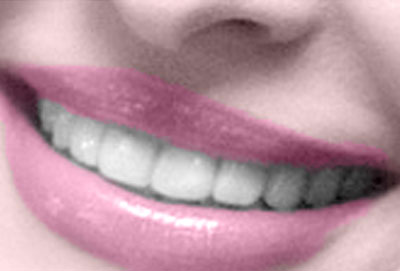
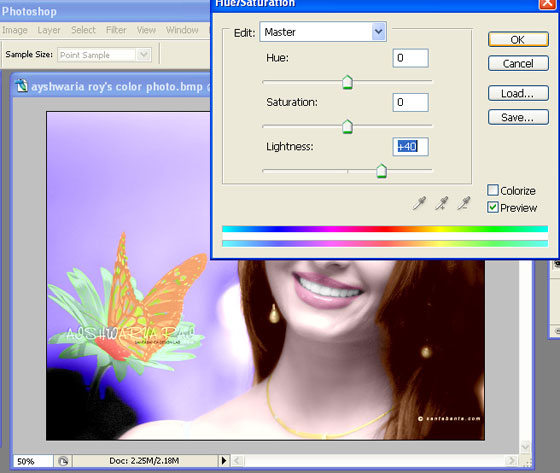
Para iluminar su sonrisa, empecé en la paleta de Capas, hice clic en la capa de fondo para hacer la misma activa. A continuación, utilicé la herramienta Lazo (se puede usar otra herramienta en que te encuentres cómodo) para seleccionar los dientes alrededor (como se muestra). Una vez seleccionado, vamos a necesitar el suavizar los bordes de la selección por lo que nuestro retoques no es aparente, por lo que vamos al menú Seleccionar y elegimos Pluma, introducimos 2 para la baja resolución de imágenes, 5 de alta resolución, y hacemos clic en Aceptar para aplicar este suavizado a los bordes. A continuación, vamos al menú, Imagen y elegimos Ajuste, Tono/Saturación. En mi caso para reducir la oscuridad puedo aumentar el valor de Luminosidad, y pulsar Enter.
-
Paso 6. Esta foto tiene un poco de ruido (como se muestra más abajo), por lo que he recudido el mismo mediante el uso de AKVIS Noise Buster (Filtro -> AKVIS -> Noise Buster).
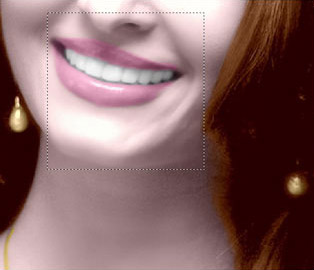
No es mi foto definitiva la que se muestra a continuación.

-
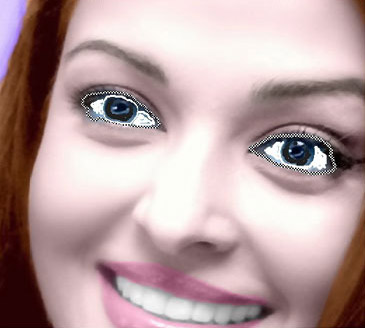
Paso 7. Ahora, la imagen es buena, pero sus ojos están muy azulados.
La esclerótica debe ser blanca: Ahora mi objetivo es el blanco de la esclerótica y para cambiar el color de ojos. Así que empecé desde aquí de nuevo con el filtro de AKVIS Coloriage para hacer estos cambios.
Fui al menú Filtro (en Adobe Photoshop) AKVIS Coloriage. Aquí empecé con el lápiz de Guardar-Color a dibujar un borde muy cerca alrededor de su esclerótica y luego le di el color blanco. También di color más natural (negro) a las pupilas.
Pulsé el botón
. Aquí está el resultado.

Aquí está el procedimiento para hacer ojos castaños y verdes claros.
Lo difícil es escoger el color correcto. El único que se vea mejor. Pero esto es muy fácil en Akvis Coloriage. Dale color y luego presiona el botón .
Si no estás satisfecho con esto sólo tiene que pulsar la pestaña Antes, utilizar la herramienta Borrador  y darle otro color. Como he dicho anteriormente, el plugin AKVIS Coloriage es una de las soluciones más fáciles y de las mejores cuando se trata con problemas complicados para colorear fotos en blanco y negro.

Ojos verdes. Puse el color verde para sus ojos.

Ojos pardos. Puse el color castaño para sus ojos.
Coloriage AI v. 15.7 - Prueba gratuita de 10 días
