Para o Dia das Mães
Você gostaria de fazer um presente original para sua mãe ou avó no Dia das Mães? Restaure suas fotos antigas dos arquivos da família!
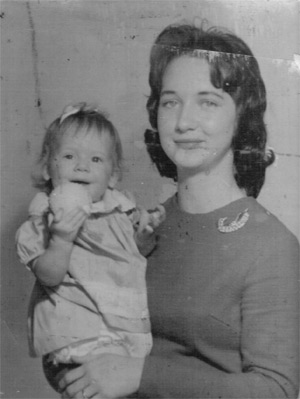
Abaixo está uma foto antiga que nos foi enviada por Chuck Croom. Ele agora está envolvido na restauração de seus arquivos de família e acreditamos que o AKVIS Retoucher vai ser uma grande ajuda para ele.
Compare as três fotos abaixo: a foto original, coberta com manchas e arranhões; a foto retocada e a foto retocada convertida em tons de sépia.
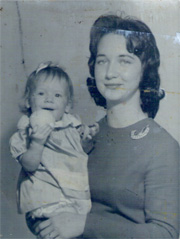
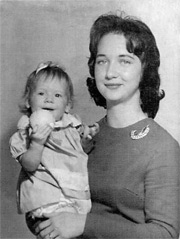
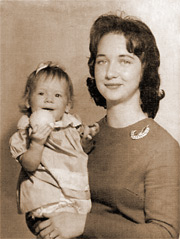
Vamos retocar a foto, utilizando o AliveColors e o plugin AKVIS Retoucher.
- Passo 1. Abra a foto de família no AliveColors.
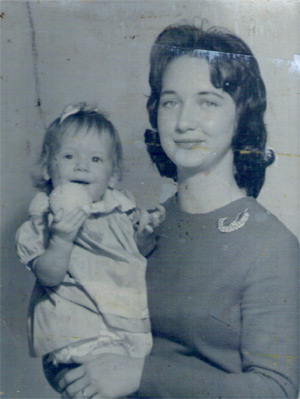
- Passo 2. Utilize o comando Imagem -> Ajuste -> Preto branco para se livrar da tonalidade azulada e das manchas.
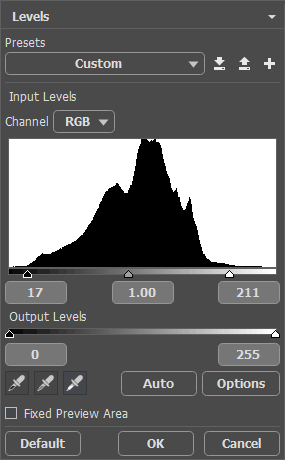
- Passo 3. Abra a caixa de diálogo Níveis, através do comando Imagem -> Ajuste -> Níveis e defina os seguintes valores de entrada: 17, 1,00 e 211, como mostrados na imagem abaixo.
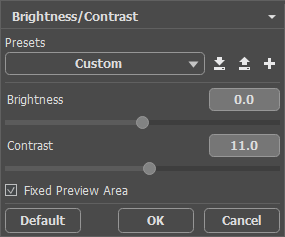
- Passo 4. Para aumentar o contraste da imagem, mova o controle deslizante Contraste para a direita até 11 na caixa de diálogo Brilho/Contraste.
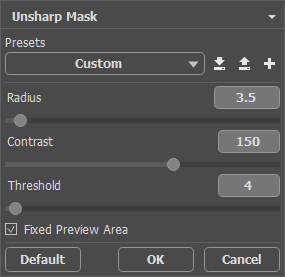
- Passo 5. Aumente a nitidez da imagem, utilizando o filtro Máscara de nitidez. Defina os seguintes valores para os parâmetros: 150, 3,5 px; 4 px.
Após essas manipulações, teremos a seguinte imagem:
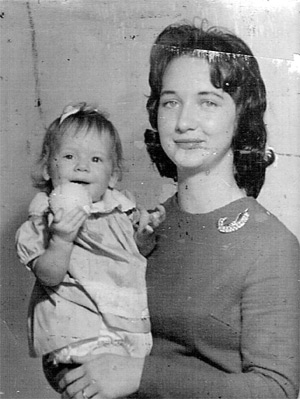
- Passo 6. Agora podemos proceder à remoção de defeitos: vamos remover riscos utilizando o AKVIS Retoucher. Escolhemos AKVIS -> Retoucher a partir do menu Efeitos e utilizar o Pincel de seleção
 de pintar sobre os riscos, como mostrado na imagem abaixo.
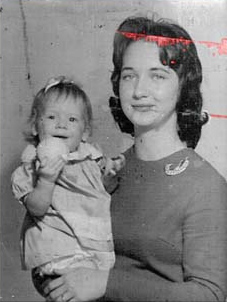
- Passo 7. Iniciamos o processo de retoque pressionando
 .
.
Depois que os riscos estiverem removidos, a foto ficará parecida com esta:
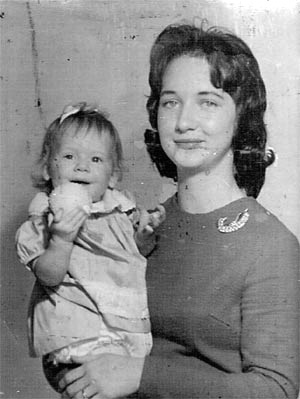
- Passo 8. Agora, um número de pequenos defeitos na imagem precisa ser removido. Vamos utilizar a ferramenta de Zoom
 para aumentar a imagem com o objetivo de tornar até mesmo os menores defeitos, visíveis. Então, selecionamos o Pincel-camaleão
  .
.
Em cada local na imagem onde desejamos remover um defeito, devemos seguir estes passos:
- Vamos ajustar o tamanho do pincel.
- Em seguida, vamos designar uma fonte de amostra. Para fazer isso, enquanto pressionamos a tecla Alt (Mac: Option), vamos clicar com o lado esquerdo do mouse sobre o ponto a partir do qual será colhida a amostra clone.
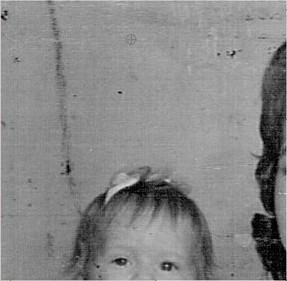
- Devemos utilizar pinceladas curtas para marcar ao longo dos defeitos na imagem.
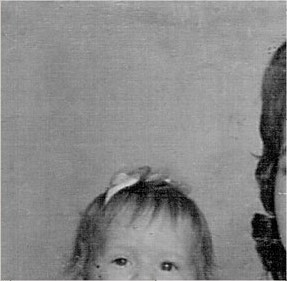
Depois de concluirmos os retoques, pressionamos
 para aplicarmos os resultados. Nesta fase, a imagem ficará parecida com esta:
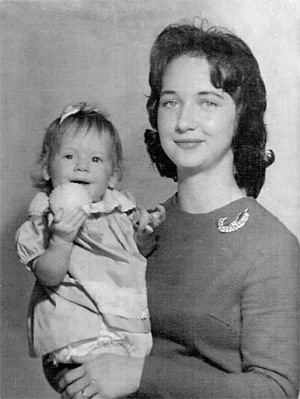
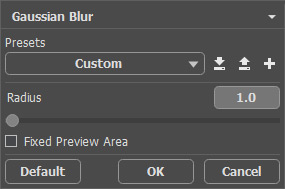
- Passo 9. Podemos melhorar a foto, aplicando o filtro Desfoque Gaussiano com o valor do parâmetro Raio igual a 1.
Retocamos, assim, a foto de família. Foto de família.
Nota: Para converter a foto em tons de sépia, devemos ativar a paleta Ações, selecionando o comando Vintage Effect a partir da lista e pressionando o botão Reproduzir  na parte inferior da paleta.
Podemos também adicionar cores à foto usando AKVIS Coloriage. Siga o link para ver como esta foto ficaria com cores.
Retoucher AI v. 13.0 - Teste gratuito 10 dias
