Foto histórica: uma banda cigana
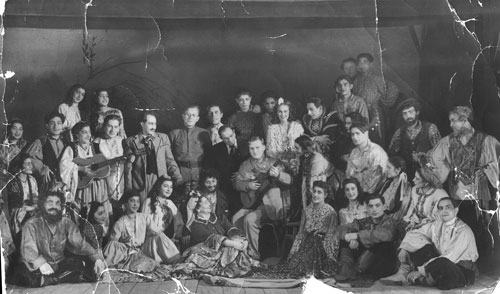
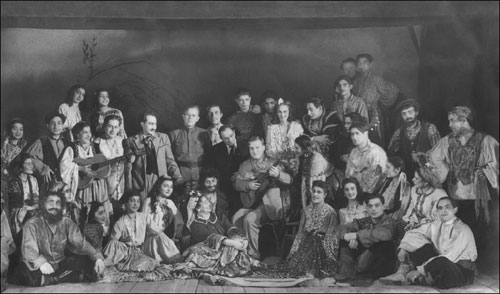
Aqui está um arquivo foto de uma banda cigana. A foto está muito danificada e está coberta com inúmeros riscos e dobras; as bordas são irregulares.
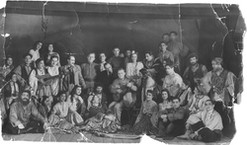
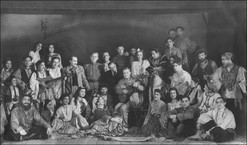
Devemos notar que a foto tem um valor histórico, uma vez que reflete a cultura de uma nação. Os ciganos levam uma vida nômade e suas fotos são bastante raras. Aqui podemos ver trajes ciganos e instrumentos musicais. Devemos manter a foto para as futuras gerações.
No entanto, com o passar do tempo, os arquivos de fotos não obtêm qualquer melhora. É por essa razão que eles estão sendo digitalizados. Para isso pode-se aplicar tecnologias de processamento de imagem atualizadas com o objetivo de aprimorar as imagens antigas.
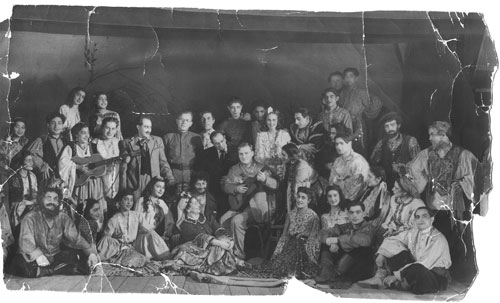
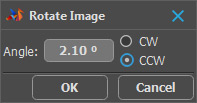
Antes de mais nada, devemos preparar a foto para os retoques. Em seguida, abrimos a foto digitalizada no AliveColors (ou outros editores de fotos). Giramos, então, a imagem, utilizando o comando Imagem -> Transformar imagem -> Girar por... e inserimos o valor de 2,1° CCW (sentido anti-horário).
A seguir, cortamos as partes da imagem que não contêm quaisquer informações úteis. Para este efeito, utilizamos a ferramenta Recortar  ou pressionamos a tecla C no teclado. Selecionamos a parte da imagem que deve ser mantida e pressionamos Enter. As partes da imagem fora da seleção serão removidas.
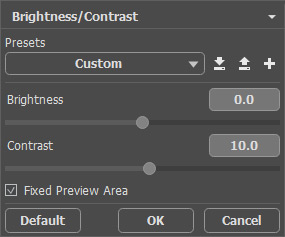
Agora, é hora de melhorar o contraste da foto. Vamos fazer isso da seguinte forma. Acessamos o comando Ajuste -> Brilho/Contraste no menu Imagem e digitamos o número 10 no campo Contraste.
Acessamos, então, o plugin Retoucher. Escolhemos AKVIS -> Retoucher, a partir do menu Efeitos. Em Retoucher selecionamos as áreas a serem retocadas utilizando o Pincel de seleção  .
.
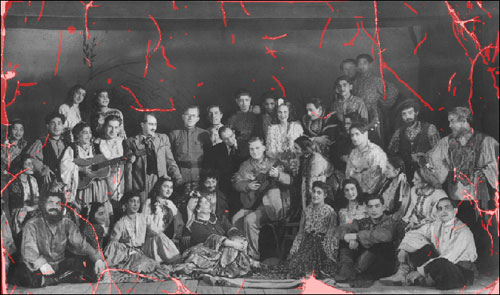
Para iniciar a restauração das áreas selecionadas, pressionamos  . As áreas selecionadas são destacadas em vermelho. Durante o processo de restauração, o "sombreado" vermelho desaparece, sendo substituído por áreas com uma textura restaurada. Depois que o plugin foi concluído, as áreas selecionadas não permanecem mais.
Apertamos  para aplicar a restauração à imagem. A janela do plugin Retoucher fecha, e a fotografia é devolvido ao AliveColors.
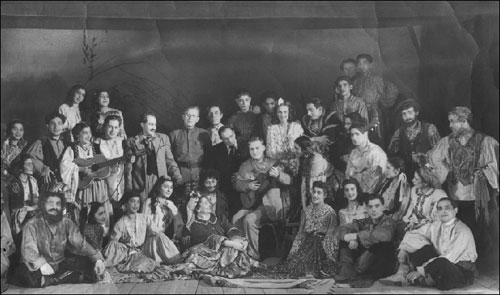
O plugin fez um bom trabalho. No entanto, ainda vemos algumas imperfeições como, por exemplo, uma ligeira diferença de fundo nas áreas das antigas dobras. Elas podem ser retocadas com as ferramentas no AliveColors: Desfocar  , Borrar
  , Clone
  , etc.
Quando o processo de retoque termina, obtemos a seguinte foto:
Retoucher v. 12.2 - Teste gratuito 10 dias
