Chaleiras para todos os gostos
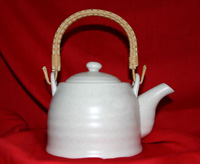
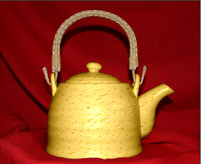
Uma mesma chaleira pode parecer absolutamente diferente se você mudar seu material (cor e textura) com o AKVIS Decorator.
 |
 |
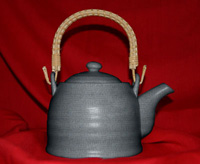 |
| Imagem original | Resultados | |
- Passo 1. Antes de tudo nós temos que pegar a foto de uma chaleira. Para isso é melhor usar uma chaleira sem padrão.
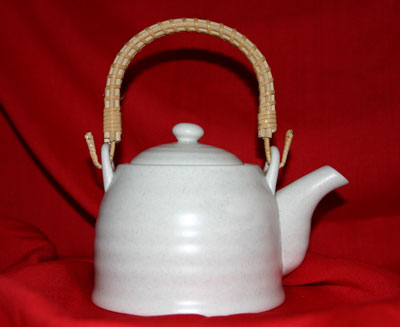
- Passo 2. Abra a imagem em qualquer editor de fotos compatível com o AKVIS Decorator.
- Passo 3. Selecione o corpo da chaleira (sem a alça) usando qualquer ferramenta de seleção. A principal coisa aqui é que você use uma ferramenta de seleção confortavel para desenhar um contorno preciso.
Você pode fazer/editar essa seleção no AKVIS Decorator.
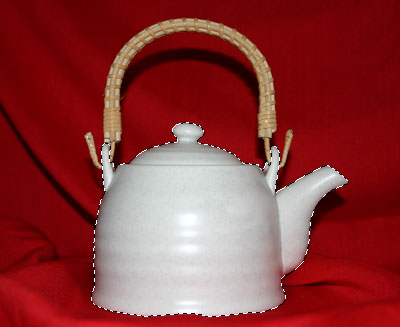
- Passo 4. Ative o plugin AKVIS Decorator e selecione a textura adequada da Biblioteca de textura. Nós escolhemos uma textura com queijo.
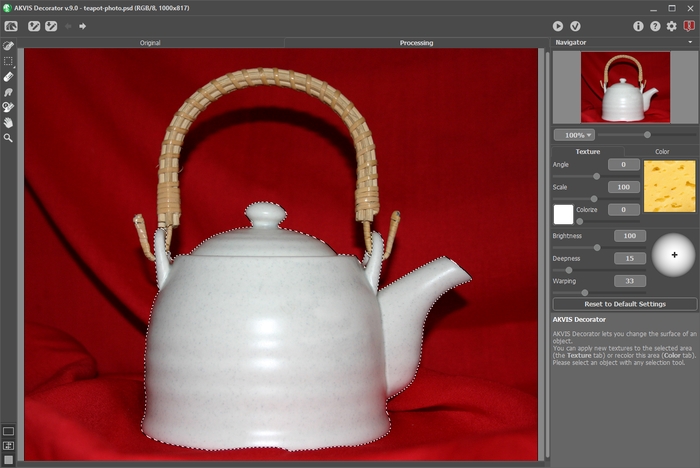
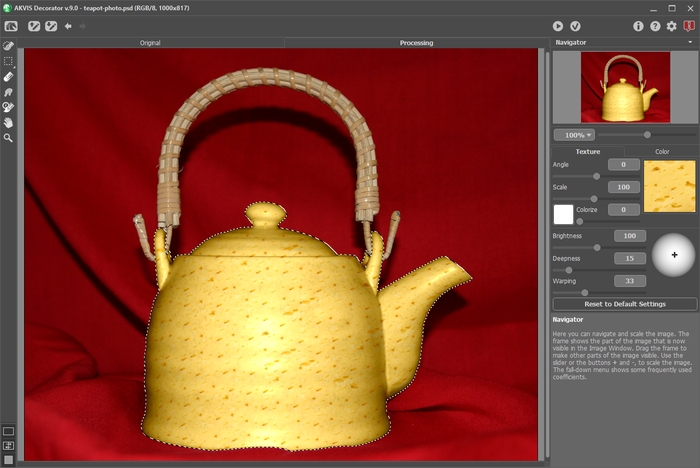
- Passo 5. Pressione o botão
 .
.
Em alguns segundos nós veremos uma "queijo" chaleira na aba Processamento e a imaginação nos transporta além para uma confortável chalé em algum lugar dos Alpes onde podemos provar um foundie de queijo e aproveitar um perfumado chá.
- Passo 6. Nós também podemos escolher uma textura diferente, por exemplo, um papel preto-acinzentado com um modelo ondulado. Aperte o botão .
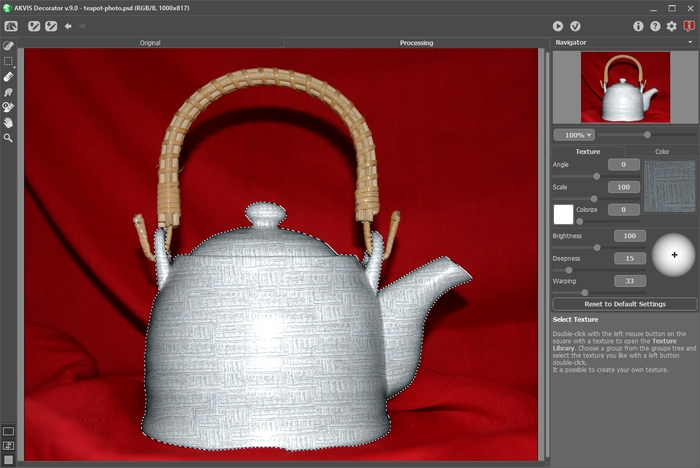
- Passo 7. A chaleira é originalmente de cor clara, por essa razão quando aplicamos a textura escura nós obtemos apenas a versão clara dela. Para corrigir isso temos que reduzir o valor do parâmetro Brilho.
Toda vez que ajustar os parâmetros "Revestimentos" você deverá pressionar o botão
para aplicar as mudanças e ver o resultado na aba Processamento na Janela de imagem.
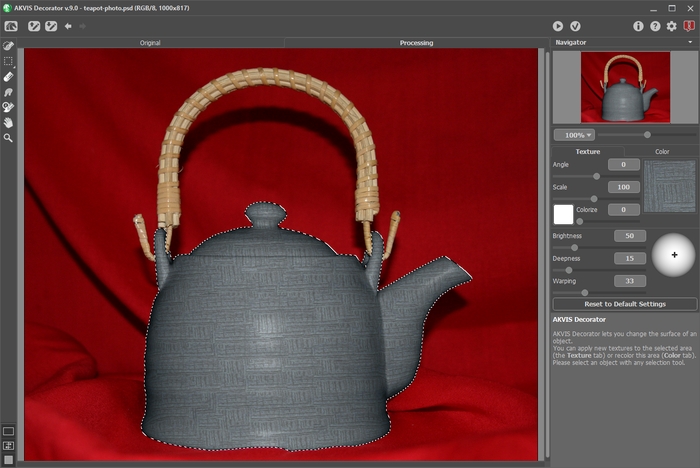
- Passo 8. Para fazer com que uma nova textura pareça mais natural, aumentamos o valor do parâmetro Profundidade. Como resultado, a distribuição de luz e sombra se torna mais evidente – as áreas escuras ficam mais escuras, as áreas claras ficam mais claras.
A foto pega recebeu um reparo na direção da luz, então a luz cai diretamente sobre a área em questão. Nós não precisamos mudar a posição da luz na bola.
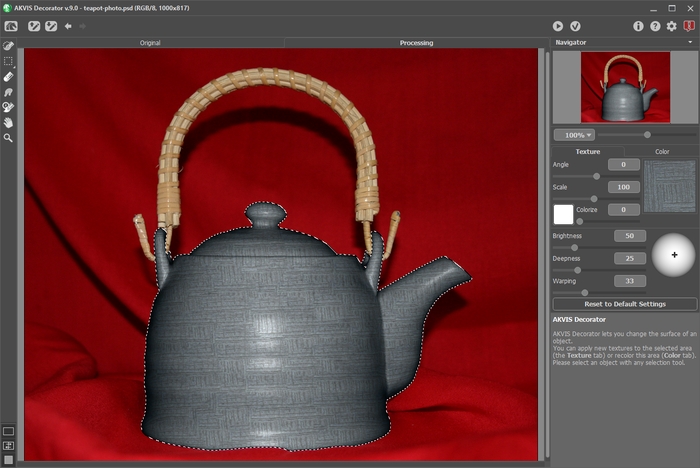
- Passo 9. Aplique o resultado pressionando o botão
 . O modelo simples e a cor muda lembram uma formal cerimônia oriental de chá.
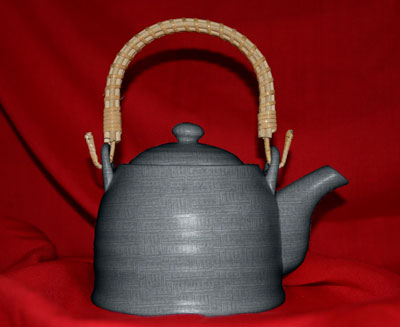
Clique na imagem para ver essa chaleira para a cerimônia de chá em uma janela maior
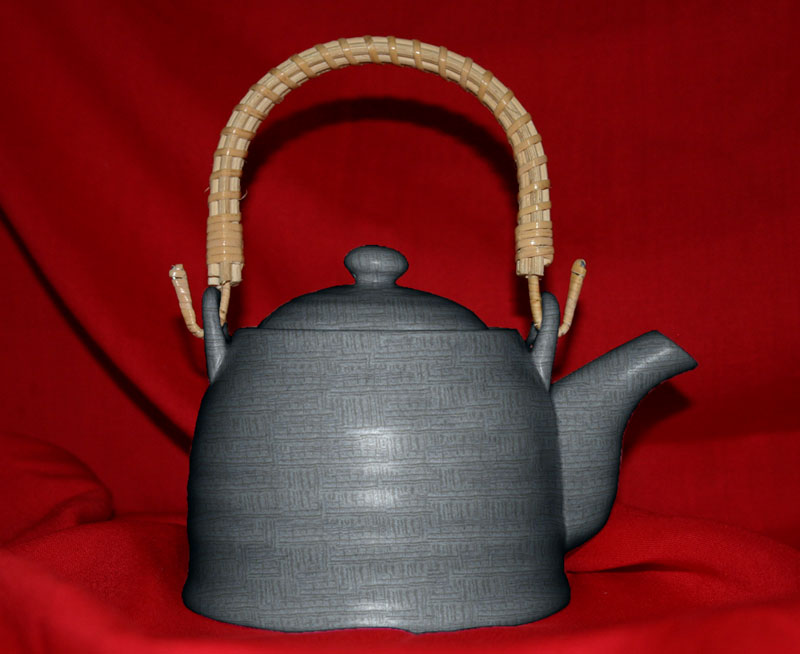
Nota: Se a seleção não for precisa ou as bordas do objeto não forem cortadas o suficiente para as linhas ficarem bem definidas, você pode retocar levemente as bordas com a ferramenta borrar depois de usar o AKVIS Decorator. Por exemplo, você pode aplicar a ferramenta Desfocar  com Raio = 1.5.
Decorator v. 9.1 - Teste gratuito 10 dias
