Cartão de Natal: do branco e preto para o colorido
Este tutorial colorido foi criado por Igor Froloff.
-
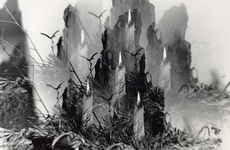
Passo 1. Abra a fonte de foto branco e preto no Adobe Photoshop.
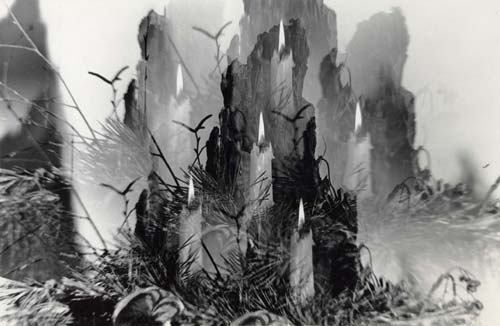
O auto deste tutorial tirou esta foto há cerca de 20 anos atrás. É uma composição com velas e galhos de arvore de natal. O autor usou um filtro prismático para a foto câmara Zenit (lentes Gelios -44-M4) e "foto -64" filme.
-
Passo 2. Remova poeira e arranhados da fotografia.
Com esta finalidade copie a imagem para uma nova camada (pode usar a teclas Ctrl+J. Aplique o filtro Dust & Scrates na camada para livrar-se das pintas brancas. A imagem pode ficar nublada mas não importa muito.
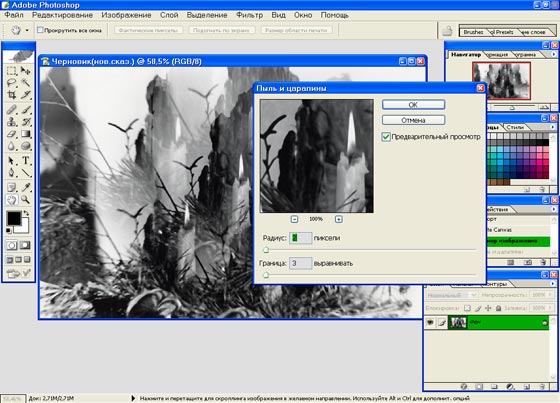
Troque a camada para o modo Escurecer (Darken) usando o menu fall out na parte alta do painel de camadas
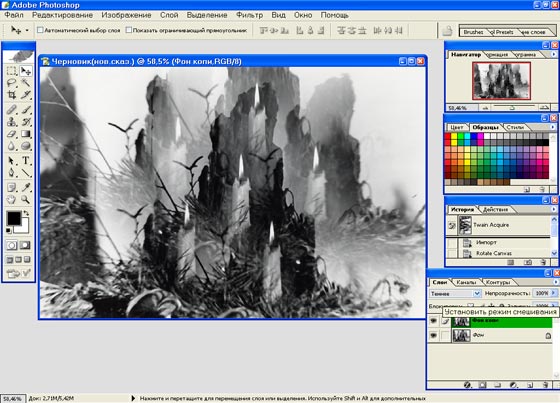
Neste modo Photoshop compara os pares correspondentes de pixels e escolhe os mais escuros deles. Assim, todos os defeitos brancos como pó, arranhados são substituídos com os pixels pegos da camada superior, enquanto o detalhe original fica imutável, como na camada inferior. Como resultado nós vemos uma foto livre de pó.
Grandes defeitos podem ser removidos manualmente com a Ferramenta Carimbo (Clone Stamp).
- Passo 3. Agora dê uma olhada na foto e use a sua imaginação. Vemos as chamas das velas, Porque não mudar sua forma, por exemplo? Selecione as chamas com a ferramenta Laço (Lasso).
-
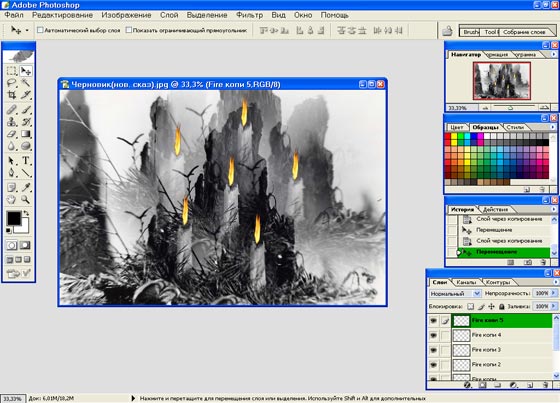
Passo 4. Chame o filtro Eye Candy 5: Fogo Natural (Nature Fire) e muda a forma e a cor da chama.
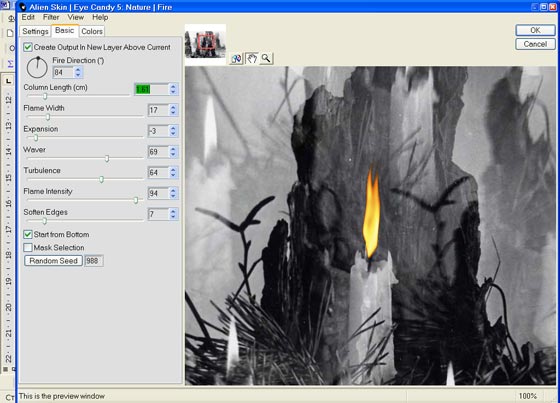
Cada chama tem que ser selecionada e processada uma por uma ou o primeiro processo só a chama e copie-a para o resto das velas.
-
Passo 5. Ative a camada com a cópia da foto original e chame o plug-in AKVIS Coloriage (Filter -> AKVIS -> Coloriage). Comece colorindo a foto.
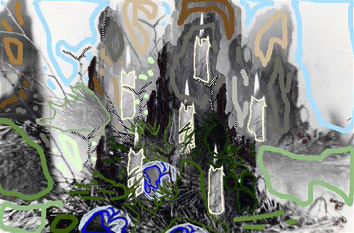
Primeiro descubra o que a foto mostra. Vemos alguma coisa escura. Lembro-me dele era a casca da árvore. Magnífico! Encontramos na Biblioteca de cores a pasta Arvores (Tree) e escolhemos uma cor para a casca da árvore. Desenhe um contorno dentro da árvore com esta cor.
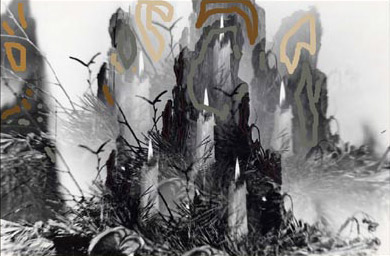
Depois selecione as velas. Elas eram de parafina, então podemos achar a cor apropriada. Pode ser amarela. Vamos tentar. Se não gostar do resultado pode sempre remover os traçados e recolorí-los.
Então vemos ashberries. Colocamos pontos vermelhos neles com a ferramenta Lápis
 . Para os galhos vidoeiro (arvore de natal) usamos o Lápis manter cores
  .
.
Vemos três galhos de abeto. Muitos deles. Suas formas são vagas. Abrimos a paleta de cor e selecionamos algumas sombras de verde para colorir os galhos. As cores dos traçados podem ser mudadas quando você quiser com a ferramenta Tubo
 ou ferramenta Tubo mágico
  .
.
-
Passo 6. Quando pronta e quando gostar do resultado do colorido, pressione o botão
 para aplicar o colorido para a fotografia.
-
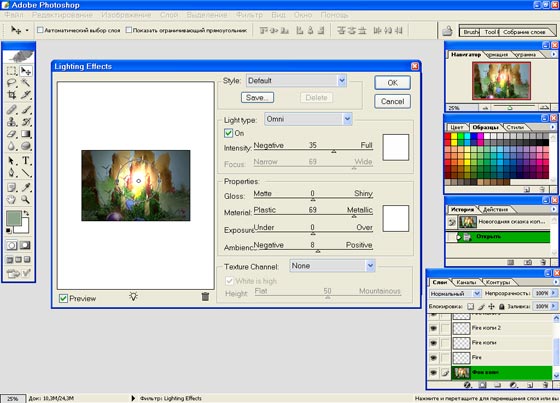
Passo 7. Bem. Agora é hora de adicionar alguma mágica. Vamos usar Render - Lighting Effects e acrescentar fonte de luz a fotografia.
-
Passo 8. Que tal adicionar um chamejar com o filtro Render - Lens Flare.
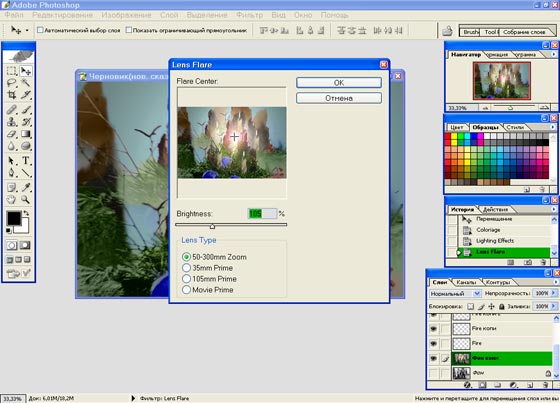
Bem, nada mal. Mas esta faltando smth. Acho que se adicionarmos um reflexo na esfera com o filtro Render - Lens Flare a fotografia parecerá mais natural.
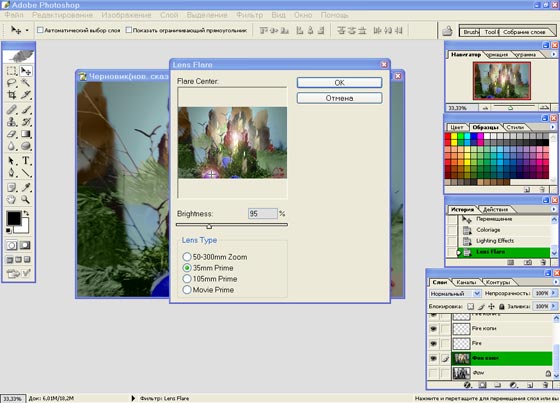
-
Passo 9. Podemos adicionar camadas de ajustes: Matriz/Saturação (Hue/Saturation) e Brilho/Contraste (Brightness/Contrast).
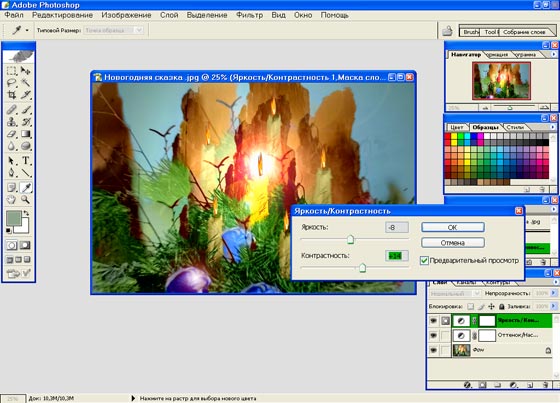
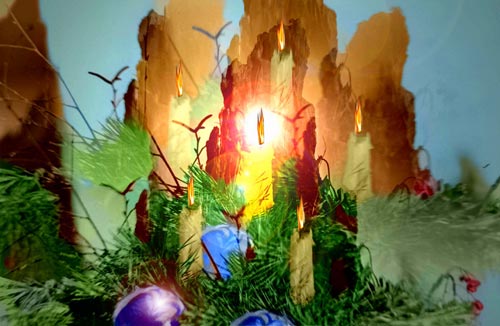
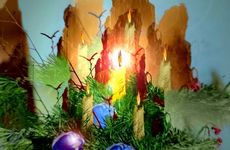
Pronto! Agora temos uma fotografia de conto de fadas. Podemos usá-la como um Cartão Postal de Natal.
Coloriage AI v. 15.7 - Teste gratuito 10 dias
