白黒写真の部分的に色付け
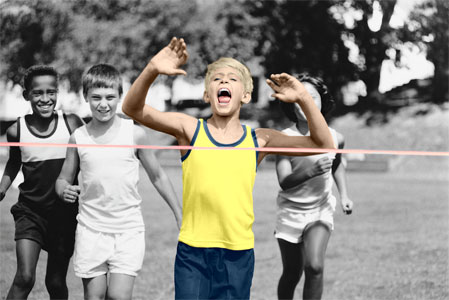
AKVIS Coloriage AIの操作例には、白黒写真の色付けに関する例を多く見つけることができます。写真内の一部にだけに着色することで、その部分を際立たせることができます。部分的な色付けが非常に有効なケースがあります。
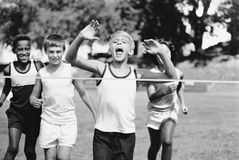
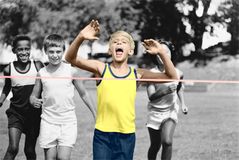
写真の一部に色を付けるには、以下の手順を実行します。
- ステップ 1: 白黒写真を開きます。今回は、若きアスリート達の写真を使います。
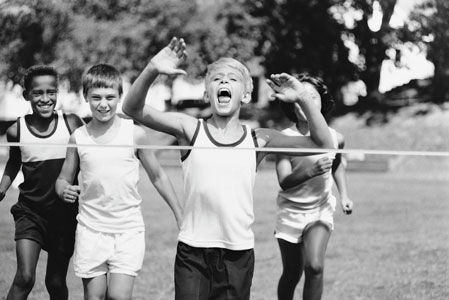
- ステップ 2: ペンツール
 を使って、写真内の強調したい部分に色を割り当てます。ここでは、レースに勝った少年に色を付けることとします。
少年の服、髪、目、歯、唇、ゴールテープの色を指定します。
- ステップ 3: 色維持ペンツール
 を使って、強調する部分(ここでは、少年とゴールテープ)のすぐ外側にラインを描画し、色を変更しない部分を指定します。
ペン ツールで描画したラインのすぐ外側に描画できない場合、写真の枠の外に描画します(ペン ツールと色維持ペン ツールの間に空間ができてしまうと、正しく処理できないため)。
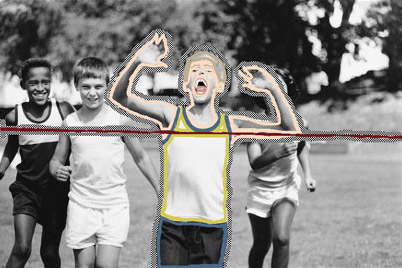
- ステップ 4:
 をクリックして、色付け処理を開始します。
たったこれだけで、部分的に色付けした写真の完成です。
Coloriage AI v. 15.7 - 10日間の評価期間
