Elementi dell'effetto di luce
Un effetto di luce è costituito da vari elementi, ognuno gestito da specifici parametri. È possibile modificare la struttura degli effetti nel pannello Elementi, visibile in modalità Avanzata.
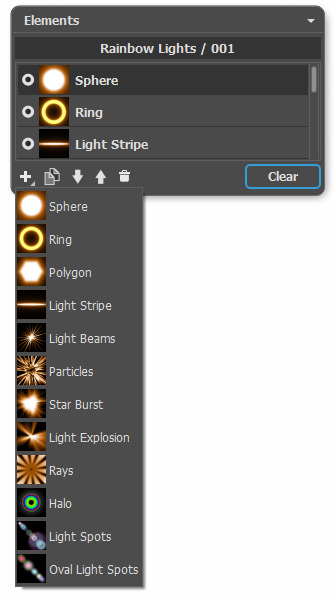
È possibile utilizzare questi pulsanti nella parte inferiore del pannello (inoltre, tutti i comandi sono disponibili cliccando con il tasto dx all'interno del pannello):
- Per aggiungere un nuovo elemento fare clic su
 e sceglierlo dall'elenco a discesa. Il nuovo elemento viene aggiunto sopra a quello corrente nel pannello Elementi e visualizzato nella Finestra immagine.
L'elemento selezionato (modificabile) è evidenziato in grigio nell'elenco degli elementi. I suoi parametri sono disponibili nel pannello Proprietà elemento.
- Per duplicare l'elemento, fare clic su
 . La copia dell'elemento verrà aggiunta sopra a quello attuale.
- Utilizzare i pulsanti
 e
e  per modificare la posizione dell'elemento nell'elenco (avanti o indietro). La posizione nell'elenco specifica lo stato dell'elemento nell'effetto: l'elemento superiore è prossimo al primo piano, quale inferiore allo sfondo.
L'ordine degli elementi può essere cambiato tenendo premuto il tasto del mouse e trascinandoli su o giù.
- Usare l'indicatore di visibilità
 /
/ per nascondere/visualizzare l'elemento nella Finestra immagine. I parametri per gli elementi nascosti sono disabilitati. Per passare tra le visibilità dell'elemento fare clic sull'indicatore.
- Per rimuovere l'effetto scelto, fare clic su
 oppure trascinarlo direttamente su questa icona. Inoltre, è possibile utilizzare il tasto Canc (Delete).
- Utilizzare il pulsante Cancella per eliminare tutti gli elementi nell'elenco.
Nel pannello Proprietà elemento regolare i parametri per l'elemento selezionato. Queste impostazioni sono le stesse per la maggior parte degli elementi:
Posizione e dimensione. Questo gruppo contiene i parametri per regolare la posizione e la dimensione dell'elemento di luce.
- Sposta (-200..200). Il parametro cambia la posizione dell'elemento lungo la linea retta visualizzata quando lo strumento
 è attivo.
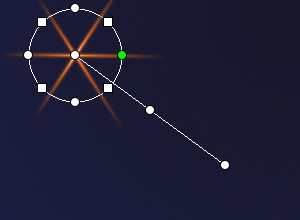
Sposta = 100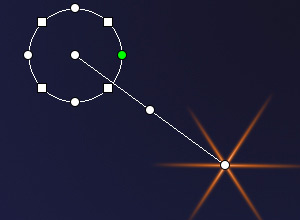
Sposta = -100 - Scala (1-1000). Il parametro modifica la dimensione dell'elemento.

Scala = 50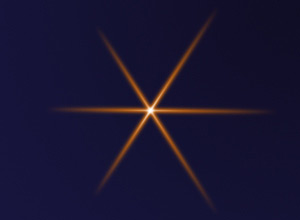
Scala = 100 - Ruota (0-359). Il parametro gira l'elemento secondo angolo selezionato.
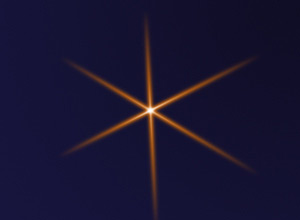
Ruota = 30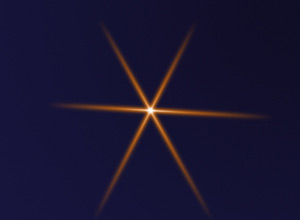
Ruota = 60
Colore. Con questo gruppo di parametri è possibile modificare il colore e la trasparenza dell'elemento selezionato, così come le opzioni di fusione con gli elementi sottostanti.
- Opacità (1-100). Il parametro cambia la trasparenza dell'elemento, rivelando quelli sottostanti e l'immagine di sfondo. Valori più bassi rendono l'elemento maggiormente trasparente.

Opacità = 25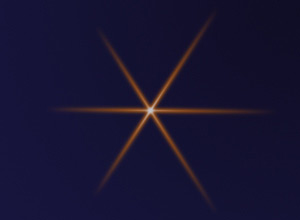
Opacità = 75 - Metodo di fusione. Scegliere dall'elenco a discesa come l'elemento si fonde con gli elementi sottostanti. Il modo predefinito per gli elementi è Normale. Maggiori informazioni.
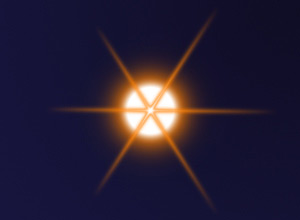
Metodo di fusione: Normale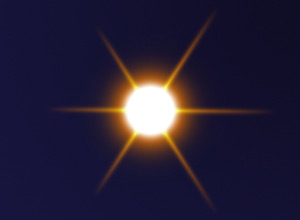
Metodo di fusione: Aggiungi - Luminosità (1-200). Il parametro definisce l'intensità del bagliore. Valori più bassi creano un effetto di luce soffusa. Aumentando il valore cresce la luminosità del bagliore.

Luminosità = 50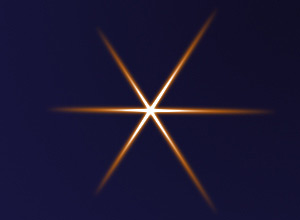
Luminosità = 150 - Colore. È possibile specificare due colori (Bagliore e Alone) per ogni elemento. Per impostazione predefinita le caselle sono vuote ed il programma utilizza i colori selezionati nel pannello Parametri effetto.
Per scegliere un colore dalla finestra di dialogo Seleziona colore, fare doppio clic sulla casella rettangolare corrispondente. Per prelevare un colore dall'immagine o dall'effetto di luce applicato, cliccare sulla casella con il tasto sinistro del mouse, il cursore si trasformerà in un contagocce. Per eliminare un colore selezionato, cliccare con il tasto destro del mouse sulla casella che ritornerà vuota.
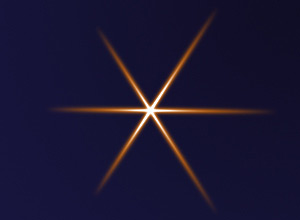
Bagliore = bianco
Alone = arancione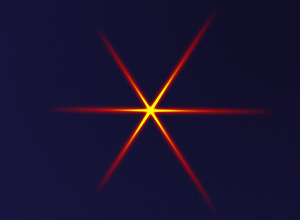
Bagliore = giallo
Alone = rosso
Parametri speciali. In aggiunta ai parametri sopra indicati, ogni elemento ha un gruppo di impostazioni speciali. Per saperne di più leggere le pagine che descrivono i singoli elementi.
LightShop v. 8.1 - 10-giorni di prova gratuita
