Aliens Are Coming
La version française sera bientôt affichée.
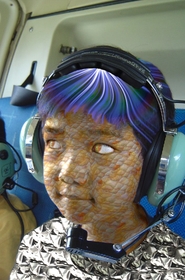
The author of the tutorial, Laval Yan, used AliveColors and two AKVIS plug-ins to convert a photo of his nephew into a photo of an alien.
Laval used AKVIS Decorator to apply new texture to the boy's skin and AKVIS LightShop to add extra-terrestrial light to the eyes and an original haircut to the creature.
- Step 1. Open the photo you want to edit in any photo editor compatible with AKVIS plug-ins.
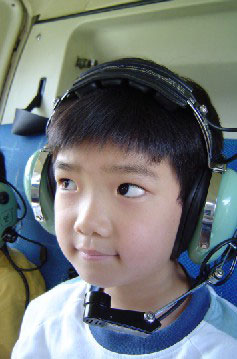
- Step 2. Select the face of the boy with any selection tool.
You can make/edit the selection in AKVIS Decorator.
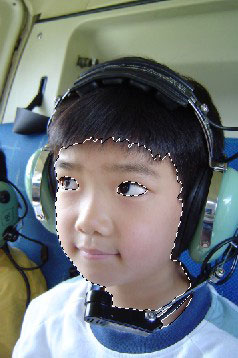
- Step 3. Call the plug-in AKVIS Decorator by selecting Effects -> AKVIS -> Decorator in the menu.
Open texture Library with a left double-click on the texture pattern; in the Animals group select the texture with fish scale.
Adjust the parameters Brightness and Warping (others can stay the same) and press the button
 .
.
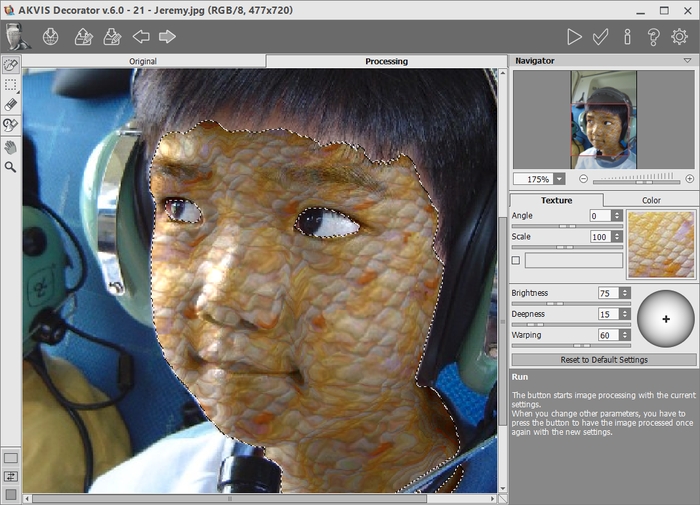
- Step 4. Apply the result by pressing the button
 .
.
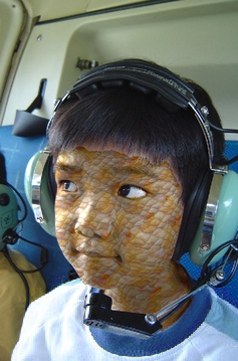
- Step 5. Repeat the steps 2-4 to apply new textures to the T-shirt and the collar to dress the alien in a space-suit.
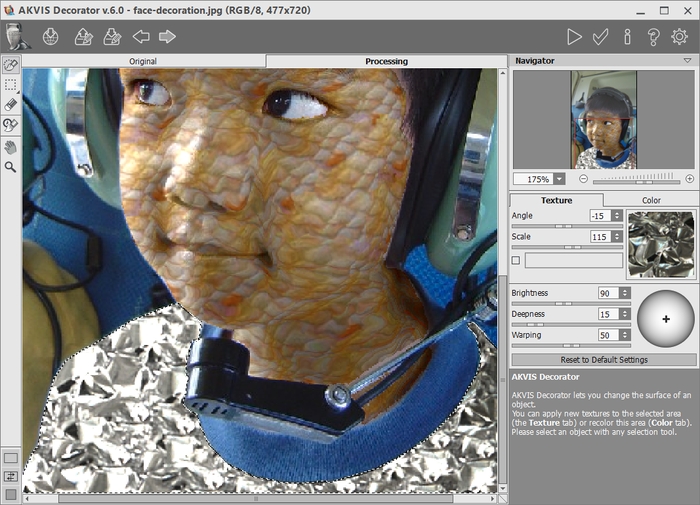
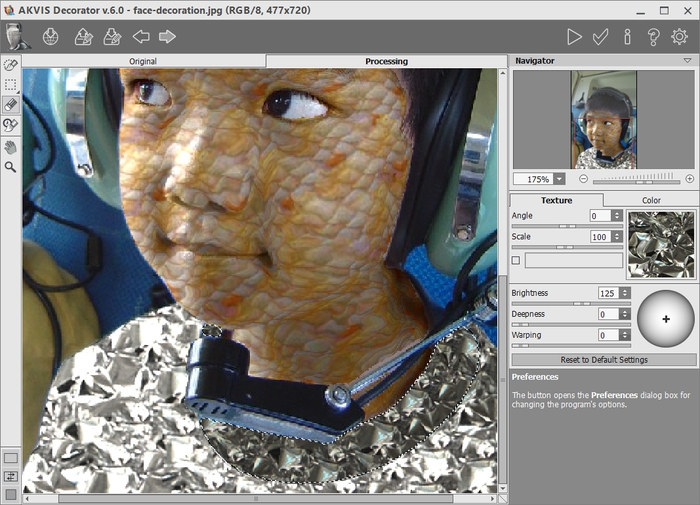
- Step 6. Create an original haircut for the creature using AKVIS LightShop.
Select the hair of the boy with any selection tool and call AKVIS LightShop: Effets -> AKVIS -> LightShop.
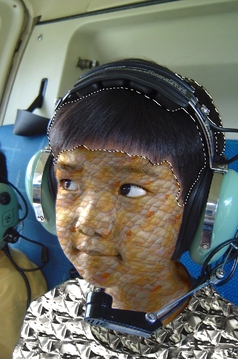
In the AKVIS presets list there is 073.xml that suits well for our task.
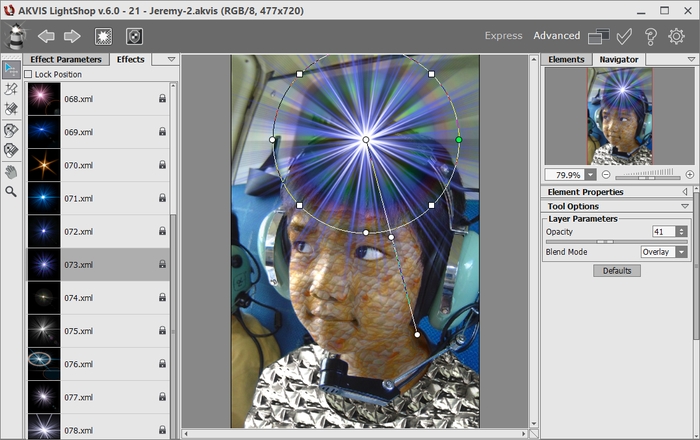
- Step 7. Apply the result by pressing .
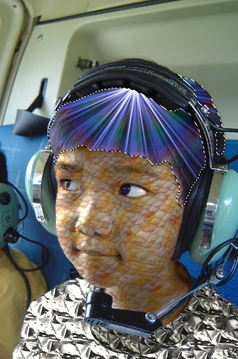
- Step 8. For the hair to look more natural, use Effects -> Distortion -> Twirl:
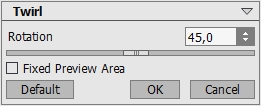
Then smooth its edges with any appropriate tool. In AliveColors you can use the Smudge tool
 :
:
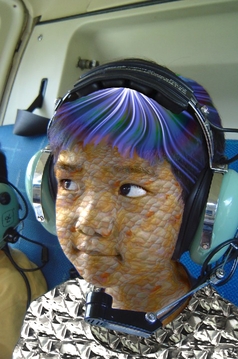
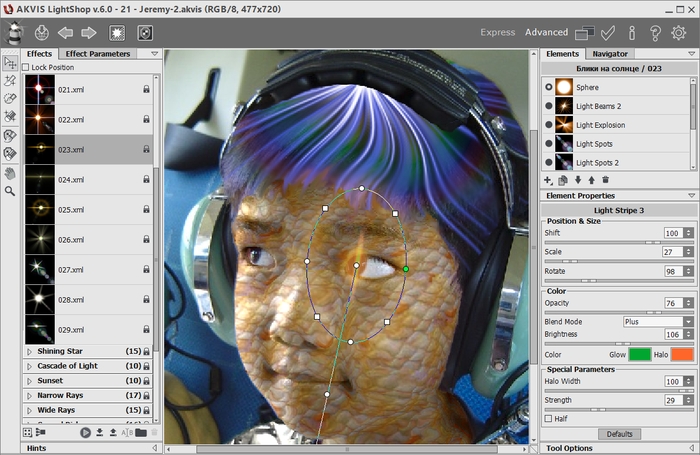
- Step 9. Now, the final touch - add extraterrestrial look to the eyes.
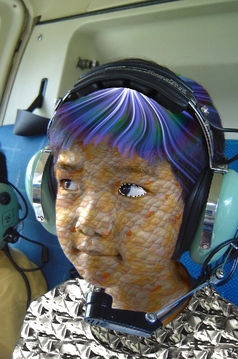
Apply one of AKVIS Lightshop's presets to create the effect of "snake eyes". Adjust the parameters so that the stripe was in the center of the pupil, as it is shown on the picture.
Apply the result by pressing the button
. Use Blur tool  and History Brush
  to correct the edges.
Repeat the same for the left eye.
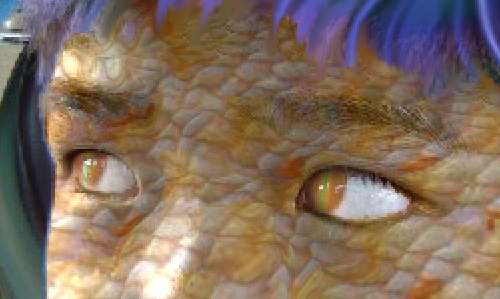
Here is our alien!
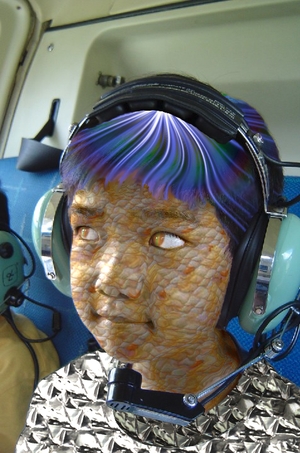
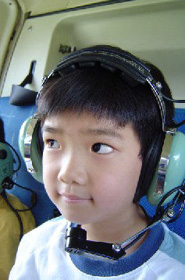 |
 |
| Original image | Result |
Decorator v. 9.1 - 10 jours d'essai
