Campo de flores
El autor de este tutorial es K.J. Hartmann, que nos cuenta: "Durante mucho tiempo busqué la imagen en blanco y negro de peor calidad para ver cómo podía mejorarla con AKVIS Coloriage AI. Pareciera que nada sirviera para darle color; sin embargo, traté de hacerlo utilizando este plugin. El resultado me asombró."
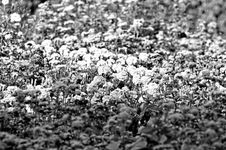
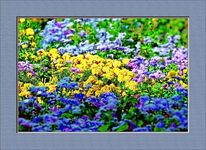
Intentemos seguir los pasos que llevó a cabo para conseguir el mismo resultado.
En esta tutoría, se utilizó la versión plugin de Coloriage AI, pero puede utilizar la versión standalone y realizar el mismo trabajo.
-
Paso 1. Abra una imagen en AliveColors.
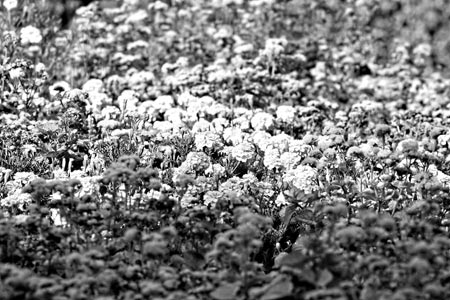
- Paso 2. Abra el programa AKVIS Coloriage AI desde el menú principal de AliveColors con el comando Effects -> AKVIS -> Coloriage AI.
-
Paso 3. En el modo Clásico utilice la herramienta Lápiz
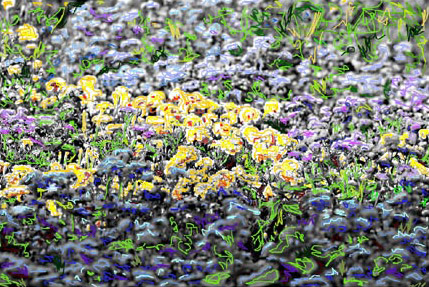
 para dibujar el contorno alrededor de cada flor. Establezca un color para cada objeto de la fotografía. Seleccione un color de la paleta Color de la Biblioteca de colores. Tenga en cuenta que le llevará bastante tiempo colorear la imagen. El resultado debería ser el siguiente:
-
Paso 4. Presione el botón
 . En la pestaña Después, podrá visualizar el resultado de su exhaustivo trabajo. Aquí está la imagen a color:
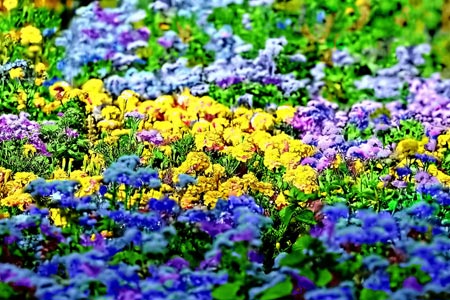
-
Paso 5. Si está satisfecho con el resultado, presione el botón
 . Si desea modificar algo, haga clic con el botón izquierdo del mouse en la pestaña Antes. En esta pestaña, puede cambiar el color de las flores. Elija la herramienta Tube
  o Tubo mágico
  . Con la primera se cambia el color de los trazos por separado; con la segunda, se cambia el color de los trazos ya vueltos a colorear que tienen un único y mismo color como así también el mismo brillo. Entonces, utilicemos la herramienta Tubo mágico.
- Paso 6. Vuelva a seleccionar un color de la Biblioteca de colores y haga clic con el mouse en el trazo que desee cambiar. De esta manera, podrá cambiar el color las veces que sea necesario.
-
Paso 7. Vuelva a presionar el botón . Si aún no se encuentra satisfecho, repita los pasos 5 y 6 hasta que haya conseguido la imagen que desea.
-
Paso 8. Presione el botón para aplicar los cambios y cerrar la ventana del plugin.
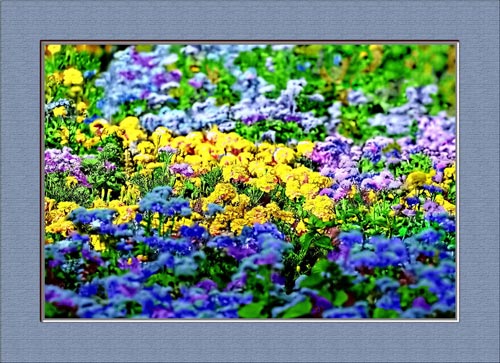
Puede ponerle un marco a la imagen:
Coloriage AI v. 15.7 - Prueba gratuita de 10 días
