Trucos para colorear fotos
Este ejemplo ha sido realizado por Stephen Bird con AliveColors (en el modo Clásico).
Esta guía asume que ya conoce un poco acerca de cómo funciona AKVIS Coloriage AI y tal vez lo han intentado en un par de fotos.
Cuando usted comienza a colorear una fotografía en blanco y negro, podría parecer ser una perspectiva desalentadora. Mira, todos esos detalles, todos esos pedacitos más incómodos. Esto ayuda a reconstruir la escena en tu mente en tres dimensiones.
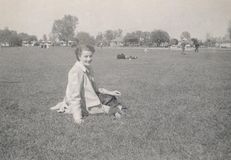
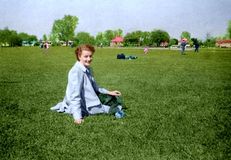
Imagina que tu foto muestra a un miembro de tu familia que se muestra relajante en el césped en un parque. Detrás de ella están otros visitantes también tomando el sol, más lejos hay un camino con gente paseando. Aún más lejos y en la distancia, un edificio, tal vez un café rodeado de árboles. Y por encima de todo, el cielo azul – que fue siempre azul en los veranos de nuestra juventud, ¿lo recuerdas?.
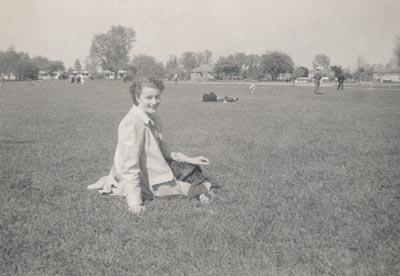
Antes de empezar a colorear la foto, llamar a los Auto Levels del comando seleccionando el elemento de menú de Adjustment -> Auto Levels, y del menú Image de AliveColors. Como resultado, la fotografía se ha convertido con más contraste.
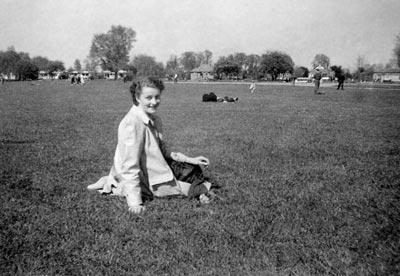
Empiece coloreando las zonas en la foto desde la parte de atrás y hacia delante. En nuestro ejemplo, sería el cielo. Pintar una raya azul cielo en la parte superior, otra raya azul más clara un poco por debajo de él, y de nuevo una raya azul muy clara que sigue de cerca la línea de los árboles. El cielo está siempre más cerca del horizonte, a menos que haya una tormenta en el camino.
La siguiente zona es la línea de árboles. Los árboles vienen en varios colores incluso en pleno verano por lo que sería un error seleccionar un tono de verde para todos ellos. Recuerde que usted no colorea a los árboles propiamente - colorea una foto de ellos. Si los árboles están a una buena distancia, su color en la foto aparecerá mucho más tenue que el color de una hoja arrancada de uno de esos árboles, y que llevó a cabo junto a la foto para su comparación. El color debe ser más moderado.
Elija unos tonos adecuados con Coloriage AI. Los árboles con manchas de tres o cuatro diferentes colores verdes. Cuanto más cerca colocas las pinceladas o líneas con Coloriage AI, con más precisión los colores de los árboles se distinguen. Si hay un edificio escondido entre los árboles - como en nuestro ejemplo - asegúrese de que delinear cuidadosamente las paredes y el techo en el lado de follaje con el verde del árbol.
Más cerca en la foto es el mismo edificio. Probablemente su techo es de color rojo o gris pizarra, silenciado por la distancia de la cámara - recuerde que usted no desea que el color real de la baldosa, sino más bien el color y como aparecería en una fotografía a esa distancia. Delinear cuidadosamente el área de la azotea con el color que desee y luego delinear las paredes del edificio con un color adecuado. Si hay objetos delante de las paredes, dibujar un contorno cuidadoso alrededor de ellos. Tal vez la puerta obtiene otro punto Coloriage AI o dos de color. No lo hagas un color escandalosamente diferente desde el recinto amurallado o en el techo. Siendo un detalle distante, es suficiente para sugerir simplemente que no pintó el mismo color las paredes.
En nuestra foto imaginada, hay gente paseando en el fondo pero delante de la línea de árboles y el café. Sus rostros podrían obtener una fecha de nacimiento del mismo tono oscuro carne pero ten cuidado cuando colorees su ropa. Ten en cuenta cuando fue tomada la foto. Hasta mediados de los años 50, la gente había agotado sus mejores galas mientras paseaban por el parque. La coloración de los pantalones del dril de algodón azul de los hombres no sería realista en una foto tomada antes de 1965. Y puesto que estos cochecitos están en el fondo, puede utilizar cimarrones, grises, marrones y beige que insinúan sus diversos trajes - utilice colores que más o menos mimetizan con el fondo ya que los coches no son el tema de la fotografía y no hay ninguna razón para llamar la atención sobre ellos con puntos brillantes de colores.
El tema de nuestra foto está sentado en el césped césped en el parque, por lo que lo demás técnicamente está detrás de ella. Aunque hay una sombra de verde, de la llamada hierba verde, que nos resulta demasiado real y brillante. Las zonas verdes en las fotografías suelen aparecer bastante oscura, así que debemos usar un color verde oscuro medio para dibujar sobre las zonas con césped en frente de la dama, procurando esbozar en ella. Hacia el fondo, los cochecitos en el camino donde el tono de verde se debilita y se dirige hacia un color gris - no es mucho, pero es un tono diferente de la hierba delante de la dama.
Siguiente el sujeto mismo. Trabajar desde atrás hacia delante. Pintar la piel primero, delineando cuidadosamente alrededor de ropa. Entonces color de la ropa que estaría al lado de la piel - la blusa y zapatos. El siguiente delinear cuidadosamente la ropa exterior – una bufanda, chaqueta y falda o bañador. El cabello también es importante en esta categoría, puesto que es sobre la piel. Por último, pero no menos importante, los detalles finales como botones y joyas que están encima de todo.
Siguiendo la lógica de la "de atrás hacia adelante", cuando coloree sus fotos, usted será capaz de obtener más rápido mejores resultados.
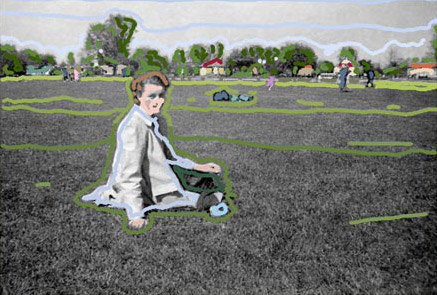
Aplicar los colores pulsando el botón  .
.
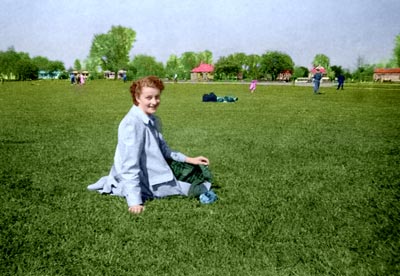
Ahora usted puede aplicar los cambios a la imagen pulsando el botón  .
.
Coloriage AI v. 15.7 - Prueba gratuita de 10 días
