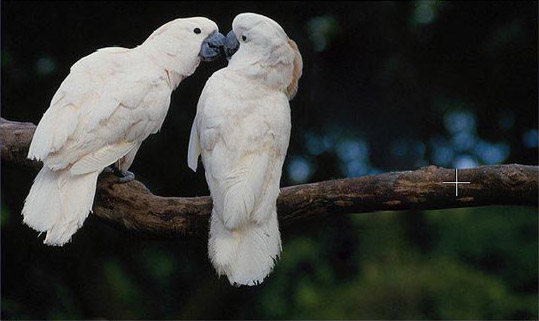
Odd Man Out
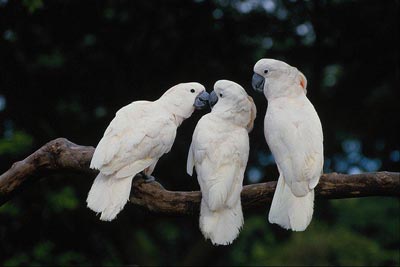
We are going to remove the odd parrot who indiscreetly stares at the kissing sweethearts. It’s quite easy as the background is blurred and does not have prominent details. The only thing that requires some effort is the removal of the branch the parrot is sitting on.
 |
 |
-
Step 1. Open the photo in your photo editor. You can also open the photo in the standalone version of MultiBrush and achieve the same results as in this example.
- Step 2. Call the AKVIS MultiBrush plugin. For this purpose, in Adobe Photoshop select the menu item Filter -> AKVIS -> MultiBrush, in Corel (Jasc) Paint Shop Pro - the menu item Effects -> Plugins -> AKVIS -> MultiBrush; in Corel Photo-Paint select the command Effects -> AKVIS -> MultiBrush.
-
Step 3. We will remove the odd parrot using the Artistic Cloning of the Chameleon Brush
 .
.
In this mode you can change the size of the brush, indicate another source for cloning and make a clone out of different parts of the image. The program will not fuse the cloned area with the background until you quit the mode.
-
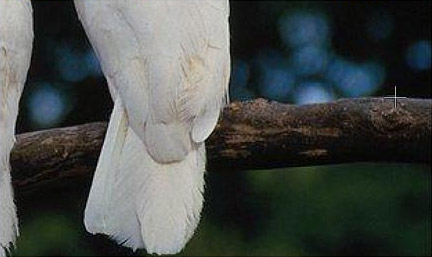
Step 4. We start removing the parrot by replacing it with appropriate image fragments. First we clone the branch.
We set the source for cloning by pressing the Alt key (Option on Mac) and clicking with the left mouse button on the branch on the right of the parrot.
-
Step 5. Draw the first line and the branch will be copied to the place where the parrot used to sit.
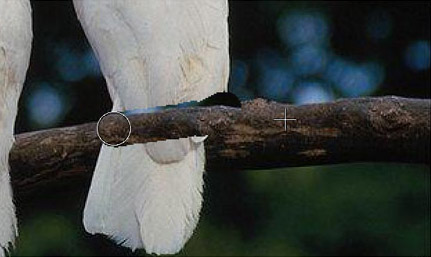
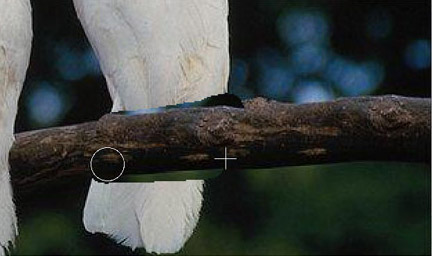
We set the second source for cloning a bit lower than the first one and we continue cloning the branch until it is completely restored.
-
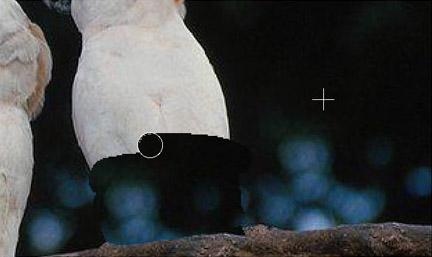
Step 6. Now we remove the tail of the parrot. We set the cloning source lower than the branch and clone it in place of the parrot.
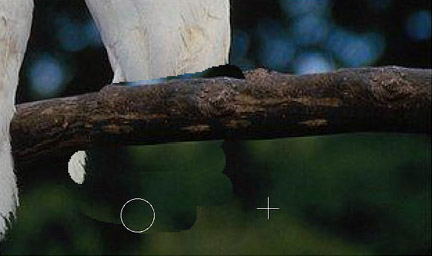
If you've made a mistake when cloning a fragment, you can use the
 button to cancel the last operation.
-
Step 7. Now we clone the upper part of the parrot's body. We clone the fragment on the right of the parrot above the branch.
-
Step 8. Retouch minor imperfections on the branch using the stamp. The parrot is removed, the branch is restored, but the borders of the cloned area are still visible. Now we start the processing by pressing the button
 .
.
The program will process the borders of the cloned area in such a way that the clone fuses with the background. The odd parrot has disappeared without leaving a trace.