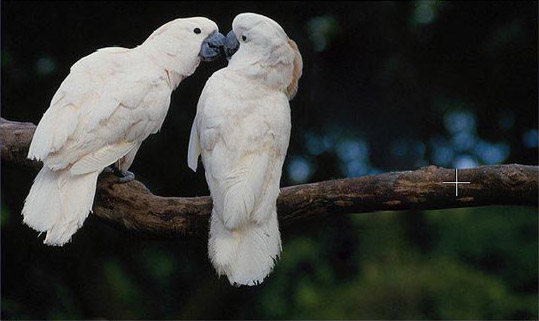
Um estranho no ninho
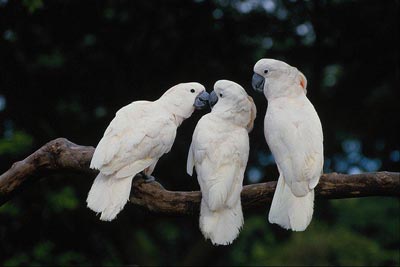
Vamos remover o papagaio estranho que indiscretamente olha para os namorados se beijando. É muito fácil pois fundo está turvo e não há detalhes importantes. A única coisa que requer algum esforço é a remoção do galho onde o papagaio está sentado.
 |
 |
-
Passo 1. Abra a foto em seu editor de fotografia. Você também pode abrir a foto na versão autônoma do MultiBrush e alcançar os mesmos resultados, como neste exemplo.
- Passo 2. Chame o plugin AKVIS MultiBrush. Para este efeito, no Adobe Photoshop seleccionar Filtro -> AKVIS -> MultiBrush, no Corel Paint Shop Pro - o item de menu Efeitos -> Plugins -> AKVIS -> MultiBrush; no Corel Photo-Paint selecionar o comando Efeitos -> AKVIS -> MultiBrush.
-
Passo 3. Removeremos o papagaio estranho usando o modo de Clonagem artística do Pincel-camaleão
 .
.
Neste modo, você pode alterar o tamanho do pincel, indicar uma outra fonte para a clonagem e fazer um clone de diferentes partes da imagem. O programa não irá fundir a área clonada com o fundo até que você saia do modo.
-
Passo 4. Começaremos removendo o papagaio, substituindo-o com os fragmentos de imagem apropriados. Primeiro vamos clonar o galho. Ajustaremos a fonte para a clonagem, pressionando a tecla Alt (Option no Mac) e com o botão esquerdo do mouse clicamos sobre o galho à direita do papagaio.
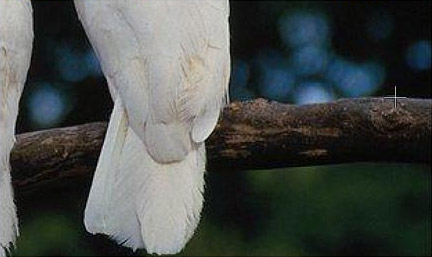
-
Passo 5. Desenhe uma primeira linha e o galho será copiado para o local onde o papagaio costumava sentar-se.
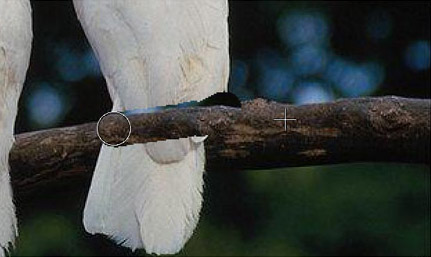
Montaremos a segunda fonte de clonagem um pouco menor do que a primeira e continuaremos a clonagem do galho até que esteja completamente restaurado.
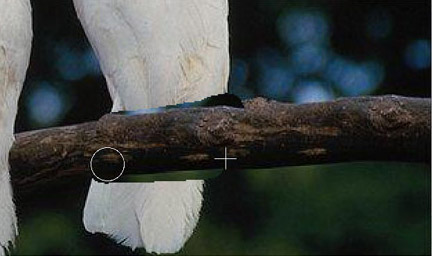
-
Passo 6. Agora removeremos a cauda do papagaio. Definiremos a fonte de clonagem na parte inferior do galho e clonaremos no lugar do papagaio.
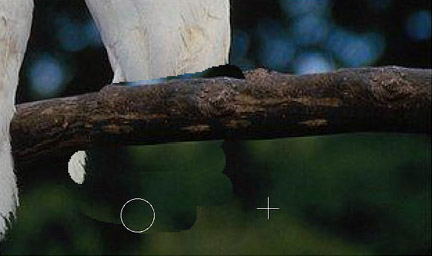
Se você cometeu um erro quando clonava um fragmento, você pode usar o botão
 para cancelar a última operação.
-
Passo 7. Agora clonaremos a parte superior do corpo do papagaio. Clonaremos o fragmento à direita do papagaio na parte superior, acima do galho.
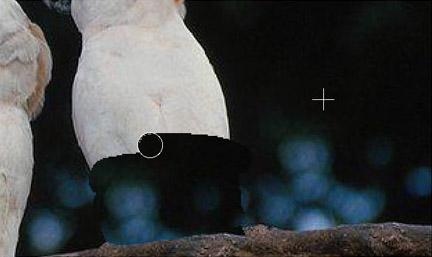
-
Passo 8. Retoque pequenas imperfeições no galho usando o carimbo. O papagaio é removido, o galho é restaurado, mas as bordas da área clonada ainda são visíveis. Agora iniciaremos o processo apertando o botão
 .
.
O programa processará as bordas da área clonada de tal forma que o clone se fundirá com o fundo. O papagaio estranho desapareceu sem deixar rastros.