Graphic software for Windows Mac graphic software
AKVIS ニュースの購読を申し込むには, 電子メールアドレスを入力してください。
 
  
  プログラム     ダウンロード     サイバーショップ     チュートリアル     サポート     会社情報
en  fr  de  es  pt  it  jp  ru    
 

チュートリアル: AKVIS MultiBrush

Odd Man Out


あいにく, このページは英語にだけ使用可能です。日本語のバージョンは遠からず出ります。
Attention! You can get a free licence for an AKVIS program by translating texts from English to Japanese.
Please contact us at team@akvis.com.

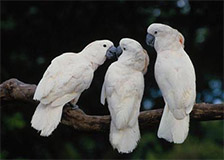
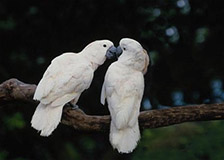
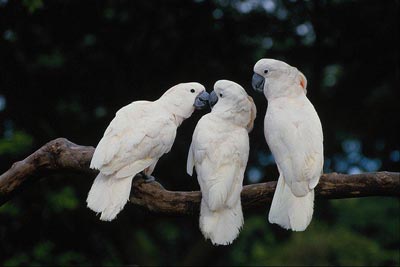
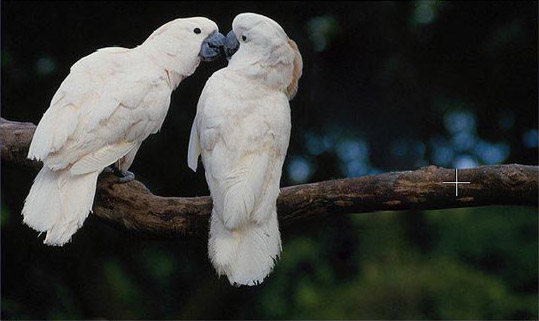
We are going to remove the odd parrot who indiscreetly stares at the kissing sweethearts. It's quite easy as the background is blurred and does not have prominent details. The only thing that requires some effort is the removal of the branch the parrot is sitting on.

    Original image Result
  • Step 1. Open the photo in your photo editor. You can also open the photo in the standalone version of Multibrush and achieve the same results as in this example.
    Three parrots
  • Step 2. Call the AKVIS MultiBrush plugin. For this purpose, in Adobe Photoshop select the menu item Filter -> AKVIS -> MultiBrush, in Corel (Jasc) Paint Shop Pro - the menu item Effects -> Plugins -> AKVIS -> MultiBrush; in Corel PHOTO-PAINT select the command Effects -> AKVIS -> MultiBrush.
  • Step 3. We will remove the odd parrot using the Artistic Cloning of the Chameleon Brush (it was the Stamp tool in the old version (v.1-3) of the program). In this mode you can change the size of the brush, indicate another source for cloning and make a clone out of different parts of the image. The program will not fuse the cloned area with the background until you quit the mode. To use this mode activate the check-box Artistic Cloning in the Settings Panel.
  • Step 4. We start removing the parrot by replacing it with appropriate image fragments. First we clone the branch.

    We set the source for cloning by pressing the Alt key (Option on Macintosh) and clicking with the left mouse button on the branch on the right of the parrot.

    Indicate the cloning source
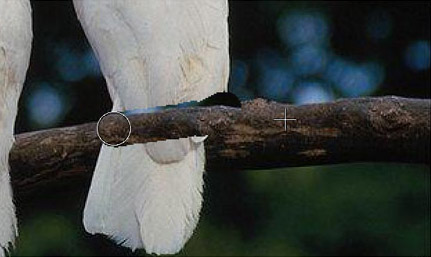
  • Step 5. Draw the first line and the branch will be copied to the place where the parrot used to sit.
    Clone the branch of the tree

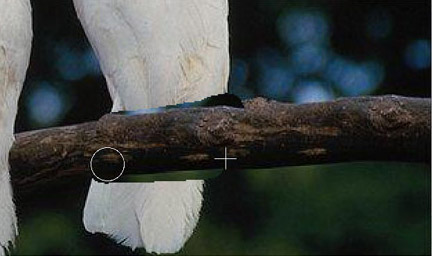
    We set the second source for cloning a bit lower than the first one and we continue cloning the branch until it is completely restored.

    Clone the tree branch
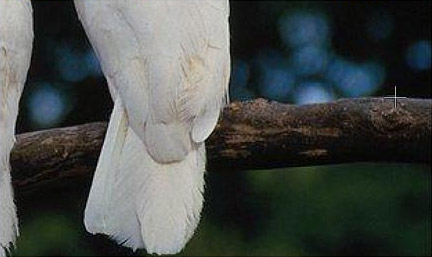
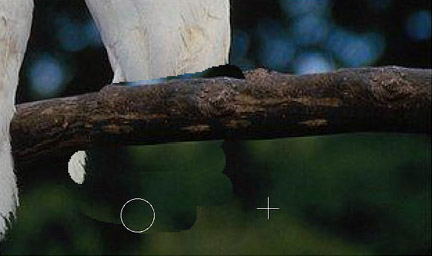
  • Step 6. Now we remove the tail of the parrot. We set the cloning source lower than the branch and clone it in place of the parrot.
    Remove the tail

    If you've made a mistake when cloning a fragment, you can use the button to cancel the last operation.

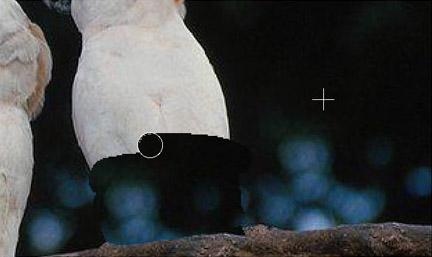
  • Step 7. Now we clone the upper part of the parrot's body. We clone the fragment on the right of the parrot above the branch.
    Remove the parrot
  • Step 8. Retouch minor imperfections on the branch using the stamp. The parrot is removed, the branch is restored, but the borders of the cloned area are still visible. Now we start the processing by pressing the button .

    The program will process the borders of the cloned area in such a way that the clone fuses with the background. The odd parrot has disappeared without leaving a trace.

    The result of cloning with AKVIS MultiBrush
 
操作方法 操作方法
   — ワークスペース — ワークスペース
   — 操作方法 — 操作方法
Palettes Palettes
Brushes Brushes
Tools Tools
操作例 操作例


   プライバシー | サイトマップ | Web サイトの検索 | English  |Français  |Deutsch  |Español  |Português  |Italiano  | 日本語  |Pусский  | © 2004-2009, AKVIS Software Inc. All rights reserved.