Color Pencil
The Color Pencil  is designed to draw free-form lines with hard edges. Press P to quickly access this tool.
The tool's parameters will be shown in a floating box over an image (by right-clicking the mouse) and also in the Settings Panel.
To change the value of a parameter, enter a numerical value in the field next to the parameter and press Enter (Mac: Return) or move the slider.
- Size (1-1000). The maximum width of a line made by the brush (in pixels).
-
Blend Mode. It defines how the pencil strokes blend with the background. The program provides 16 blend modes.
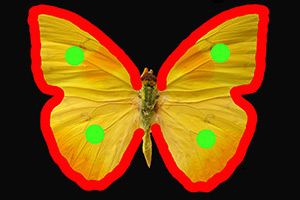
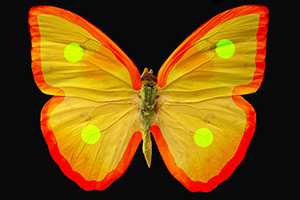
Normal Mode Overlay Mode -
Opacity (1-100). The opacity of the pencil's strokes in relationship to the color of the background. This parameter sets the opacity color, by which a line is drawn: at lower values, the color of the line is paler and its interaction with the color of the background increases.
Painting of a Ballerina Figure With the Pencil 

Opacity = 80% Opacity = 20% -
Spot Spacing (5-200). Distribution of elements, from which the line is comprised. Increasing this parameter creates a line that is composed of a series of circles, the distance between the circles depends on the parameter's value.
Drawing With Spaces 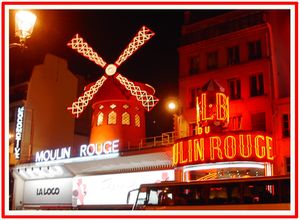

Spot Spacing = 5 Spot Spacing = 91 and 100 -
Aspect (1-100). The compression of the pencil tip.
At value = 1 the it is flattened into a line, at 100 it is a circle, and at intermediary values it is an ellipse. The lower the values for this parameter, the longer the ellipse, along the angle specified by Angle.
Application of War Paint on a Native's Face 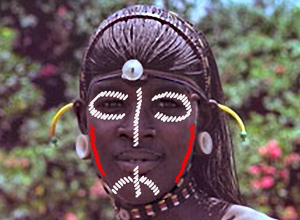
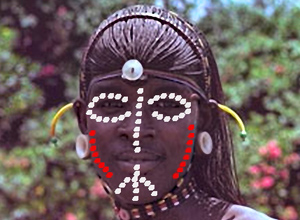
Aspect = 30 Aspect = 80 -
Angle (0-180). The rotation angle of the tool.
Pattern on a Vase 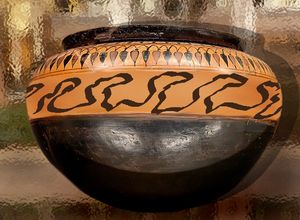
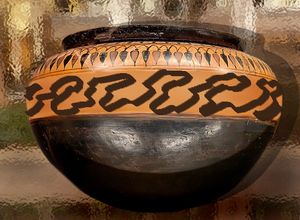
Angle = 30 Angle = 140
The pencil's color is set in the Color/Swatches palettes. To choose a color bring the cursor over the spectral line (the cursor takes the form of a pipette) and click on the desired color or click on the box and choose a color from the standard dialog Select Color. In some cases it might be preferable to select a color manually, by adjusting the sliders.
In order to draw a straight line, click the left mouse button at its starting point, then, press Shift, click on the end point, and let go of Shift. If Shift is not released, a new line will be drawn to each point where the mouse is clicked.