Comment découper la silhouette d'une personne d'une photo
L'exemple a été réalisé avec l'ancienne version de SmartMask. Vous pouvez désormais obtenir cet effet plus facilement avec les nouveaux outils basés sur l'IA.
AKVIS SmartMask vous permet de masquer les objets sur vos images et supprimer le fond.
Nous avons essayé d'utiliser les deux modes pour vous montrer les possibilités du logiciel.
Le processus a pris 10 minutes.
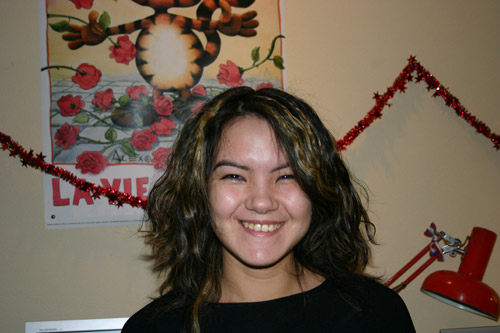
| ||
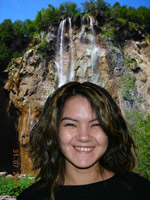
| Photo originale | ||
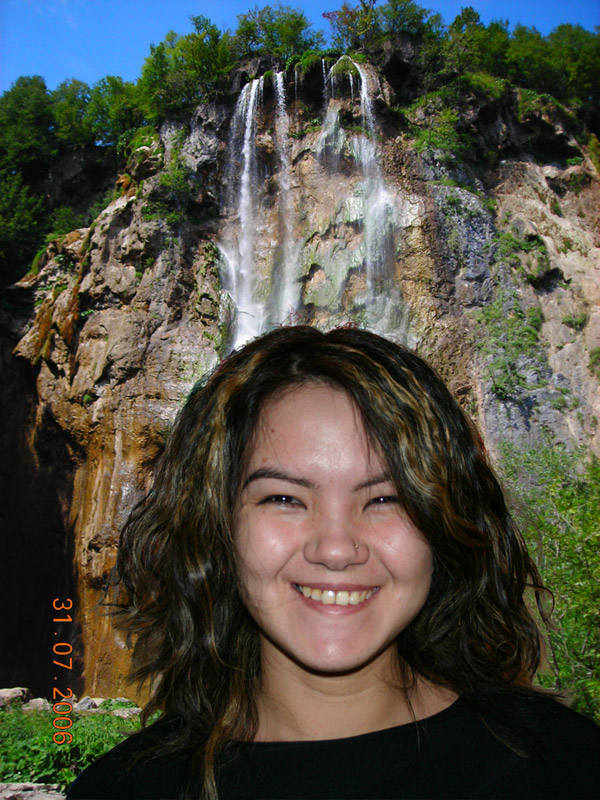 |
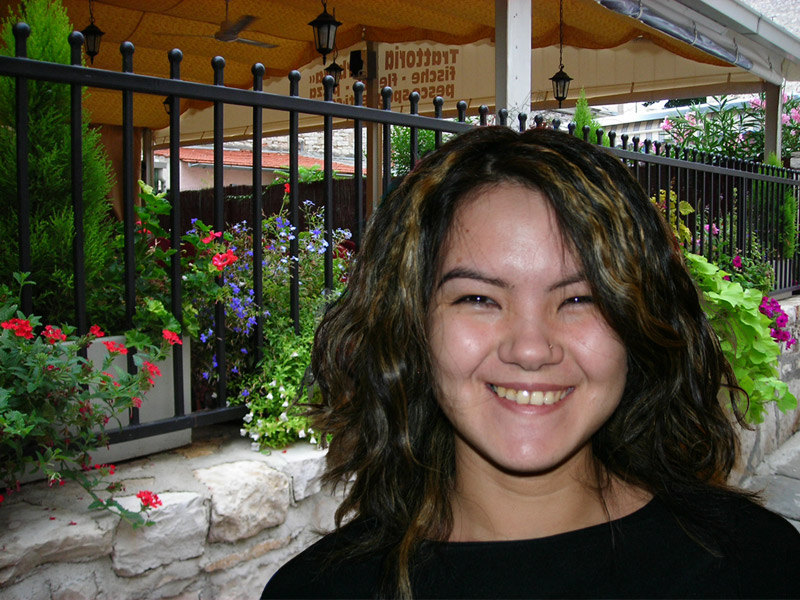
|
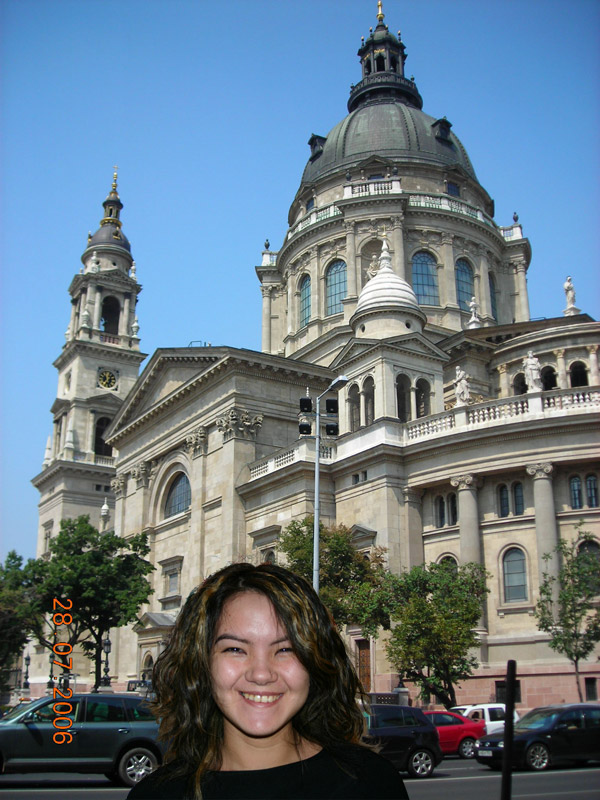
|
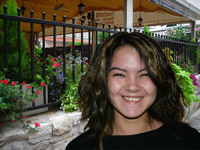
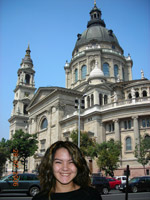
| De différentes versions du nouveau fond Cliquez sur la photo pour ouvrir sa copie agrandie dans une nouvelle fenêtre |
||
-
Étape 1. Ouvrez l'image dans votre logiciel de retouche photo.
Cet exemple a été créé dans le logiciel AliveColors, mais on peut utiliser n'importe quel logiciel de retouche photo compatible avec le plug-in AKVIS SmartMask. Alternativement, vous pouvez utiliser la version autonome de SmartMask.
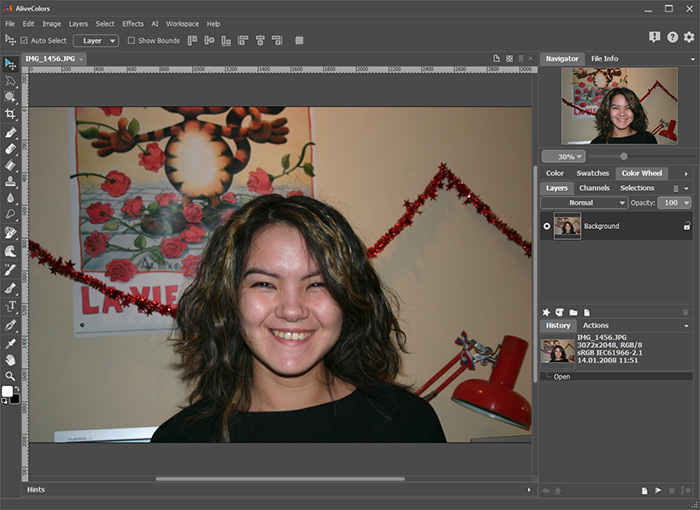
- Étape 2. Faites une copie du calque (Calques -> Dupliquer).
-
Étape 3. Appelez le plug-in AKVIS SmartMask avec la commande Effets -> AKVIS -> SmartMask dans le menu principal.
Par défaut le logiciel fonctionne dans le mode Auto.
-
Étape 4. Activez le crayon bleu
 sur la Barre d'outils. Traçez un contour en dedans de la figure pour marquer les zones à garder et avec le crayon rouge
  marquez les zones à supprimer.
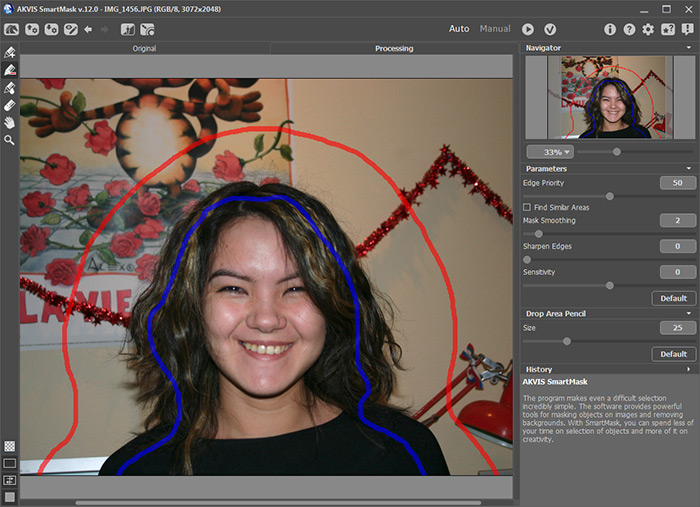
-
Étape 5. Démarrez le processus du traitement avec le bouton
 .
.
Le logiciel définit les contours de l'objet découpé automatiquement et génére deux types de zones: la zone marquée avec le crayon rouge sera supprimée (la transparence de chaque pixel de la section = 100 %), les zones marquées avec le crayon bleu seront conservés (la transparence de chaque pixel de la section = 0%).
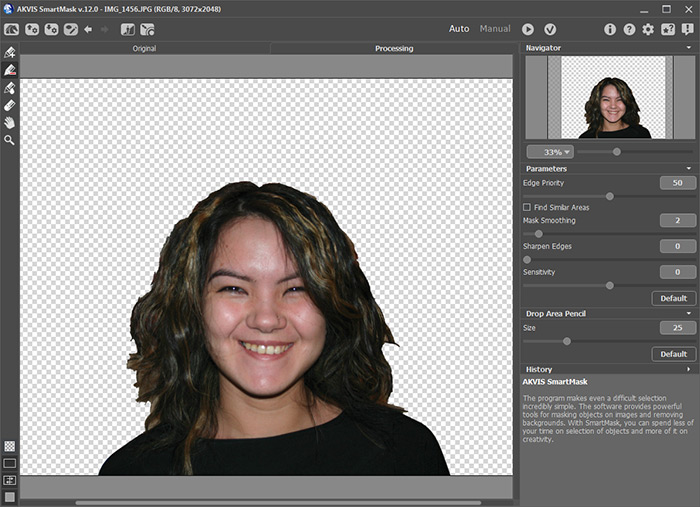
Les vêtements sont bien découpés, mais les cheveux nécessitent un traitement spécial. Nous voulons obtenir une image parfaite, n'est-ce pas? Pour cette raison on continuera le traitement.
-
Étape 6. Sélectionnez le crayon vert
 sur la Barre d'outils, augmentez la Taille, puis dessinez sur les zones complexes (les cheveux).
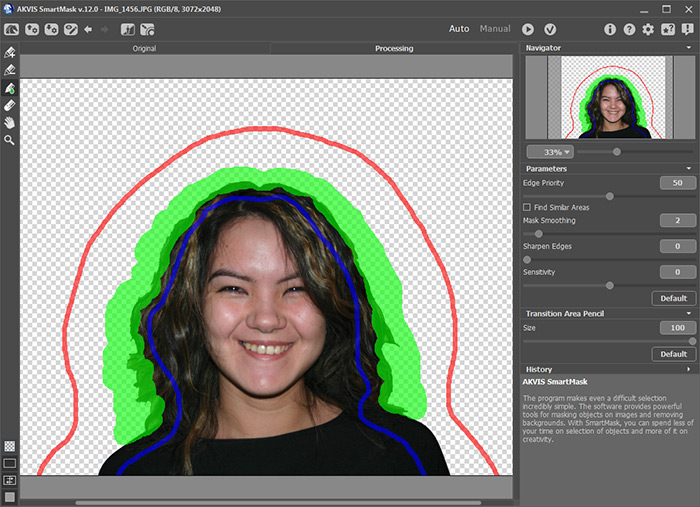
-
Étape 7. Cliquez sur le bouton pour démarrer le processus du traitement.
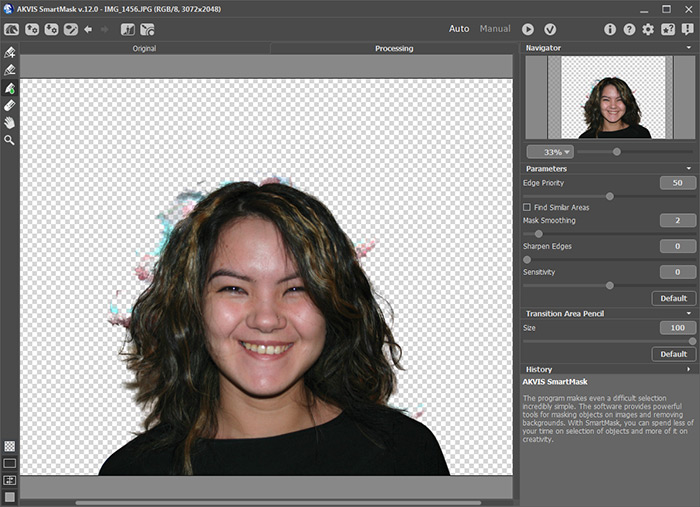
Nous sommes presque contents avec le résultat. Il nous reste à supprimer les taches sur le fond.
- Étape 8. Activez le mode Manuel. Ici, nous pouvons améliorer le résultat.
-
Étape 9. À l'aide de l'outil Zoom
 agrandissez l'échelle de l'image pour travailler avec les zones problématiques.
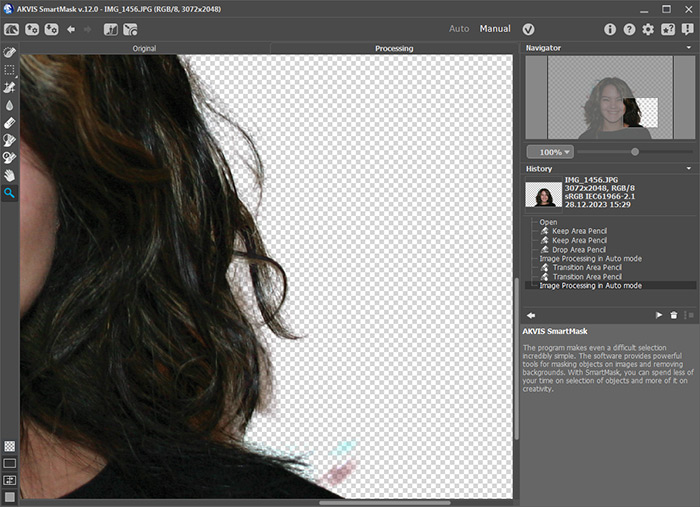
-
Étape 10. Choisissez le mode de l'espace de travail qui montre l'image originale et le résultat dans deux fenêtres côte à côte.
Activez l'outil Pinceau magique
 et utilisez les pipettes
  pour sélectionner les couleurs pour les listes Couleurs à supprimer et Couleurs à garder.
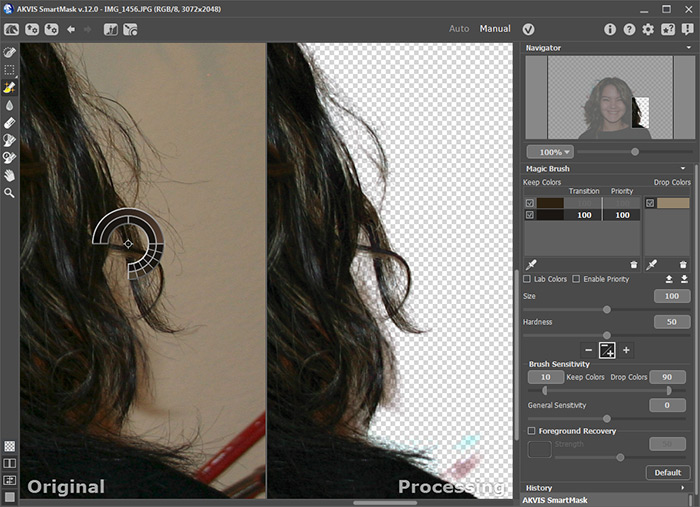
-
Étape 11. Activez le mode Garder & Supprimer.
Dans ce mode, le Pinceau magique
élimine les points ayant les mêmes couleurs que celles énumérées dans le champ Couleurs à supprimer et les couleurs qui leur sont proches, et il restaure les points ayant les mêmes couleurs que celles énumérées dans le champ Couleurs à garder et les couleurs qui leur sont proches.
Passez sur les cheveux avec le Pinceau magique.
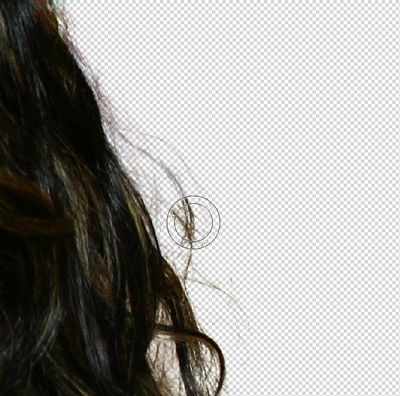
Après le traitement avec le Pinceau magique nous recevrons le résultat suivant :
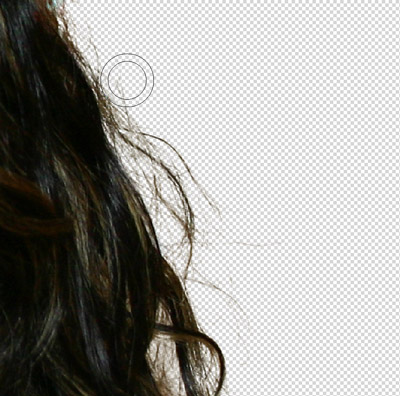
-
Étape 12. Le résultat nous plaît, mais on peut l'améliorer. Agrandissez la Sensibilité générale du pinceau et traitez les cheveux encore une fois.
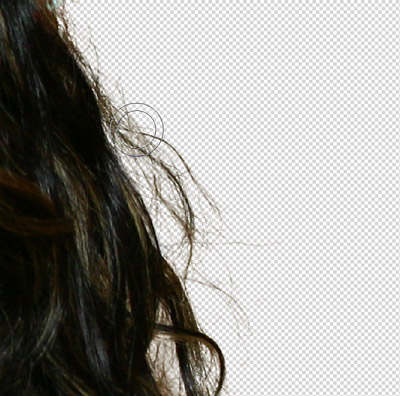
-
Étape 13. Activez la case Récupération de l'avant-plan et sélectionnez la couleur brune foncée.
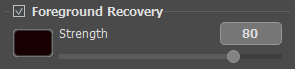
Utilisez le Pinceau magique de nouveau. Maintenant les cheveux ont l'air naturel!
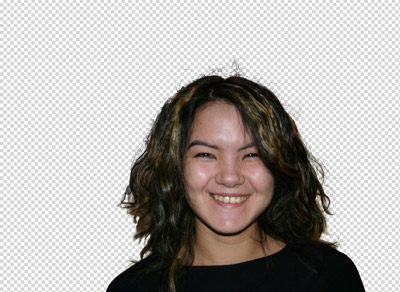
-
Étape 14. Il ne reste que cliquer sur
 pour afficher le résultat.
Maintenant on peur appliquer n'importe quel fond et la nouvelle photo est prête.
SmartMask AI v. 15.1 - 10 jours d'essai
