Eliminar el ruido en la imagen renderizada
El diseñador del proyecto es Innokenti Chtchavrovski.
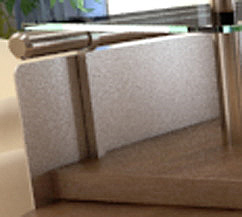
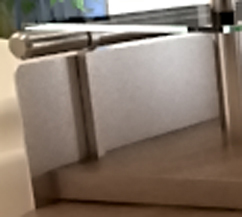
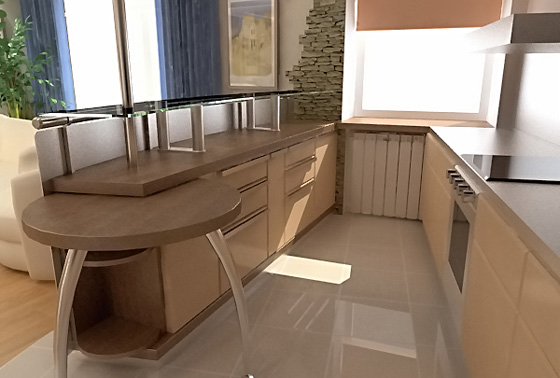
La siguiente imagen es el resultado de hacer un modelo de diseño de interiores en 3DS MAX.
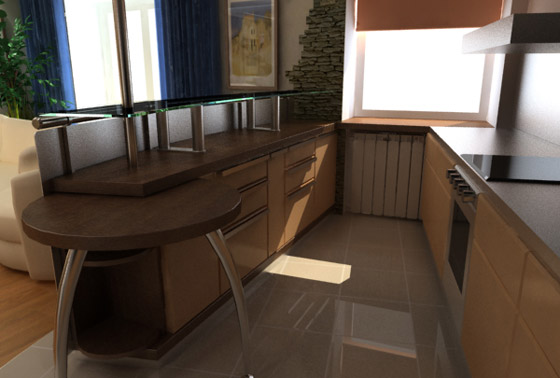
El Renderizado es un complejo proceso de transformación de un modelo vectorial 3D en una imagen de mapa de bits en 2D teniendo en cuenta el ángulo visual, la iluminación, materiales, superposición de la textura, etc.
Todos los que participan en la creación de modelos de diseño interior saben que una representación de calidad requiere una gran cantidad de tiempo y recursos, ya que puede tomar horas y horas.
¿Y si el cliente ya está en la puerta y no tienes tiempo para una presentación de alta calidad?
La única salida es representar la imagen con una configuración promedio y luego procesar la imagen en un editor de fotos, por ejemplo en AliveColors. Esto le ahorrará tiempo.
La imagen de arriba se ha elaborado con una configuración promedio y en un período relativamente corto de tiempo. Pero esto afecta a la calidad del resultado: se puede ver el ruido en las sombras y en la superficie metálica del bar.
- Paso 1. Abra la imagen en AliveColors (o cualquier otro editor de imágenes) e inicie la corrección con las herramientas Niveles.
En la superficie de metal de la barra el ruido es especialmente pronunciado.
- Paso 2. Ahora viene la corrección de ruido. Vamos a aplicar el plugin AKVIS Noise Buster AI, compatible no sólo con AliveColors, sino con muchos otros editores de imágenes (consulte la página de compatibilidad).
Llame al plugin AKVIS Noise Buster AI: Efectos -> AKVIS –> Noise Buster AI. Comience con los parámetros predeterminados (el preset AKVIS Default). El resultado se mostrará en el área de vista previa en la ventana Después.
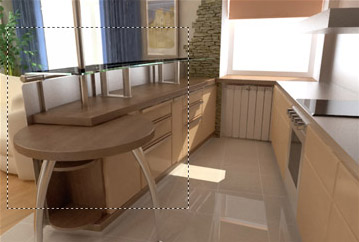
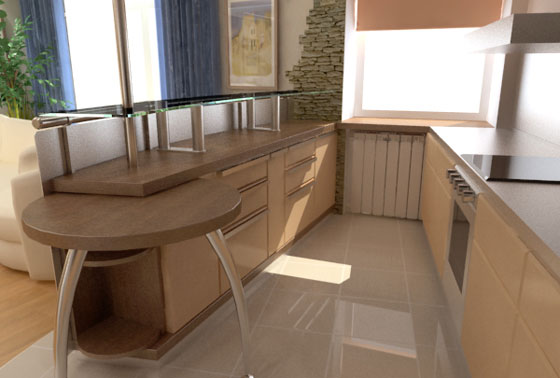
El resultado de la filtración automática es bueno: ahora hay mucho menos ruido.
Antes de la reducción de ruido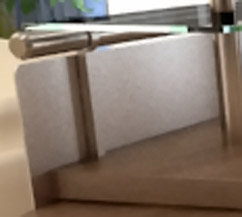
Después de la reducción de ruidoNo hay necesidad de eliminar completamente el ruido, la idea principal es mejorar la impresión general de la imagen. La imagen filtrada con los ajustes automáticos es bastante buena para ser mostrado al cliente.
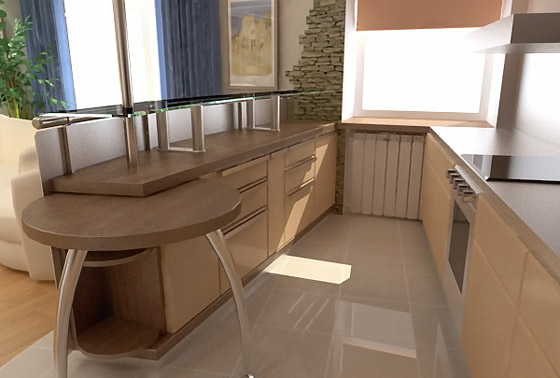
- Paso 3. Si es necesario puede ajustar los parámetros manualmente.
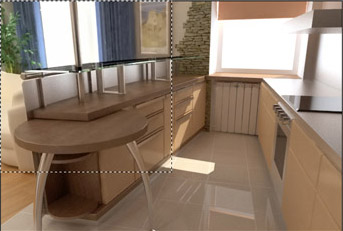
El ajuste le tomará no más de 5 minutos. El resultado es una imagen libre de ruido.
Ahora vamos a filtrar toda la imagen con los ajustes seleccionados. Tal vez la imagen final no es muy realista, pero resulta agradable a la vista.
Epilogo:
El autor usó la imagen de "auto filtrado" para la presentación al cliente. Sin embargo, esto es sólo una cuestión de gustos.
Noise Buster AI v. 13.2 - Prueba gratuita de 10 días
