Removing an object
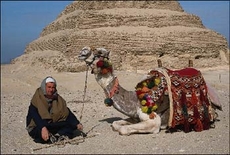
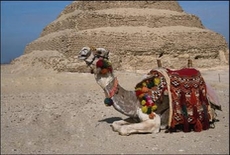
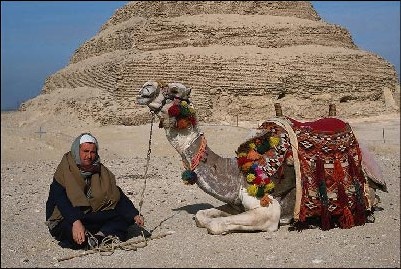
Earlier we applied MultiBrush tools only to remove small defects (wrinkles, freckles, birthmarks and scars). Now we set ourselves a more global task. We will open an image with a camel and a cameleer and will remove the latter from the photo.
 |
 |
-
Step 1. Select the Chameleon Brush tool from the Toolbar of AKVIS MultiBrush. Just press the button
 .
. Adjust the size of the brush.
-
Step 2. Deactivate the check box Aligned so that every time you apply the brush the pattern is taken from one and the same starting point.
We have to do this as there is not an appropriate part of the desert to fill the place of the cameleer.
-
Step 3. Press the Alt key (Option on Mac) and use the left mouse button to specify the pattern of the desert that has the same texture as the area near the cameleer's head.
-
Step 4. Apply the brush to replace the head, shoulders and the rope with the cloned texture.
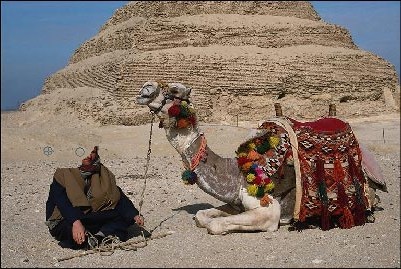
- Step 5. Now press the Alt key and use the left mouse button to specify the pattern on the sand in the foreground on the left of the cameleer.
-
Step 6. Apply the brush in strokes to paint the bedouin, his stick and the lower part of the rope.