Eraser
The Eraser  is a tool that alters the transparency of an image (on the selected raster layer). Processed sections are shown as transparent areas, with a checkerboard background. To quickly access this tool and switch between the Eraser and History Brush tools press E.
| Attention! | When saving a file into a format that does not support transparency (JPEG), the transparent areas will be replaced by white. To keep the transparency, use PNG format. | ||
The tool's parameters will be shown in a floating box over an image (by right-clicking the mouse) and also in the Settings Panel.
To change the value of a parameter, enter a numerical value into the parameter's field and press Enter (Mac: Return) or adjust the slider.
- Size (1-1000). The maximum width of the transparent line which the eraser leaves behind (in pixels).
-
Hardness (0-100). The amount of blurriness of the brush's edge. As the value of this parameter increases the edge of the brush becomes harder. Near 100% the border between erased and unerased areas will be more distinct; at lower values the boundary between these areas will be smoother.
Removing Some of the Drawing With the Eraser 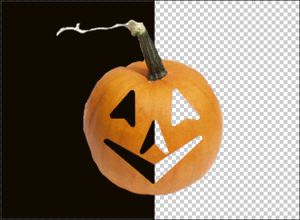
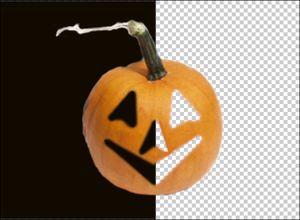
Hardness = 100% Hardness = 20% -
Strength (1-100). The amount of influence on an image. As this parameter's value is increased, the degree of transparency left by the brush increases.
Removing the Boundary With the Eraser 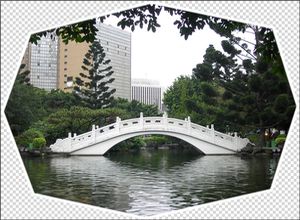
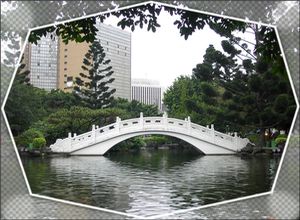
Strength = 100% Strength = 45% - Color Sampling. When the check-box is disabled, the tool removes pixels of all colors. Activate the check-box to erase certain background colors. When you click with the eraser, it samples the color and uses it.
- Tolerance (1-100). This parameter becomes active when the Color Sampling check-box is enabled. It lets you adjust (reduce or expand) an area to be removed. At low values, the tool deletes colors similar to the pixel you click on. The higher the value, the wider the range of removable colors will be.
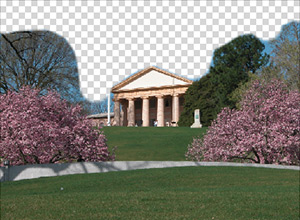
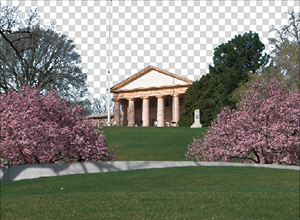
Color Sampling is disabled Color Sampling is enabled
In order to erase in a straight line, select the starting point of the line with the left mouse button, then, press and hold down Shift, move the cursor to the desired endpoint, and release Shift. If Shift is not released, then successive lines will be drawn to each point where the mouse is clicked.