Color Brush
The Color Brush  is used to draw free-form lines with soft borders. Using this tool, you can draw either a clear or blurry line, but they will always be soft. Press B to quickly access this tool.
The tool's parameters will be shown in a floating box over an image (by right-clicking the mouse) and in the Settings Panel.
In order to change a parameter's value, enter a numerical value in the box next to a parameter and press Enter (Mac: Return) or adjust the slider.
- Size (1-1000). The maximum width of a line which can be drawn with the brush (in pixels).
- Hardness (0-100). The amount of blurriness of the outer edge. The higher the value of this parameter, the harder the edge of the brush becomes. At almost 100%, the brush draws almost as hard as a pencil; while at a lower value the transition from the edge to the background is processed more smoothly.
-
Blend Mode. It defines how the brush strokes blend with the background. The program provides 16 blend modes.
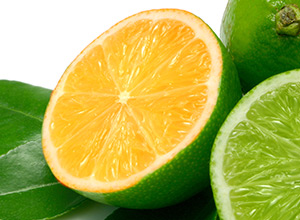
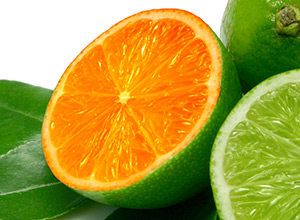
Screen Mode Overlay Mode - Opacity (1-100). Opacity of the brush strokes in relation to the background color. As the value is decreased, the line becomes paler and its interaction with the background grows stronger.
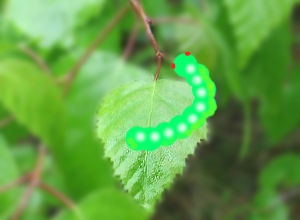
- Spot Spacing (5-200). Distribution of elements, from which the line is comprised. Increasing this parameter creates a line that is composed of a series of circles; the distance between the circles depends on the parameter's value.
-
Aspect (1-100). The compression of the brush tip.
At value = 1 the brush is flattened into a line, at 100 it is a circle, and at intermediary values it is an ellipse.
The lower the values for this parameter, the longer the ellipse, along the angle specified by Angle.
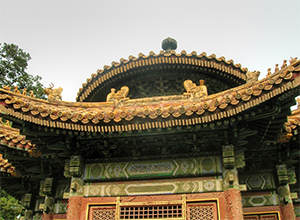
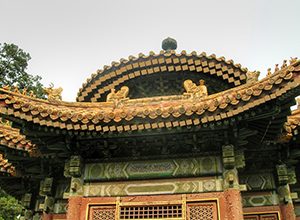
Aspect = 40 Aspect = 85 -
Angle (0-180). The rotation angle of the brush.
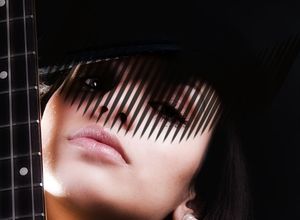
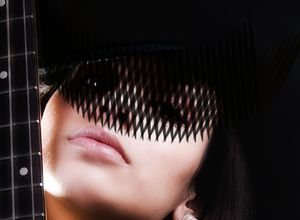
Angle = 62 Angle = 62 and 95 -
Noise check-box. Adds noise to a soft edge brush. At a lower value of Hardness and higher value of Spot Spacing, more noise can be obtained.
The Appearance of Snow on a Branch
(Hardness = 0%, Opacity = 100%, Spot Spacing = 30)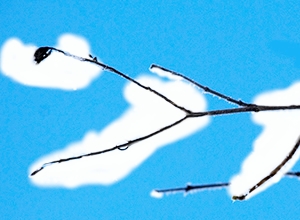
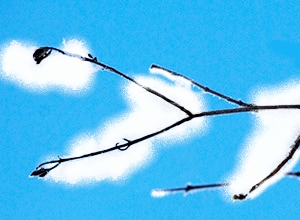
Noise is disabled Noise is enabled
| Birth of a White Giant (the circle shows the real size of the brush = 160) |
|
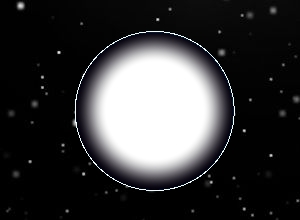 |
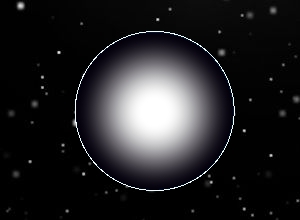 |
| Hardness = 60% | Hardness = 15% |
| Colorizing a Snowflake with a White Brush (Size = 6, Hardness = 85%) |
|
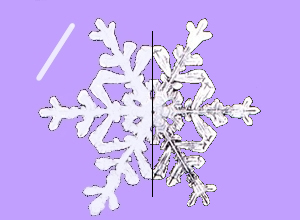 |
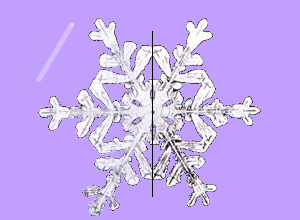 |
| Opacity = 90% | Opacity = 40% |
| Drawing with Spaces | |
 |
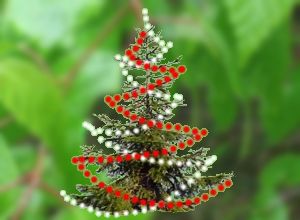 |
| Spot Spacing = 65 | Spot Spacing = 70 and 104 |
The color of the brush is changed in the Color/Swatches palettes. To change the color of the brush place the cursor over the spectral strip (the cursor takes the shape of a dropper) and click on the desired color or click on the square and select a color using the standard dialog Select Color. In some cases it may be more convenient to change the color manually, which can be done by adjusting the sliders.
To draw a straight line, first specify the starting point with the left mouse button, then, while keeping Shift pressed, move the cursor to the desired end point of the line and release Shift. If Shift is not released, a new line will be drawn to each point where the mouse is clicked.