Rotation and flipping in Corel PHOTO-PAINT


Please enter your email to be kept posted on updates and discounts:
 
 
  Products     Download     Online Store     Tutorial     Support     Company      Customer Room
en  fr  de  es  pt  it  jp  ru    
 

Tips & Tricks

Rotation and flipping in Corel PHOTO-PAINT


To rotate an image in Corel PHOTO-PAINT you can use commands from the submenu Image - Rotate.

  • 90° Clockwise - it rotates the image by 90 degrees clockwise.
  • 90° Counterclockwise - it rotates the image by 90 degrees anticlockwise.
  • 180° - it rotates the image by 180 degrees.
  • Rotate Custom - the command rotates the image by an arbitrary angle. For this purpose:
    • Step 1. select the command from the menu;
    • Step 2. enter the value of the rotation angle;
    • Step 3. specify the direction of the rotation - clockwise or anticlockwise;
    • Step 4. activate the check box Anti-alias to smooth the color transition;
    • Step 5. activate the check box Maintain original size so that after the rotation the size of the file (in bytes) stays the same;
    • Step 6. when rotating the image other angle than 90°, 180° or 270° specify the color of the free space in the Background color option;
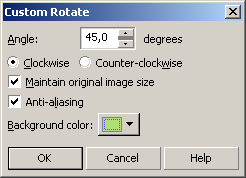
    • Arbitrary rotation
      Step 7. press the button OK.

To flip an image in Corel PHOTO-PAINT you can use the following commands from the menu Image - Flip:

  • Flip Horizontally - it mirrors the image as to the standing axis, i.e. allows to interchange the left and the right parts of the image;
  • Flip Vertically - it mirrors the image as to the horizontal axis, i.e. allows to turn the image upside down.
 
Tips and Tricks Tips and Tricks
Paint Shop Pro Selection Tools Paint Shop Pro Selection Tools
Paint Shop Pro Layer Transformation Paint Shop Pro Layer Transformation
Paint Shop Pro  Rotation and Flipping Paint Shop Pro Rotation and Flipping
Paint Shop Pro  Changing Image Resolution Paint Shop Pro Changing Image Resolution
Paint Shop Pro Changing Image Size Paint Shop Pro Changing Image Size
Photo-Paint Selection Tools Photo-Paint Selection Tools
Photo-Paint Rotation and Flipping Photo-Paint Rotation and Flipping
Photo-Paint Image Resolution Photo-Paint Image Resolution
Photo-Paint Changing Image Size Photo-Paint Changing Image Size
Installing PlugIns in Photoshop Installing PlugIns in Photoshop
Photoshop PlugIns in Windows 64 bit Photoshop PlugIns in Windows 64 bit
Installing PlugIns in Paint Shop Pro Photo  Installing PlugIns in Paint Shop Pro Photo
Installing PlugIns in PhotoImpact  Installing PlugIns in PhotoImpact
Installing PlugIns in Xara Xtreme Installing PlugIns in Xara Xtreme
Xara Xtreme Pro & Plugins: Live Effects Xara Xtreme Pro & Plugins: Live Effects
Installing Photoshop PlugIns in GIMP Installing Photoshop PlugIns in GIMP


back to top


   Privacy Policy | Site Map | Search at AKVIS    
   Contact Us | Twitter | Facebook | YouTube Channel    
| English  |Français  |Deutsch  |Español  |Português  |Italiano  |日本語  |Pусский  | © 2004-2012 AKVIS. All rights reserved.